With the Info tool, query map features and visualize their attribute data easily. Learn how to interact with it.
Use the Info tool
Use the Info and Pan tool

or the Info tool

to click on the map and open the Info panel automatically. The Info panel will show you the list of map features located where you clicked. The location of the click will also be shown on the map with

.
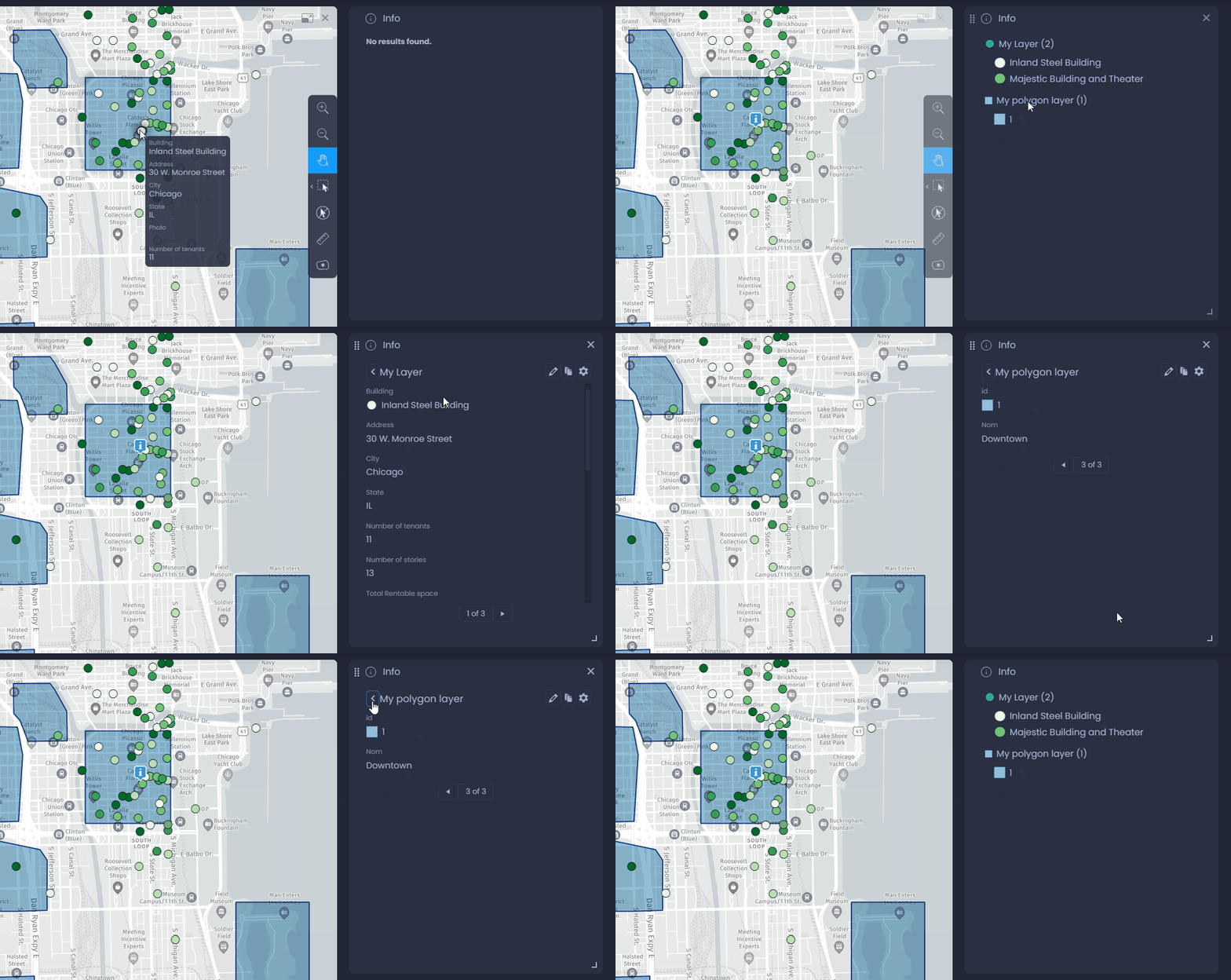
The content of the Info panel will change depending on where you click.
Info with no map features
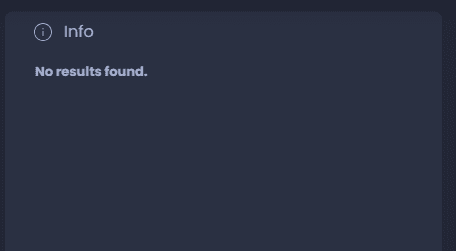
When you click on a location where there are no map features, the Info panel will be empty with this message:
Info with one single map feature
When you click on a location where there is a single map feature, the Info panel will show the corresponding data directly:
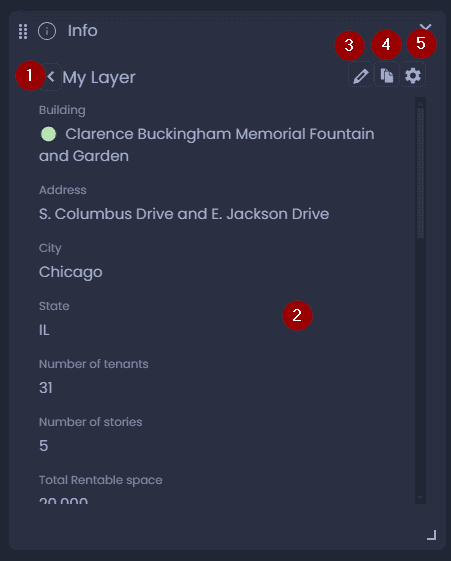
Here is the content and the actions in this panel:
-
The name of the layer where this feature is from. Click on the back arrow to see the list view (in this case, the list will show this single feature).
-
Data of the feature
-
Click

to edit the data if you have edit permission on the layer
-
Click

to copy the content of the Info panel to your clipboard
-
Click

to open the layer settings to change the Interactivity settings. See our dedicated article.
Info with multiple map features
When you click on a location where there are multiple map features, the Info panel will show the list of features on this location, and the layer their are from:
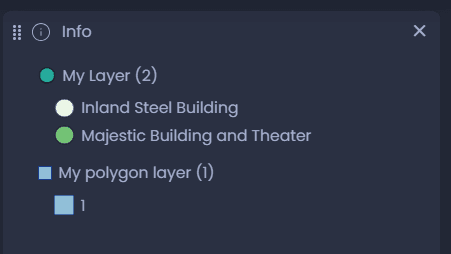
From this list, click on a feature to see its data:
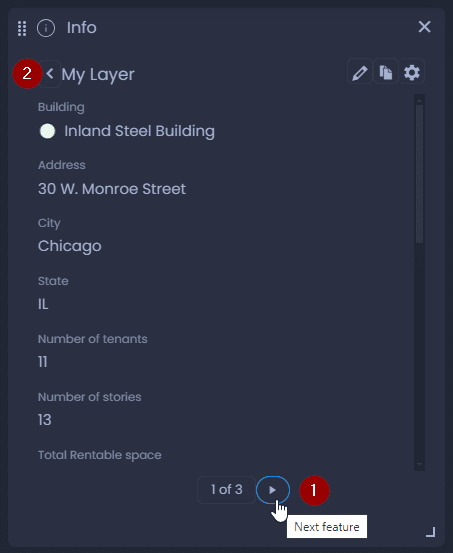
- Use the left and right arrows at the bottom of the panel to navigate between the different features of the list.
- Click on the back arrow to go back to the list view.
Info panel with one-to-many data
If your layer is joined with a data table with one-to-many data, you will see both the aggregated and the individual values of the joined data. Please see our dedicated article to learn more.
Customize the Info tool
Change the data displayed in the Info tool
To change the data displayed in the Info tool, a Map Creator with edit permission on the map can change the layer Interactivity settings. The Info tool can also be fully customized with the HTML template. See our dedicated article.
Change the Info tool layout
By default, the Info tool results are shown in a separate panel, but this panel can be turned into a map pop-up window:
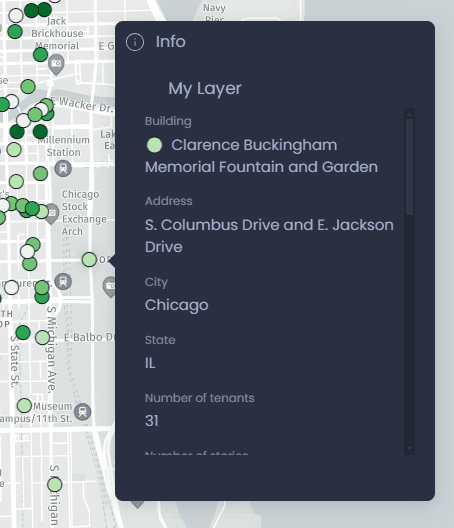
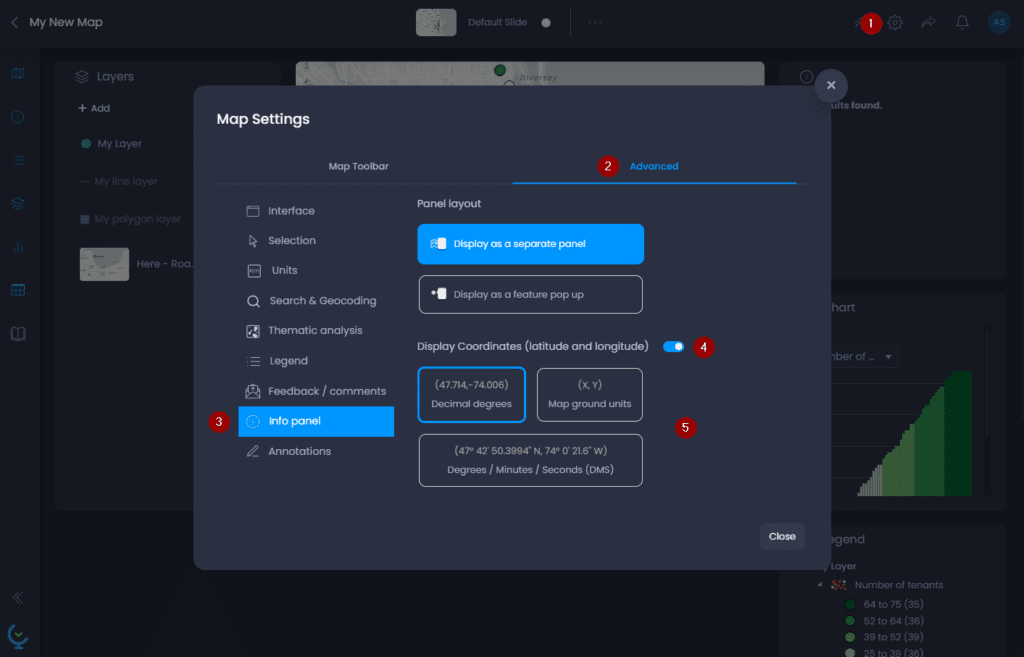
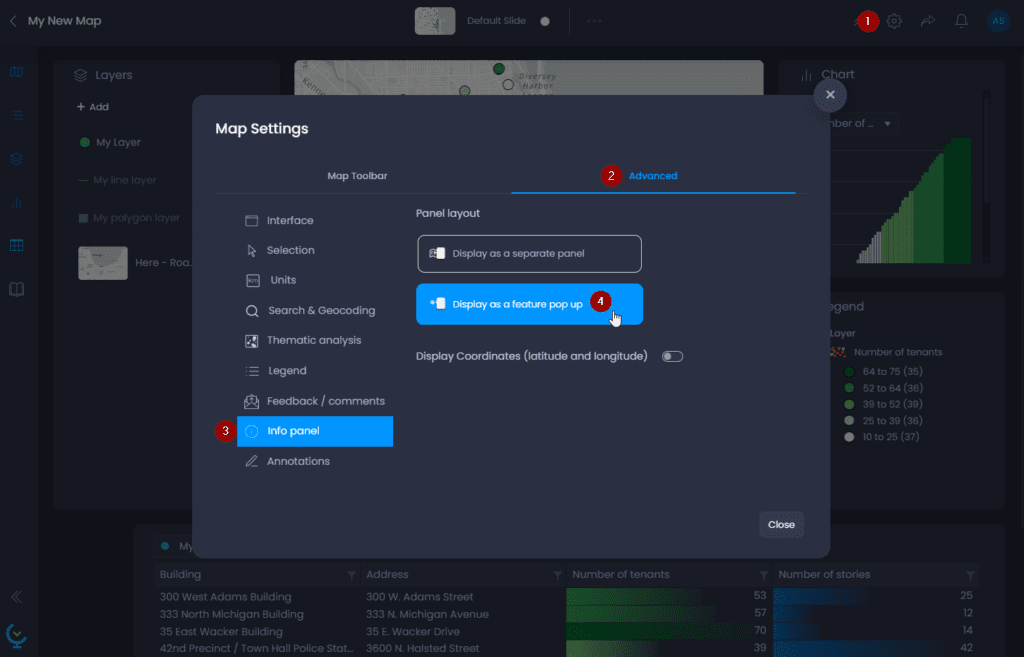
Here’s how you can change the Info panel layout:
- Open the Map settings
- Go to the “Advanced” tab
- Go to the “Info panel” section
- Click on “Display as a feature pop-up“
Add coordinate information to the Info tool
You can also add the coordinate information on where you clicked in the Info panel:
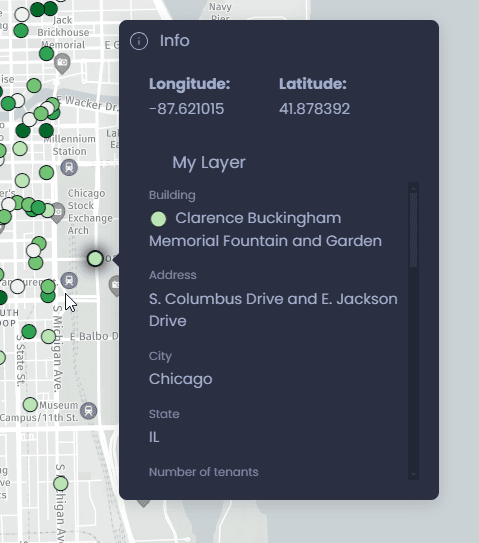
Here’s how you can add coordinate information:
- Open the Map settings
- Go to the “Advanced” tab
- Go to the “Info panel” section
- Click on “Display Coordinates (latitude and longitude)“
- Choose how you want coordinates to be displayed:
- Decimal degrees
- Map units (Spherical Mercator coordinates in meters)
- Degrees / Minutes / Seconds (DMS)