



Maps can be made public to be embedded into your website. The map can be integrated into an existing web page with an iframe.
First of all, your map needs to be public. Check out our article on how to make a map public.
Then, you can get the iframe code snipped from the map.
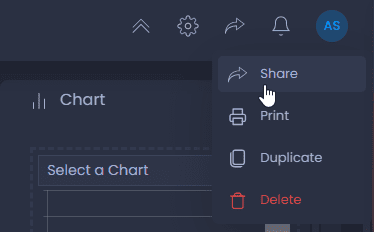
1. Open a map and click on

then “Share”:
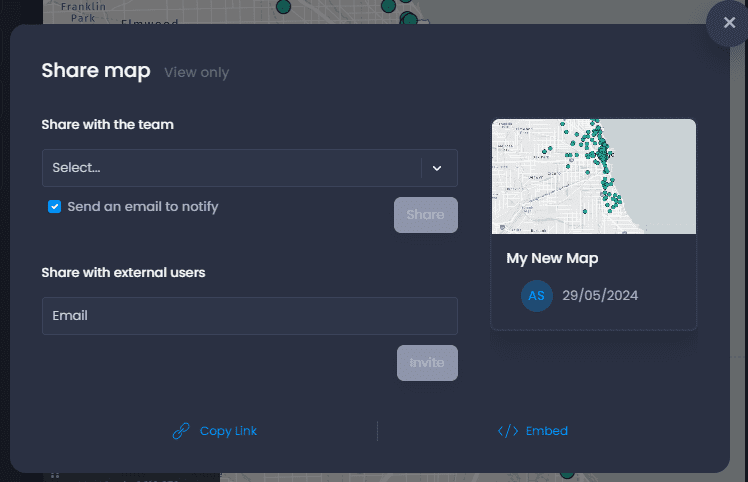
2. Click on

to see the code snippet
3. You can now copy the code snippet to add it to your web page.
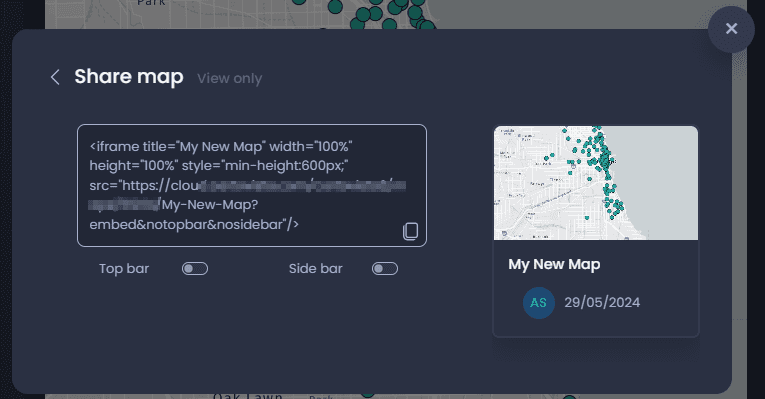
You can also choose to hide or show the top and side bars. By default, they will be hidden. Toggle the Top bar and Side bar options to change the code snippet to make the bars visible.