



In a map, you can use the selection tool

to select features on the map by drawing an area or clicking on features.
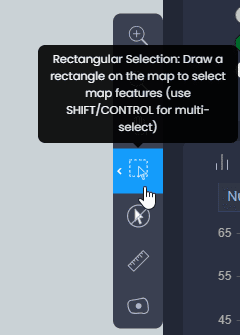
Click on the selection tool in the toolbar to activate the tool:
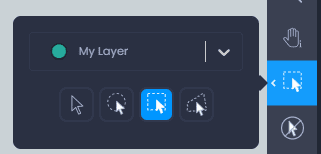
Click on the arrow to see more selection options. From this dialogue, you can choose the type of selection you want:
-

Individual selection: use this to click on individual features to select them. Use shift or control to select multiple features.
-

Circular selection: use this to draw a circle on the map and select features inside this circle. Use shift or control to draw multiple circles and select features inside all circles. See the perimeter, area and radius of the circle while drawing.
-

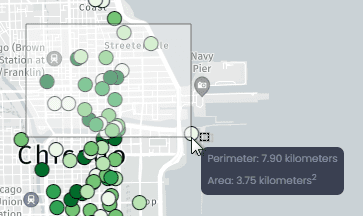
Rectangular selection: use this to draw a rectangle on the map and select features inside this rectangle. Use shift or control to draw multiple rectangles and select features inside all rectangles. See the perimeter and area of the rectangle while drawing.
-

Polygonal selection: use this to draw a free-form polygon on the map and select features inside this area. Click to create a first vertex, click again to add a second vertex and see the polygon started to be drawn. Add as many vertices as you want. Double-click to add the last vertex and close the polygon. Use shift or control to draw multiple polygons and select features inside all polygons.
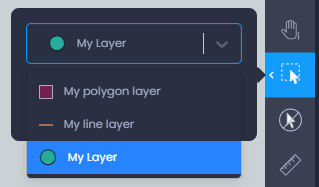
You can also choose the layer to be selected from the layer dropdown list when your map has multiple layers:
Once you have chosen your selection tool and your layer, click or draw on the map to start selecting features:
When features are selected, you can interact and visualize the result of the selection from multiple panels:
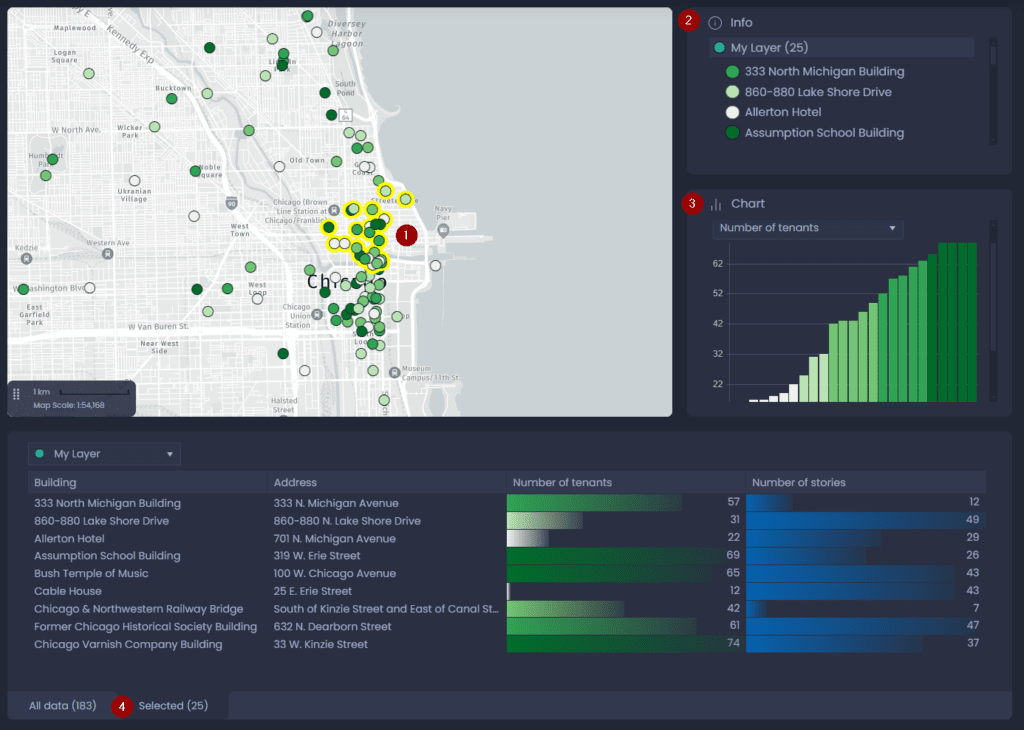
- From the map: the selected features will be highlighted in yellow. The color of the selection can be changed from the Map settings.
- From the Info tool: the list of selected features will be displayed in the Info tool panel.
- From the Chart panel: if your map contains a chart, the chart will be updated to show the selected features only.
- From the Data panel: the Data Panel will open the “Selected” tab to display the column values of selected features only. You can see the number of selected features in parentheses in the tab name. You can export the selection from the “Selected” tab, and switch from the “All data” tab to the “Selected” tab.