Layers by default have their name pre-populated by the original file name. These pre-populated names can be renamed 3 different ways.
- Data layers can be renamed when uploading the data.
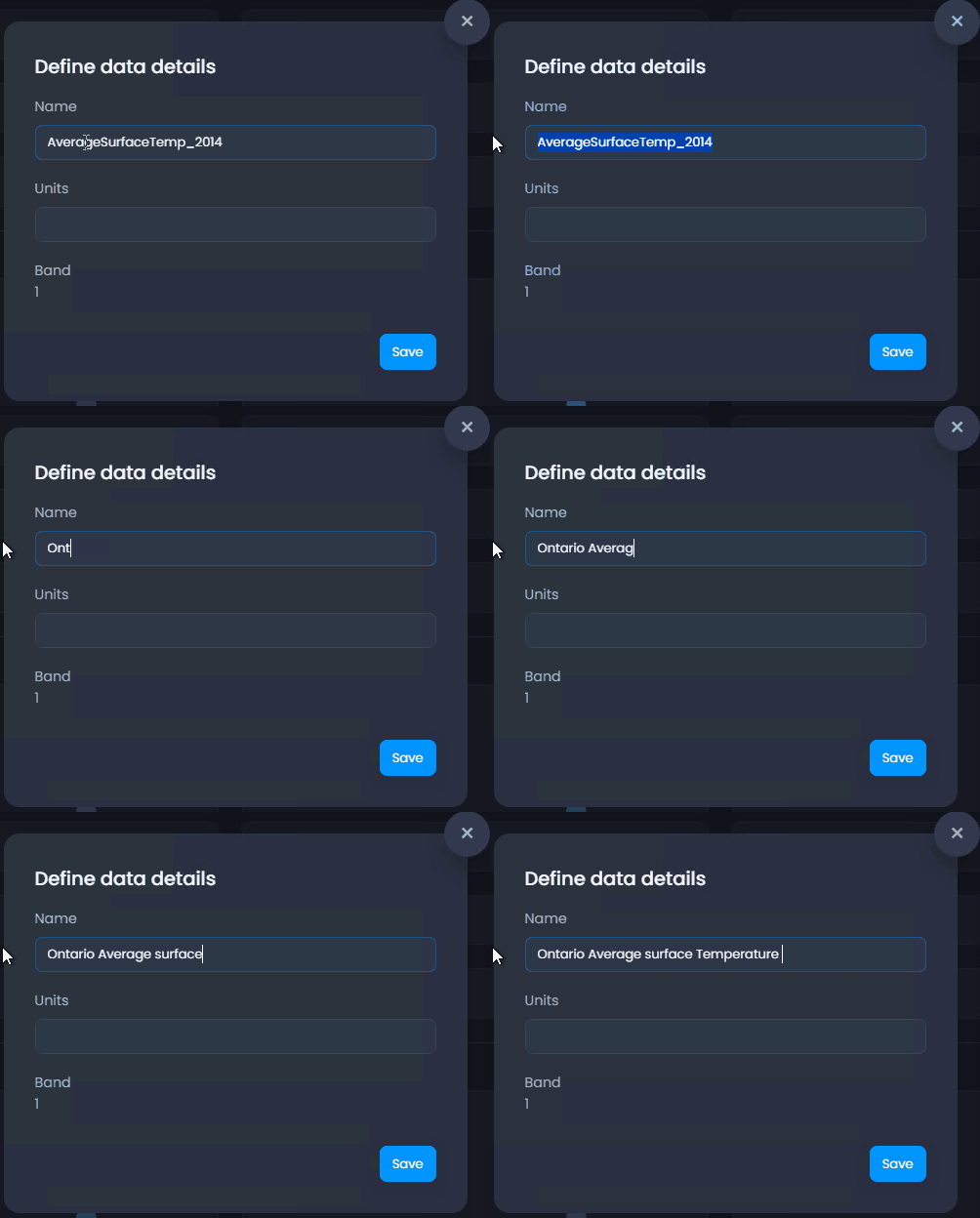
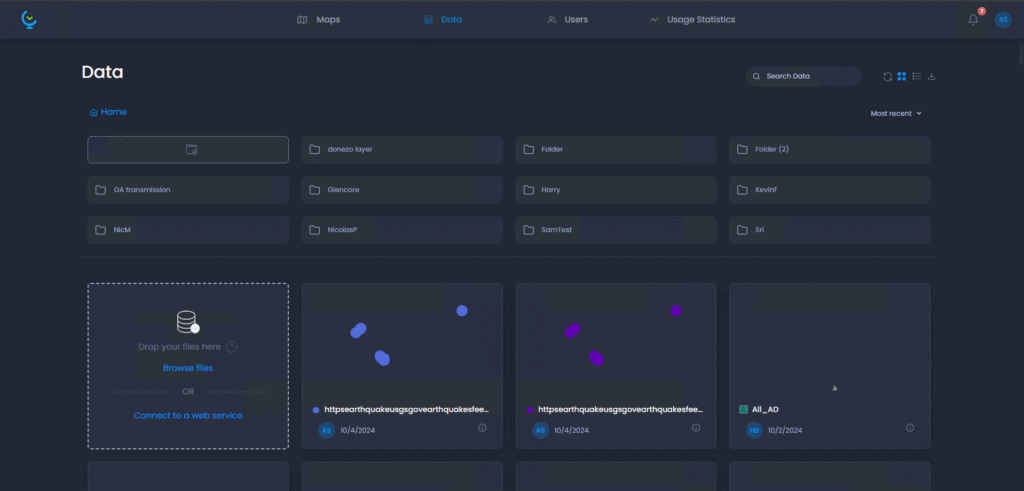
2. Layer names can be edited in the data panel options under “Title” or at the top of the Layer Details Panel
a. Edit the Layer name at the top of the Layer Details section or where the Title box is.
b. Open up the Data panel
c. Find and click the Information Icon to open up the Layer Details
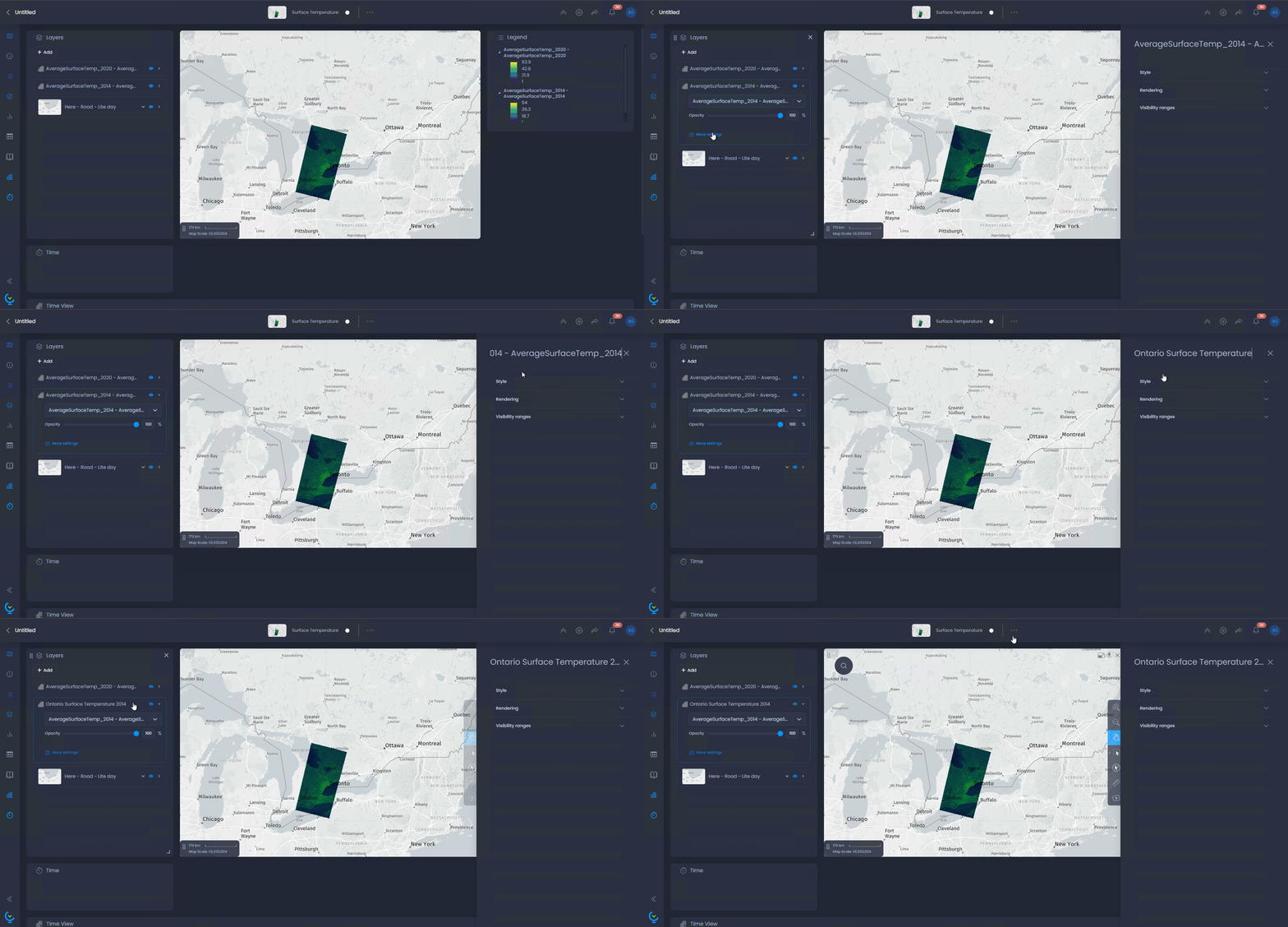
3. Layer names can be edited within a map under Layer Settings.
a. Open up your map and expand the layer you are trying to rename
b. Click more settings
c. Under the Layer details menu that pops up, click the title name at the top and rename as you would like.