Labels can be enabled for any layer, point, polygon or line with basic and advanced label settings.
Show labels
Labels can be enabled easily from the Layer control. Click on the label icon to show or hide the labels:
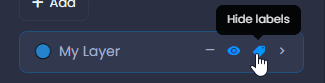
Labels are displayed according to their settings.
Basic labelling settings
To define the basic labelling settings:
- Open the Layer control
- Click on the down arrow to see the details
- Click on “More settings“
- Click on “Labelling“:
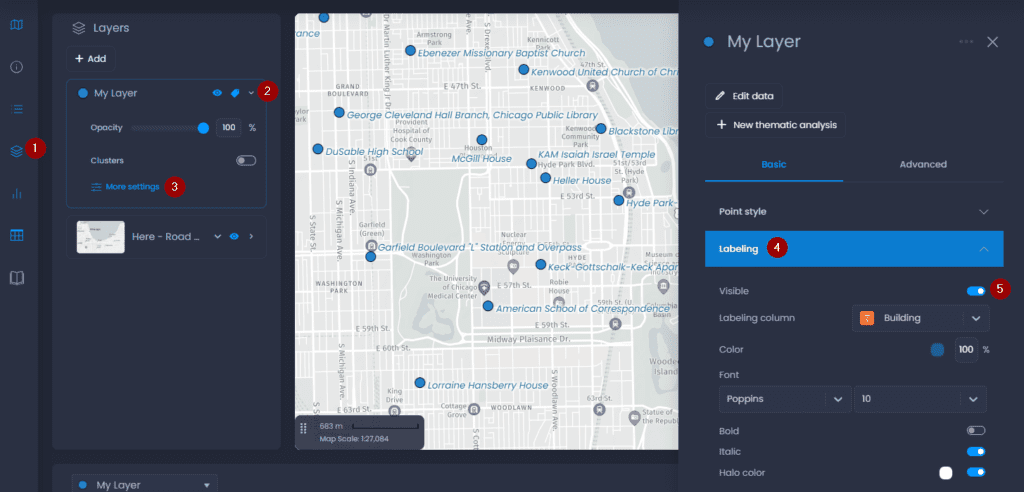
Here are the available parameters:
- Visible: show or hide the labels. This is the same as the toggle in the Layer control.
- Labeling column: the column to show in the label
- Colour: color of the label text
- Font: font type and size of the label text
- Bold: make the label text bold
- Italic: make the label text italic
- Halo color: add a halo around the label text and define its color.
Advanced labelling settings
To define the advanced labelling settings:
- Open the Layer control
- Click on the down arrow to see the details
- Click on “More settings“
- Click on “Advanced“
- Click on “Labelling options“:
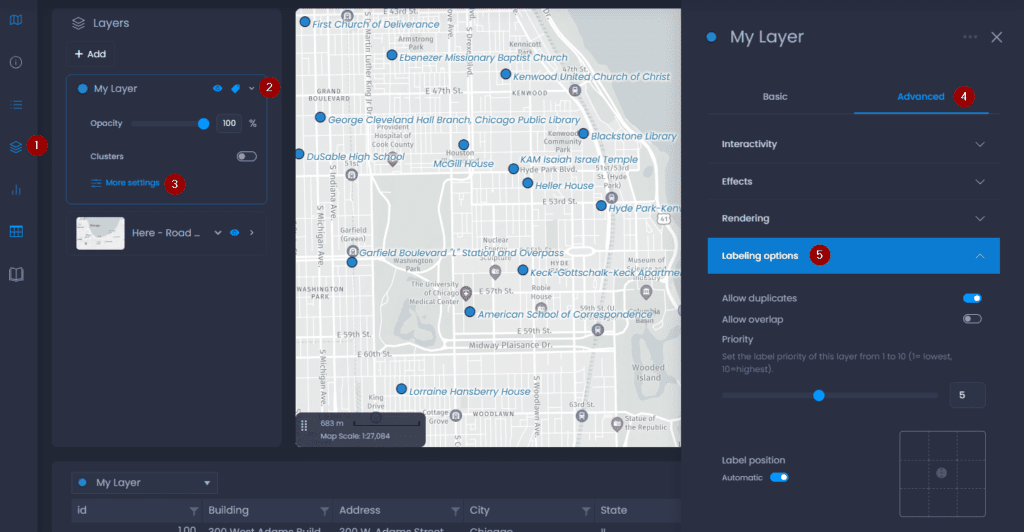
Here are the available parameters:
- Allow duplicates: this setting is enabled by default. When enabled, features with the same label text will all be labelled. When disabled, only one feature will be labelled.
- Allow overlap: when enabled, label text can overlap with other labels or map features
- Priority: if multiple layers have labels, the priority level defines which label should be displayed when two labels of different layers overlap. The layer with the highest priority will be displayed first, and the labels of the other layers that don’t overlap with the first will be displayed.
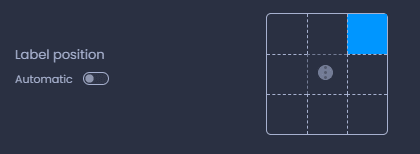
- Label position: the position of the label around the map features. When set to Automatic, the position will be optimized so there are as few overlaps as possible. When the Automatic option is disabled, you can choose the position around the feature by selecting a grid cell: