



You can make a map Public to share it without creating an account for the people you want to share it with. When this option is enabled, the map is accessible to whoever has the link, without authentication. Public maps will also be visible to all authenticated users in the Map Gallery.
To make a map public:
-
Navigate to your map in the Map Gallery and click on its name or

to open the details panel
-
Click on “Permissions“
-
Enable the “Public” toggle:
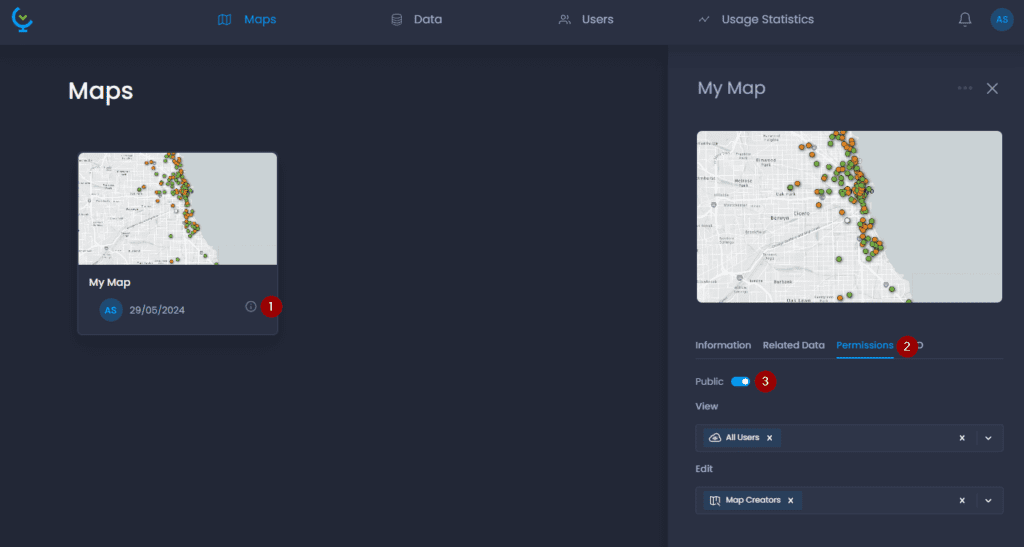
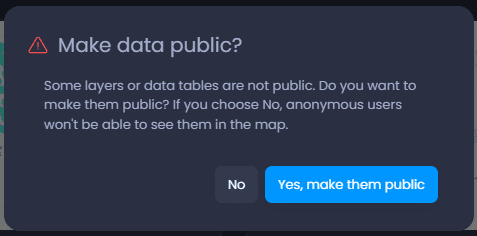
The layers must be public too: when you make a map public and not all layers in this map are public, you will be asked to make these layers public.
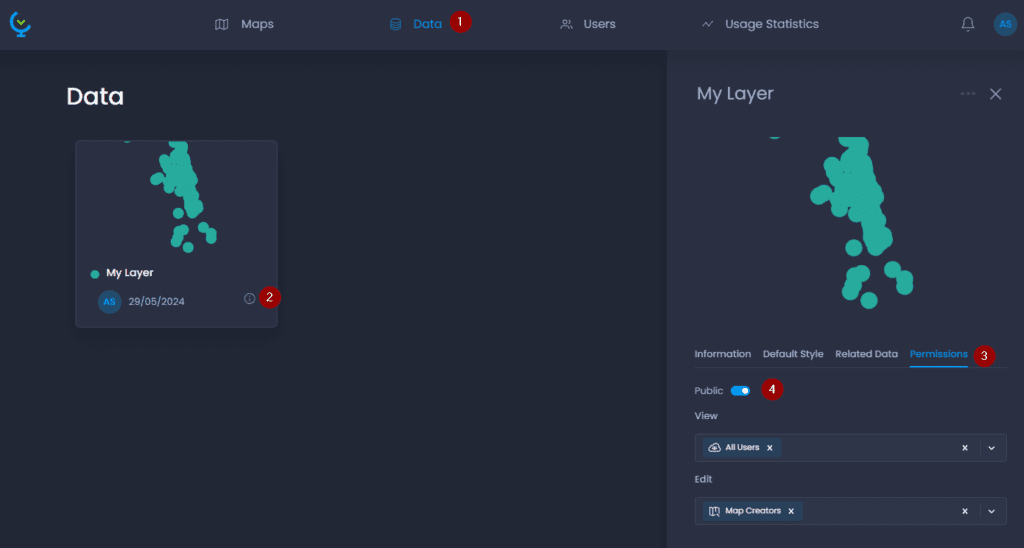
You can also make layers public individually if you do not want to make public all layers of your map:
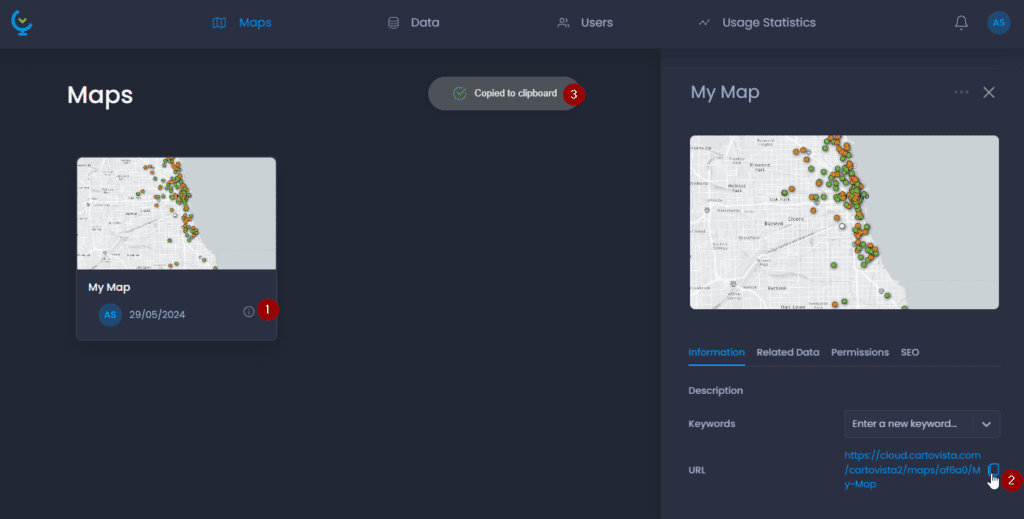
A public map can be visited using the URL provided in the Information tab, or through the Map Gallery. To get a map’s URL, here are the steps:
-
Navigate to your map in the Map Gallery and click on its name or
to open the details panel
-
Click on

to copy the URL
-
See the notification when the URL has been copied:
You can also use the Share map button to send an email notification. You can also embed a public map on your website.