



Display your map as a PowerPoint presentation with the presentation mode. Navigate in your story slide by slide, and step by step.
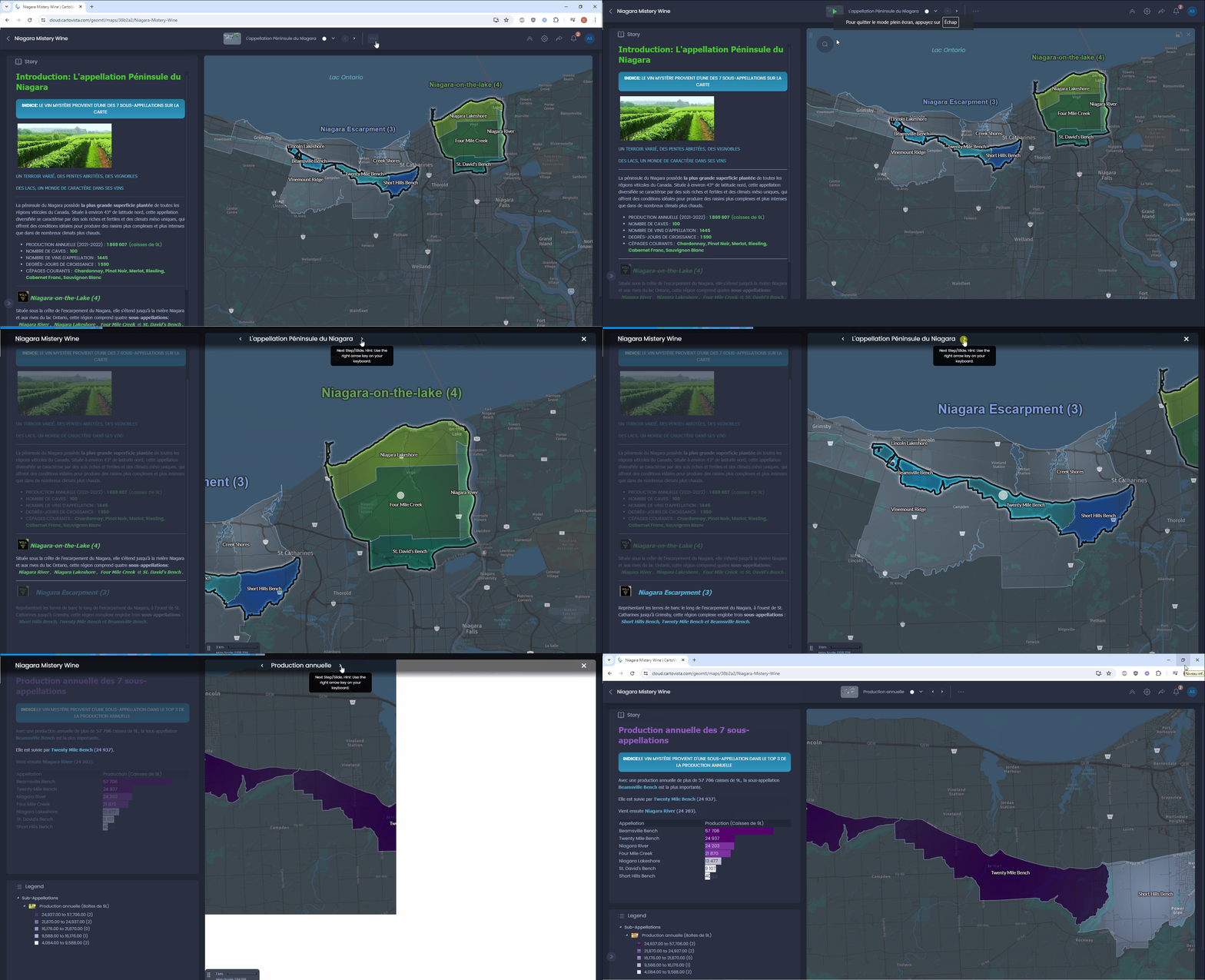
Create a story map
Use the presentation mode on a map with multiple slides, a story and steps to benefit from the full features of the presentation mode. Here are the articles to create such a map:
- Create slides
- Add a story to your map and create steps
Use the presentation mode
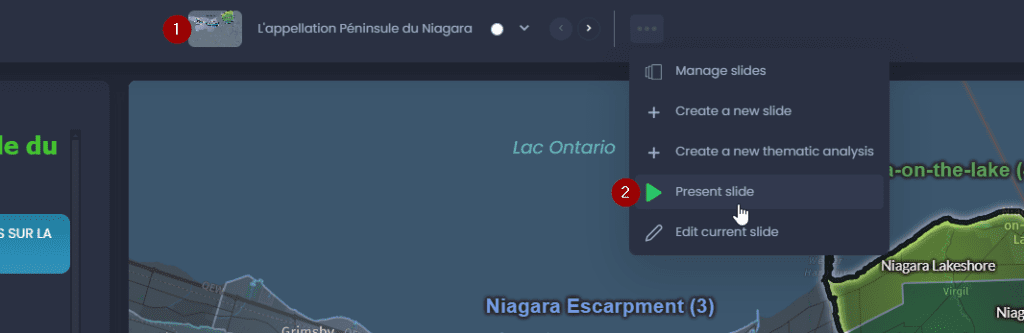
To present your map, click on the slide preview in the top bar (1), or click on the slide Actions menu

and click on “Present slide” (2):
Your browser tab will switch to full-screen mode. The first step of the current slide will be highlighted, and the top bar will show you the story progression with the blue bar.
Use the previous/next arrows in the top bar (1) or the arrow keys on your keyboard to navigate. Close the presentation with the Escape key or with the escape button in the top right corner (2).
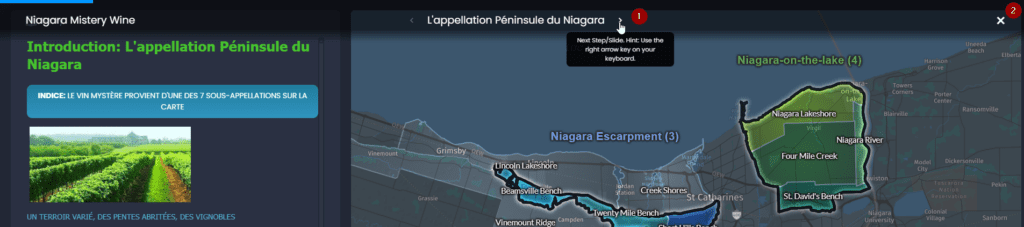
When clicking Next, the next step of the current slide will be highlighted, and the map will zoom to the linked feature if there is a link. If the current step is the last step of the slide, clicking Next will navigate to the first step of the next slide. Click here to learn how to link features to story steps.
As you navigate in the presentation mode, you can still interact with your map: display data tips, select features, open the info tool, etc.