



To customize the design of your maps, you can use layer effects and rendering.
Layer effects
To define layer effects:
- Open the Layer control
- Click on the down arrow to see the details
- Click on “More settings“
- Click on “Advanced“
- Click on “Effects:
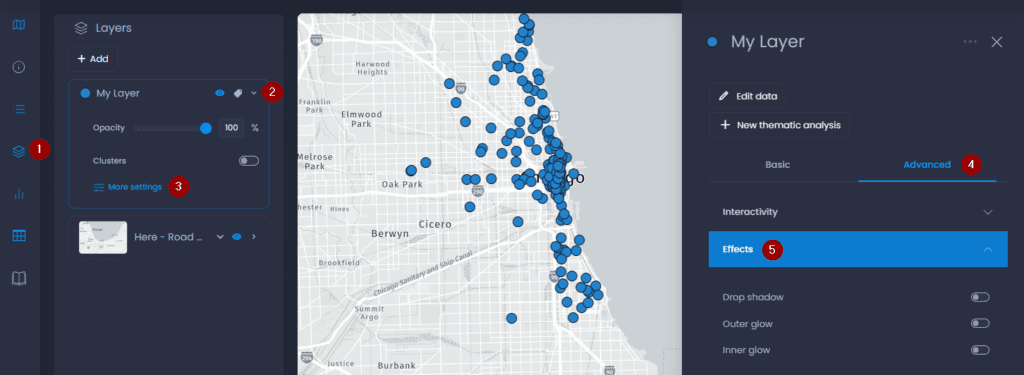
Here are the effects available:
Drop shadow
Enabling the drop shadow applies a drop shadow around all the features in the layer:
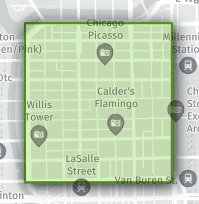
Here are the options:
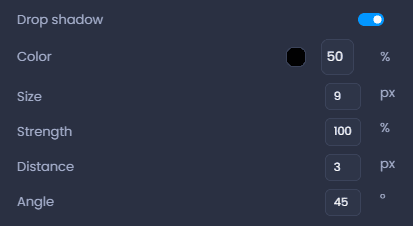
- Color: color and transparency of the drop shadow
- Size: drop shadow width in pixels
- Strength: sets how quickly the colour fades out to the blur width
- Distance: sets the number of pixels the drop shadow should be displaced relative to the source feature
- Angle: sets the angle the shadow should be moved relative to the source feature
Outer glow
Enabling the outer glow applies a glow effect around all the features in the layer:
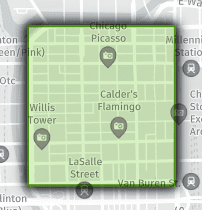
Here are the options:
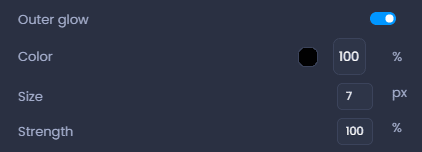
- Color: color and transparency of the outer glow
- Size: outer glow width in pixels
- Strength: sets how quickly the colour fades out to the blur width
Inner glow
Enabling the inner glow applies a glow effect around the inside of a feature’s border. For polylines, the effect is more noticeable with thicker stroke width
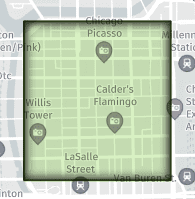
Here are the options:
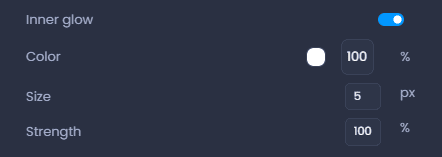
- Color: color and transparency of the inner glow
- Size: inner glow width in pixels
- Strength: sets how quickly the colour fades out to the blur width
Layer rendering
The layer rendering applies a blend mode to enhance the rendering of a vector layer on top of another layer, to see through the layer.
To define layer effects:
- Open the Layer control
- Click on the down arrow to see the details
- Click on “More settings“
- Click on “Advanced“
- Click on “Rendering
- Use the drop-down list to select a rendering mode:
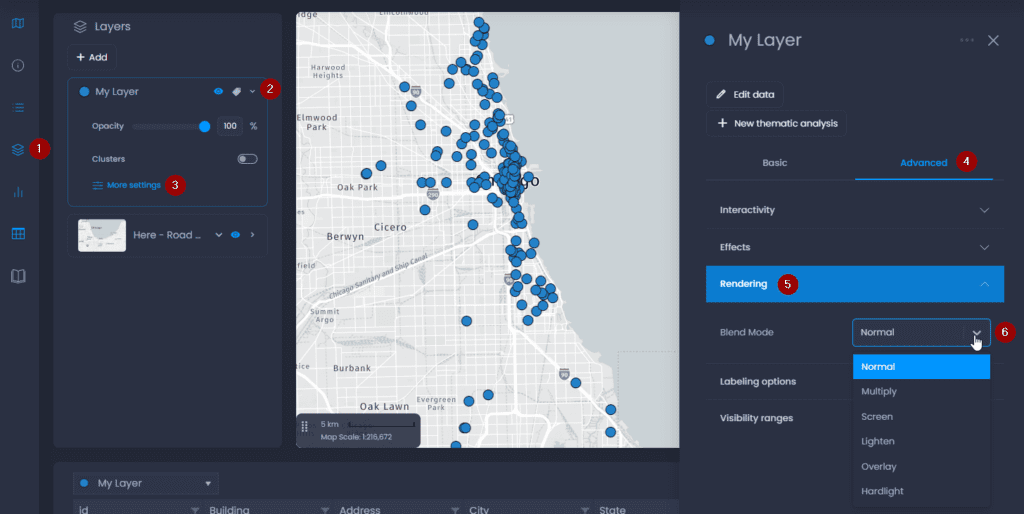
Here is the list of available rendering mode:
- Normal: The layer’s features appear on top of the background.
- Multiply: Multiplies the values of the layer’s colour by the background color, and then normalizes by dividing by 0xFF, resulting in darker colours.
- Screen: Multiplies the complement (inverse) of the layer’s colour by the complement of the background colour, resulting in a bleaching effect.
- Lighten: Select the lighter of the constituent colours of the layer and the colour of the background (the colours with the larger values).
- Overlay: Adjusts the colour of each pixel based on the darkness of the background. If the background is lighter than 50% gray, the layer and background colours are screened, which results in a lighter colour. If the background is darker than 50% gray, the colours are multiplied, which results in a darker colour.
- Hardlight: Adjusts the colour of each pixel based on the darkness of the layer. If the layer is lighter than 50% gray, the layer and background colours are screened, which results in a lighter colour. If the layer is darker than 50% gray, the colours are multiplied, which results in a darker colour.
If you are using a light colour base map, we recommend using the Multiply blend mode. This will provide transparency without altering the opacity of a layer.
When using a dark colour base map, we recommend the Overlay blend mode.