



Visibility ranges for layers, labels or clusters allow you to set the scales where your layers, labels are clusters should turned on or off automatically.
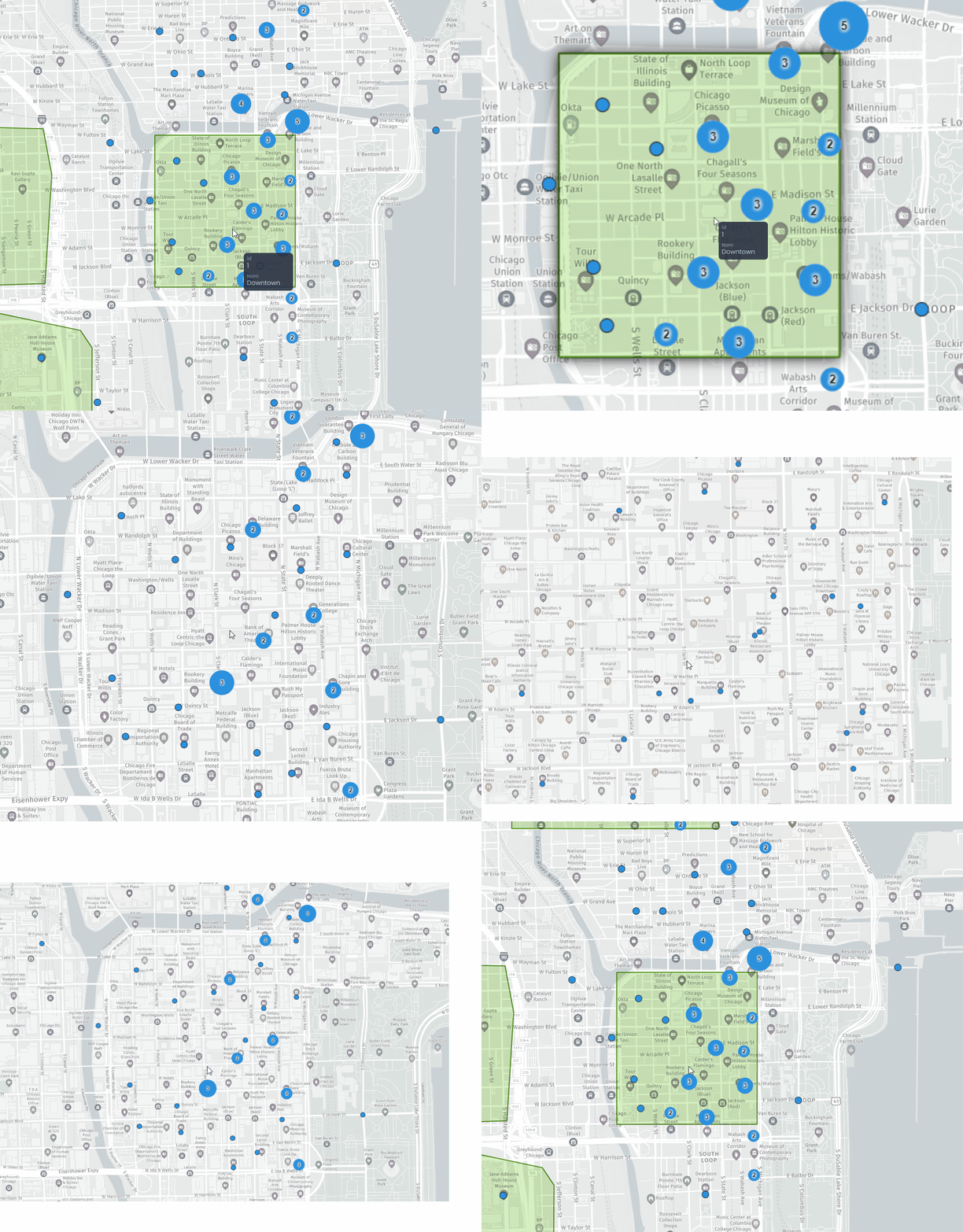
Visibility ranges are set in the layer settings in the map:
- Open the layer control
- Click on the down arrow to open the details
- Click on “More settings“
- In the properties panel, click on the Advanced tab
- Open “Visibility Ranges“.
Layers
When visibility ranges are enabled for a layer, it will only be visible in between the scale ranges set as Min and Max.
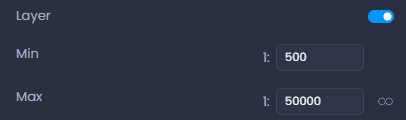
When the infinity symbol is on, the max value is ignored:

Labels
When visibility ranges are enabled for a layer’s labels, the labels will only be visible in between the scale ranges set as Min and Max.
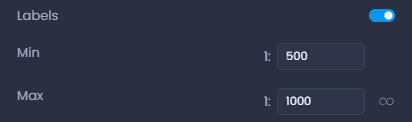
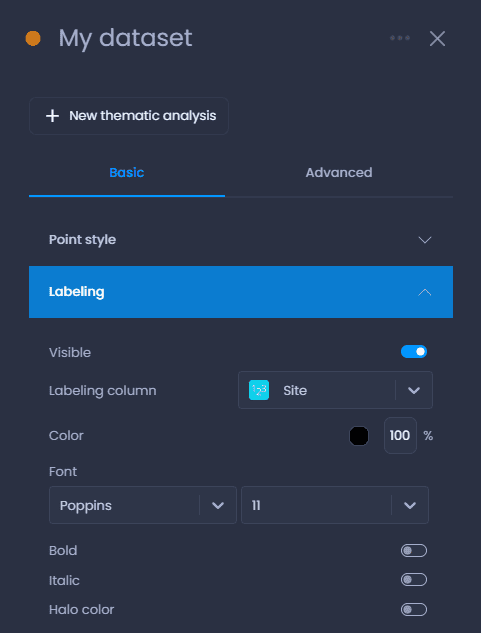
Labels have to be enabled in the layer properties as well:
Clusters
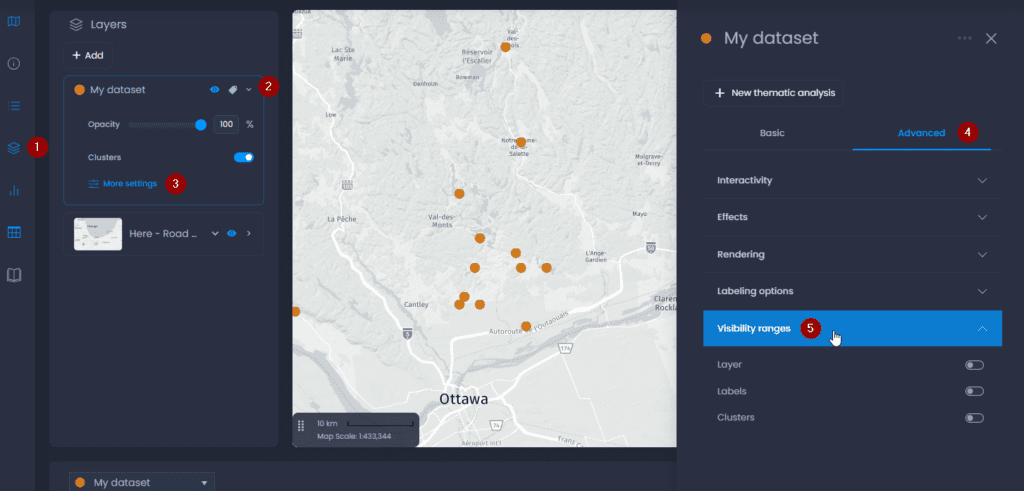
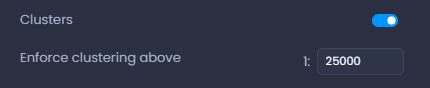
For point layers, clusters can be enforced above a certain scale:
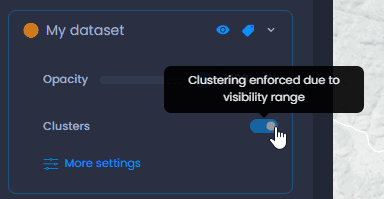
This will disable the cluster toggle in the layer control above the scale set in the visibility ranges:
To learn more about clusters, see our dedicated article.