Supported formats
Here is the list of supported formats by CartoVista. In this article, we’ll focus on tabular data.
| Type | Format | Extension |
|---|---|---|
| Vector | ESRI Shapefile | .ZIP |
| MapInfo Tables | .ZIP | |
| KML file | .ZIP | |
| SpatiaLite (.sqlite, .db3) | .ZIP | |
| Geopackage | .ZIP | |
| GeoJSON | .geojson | |
| PIX | .ZIP | |
| GPX | .ZIP | |
| Tabular Data | Excel | .XLSX / .XLS |
| CSV | .CSV | |
| Raster Data | Tagged Image File Format | .TIFF / .TIF |
Requirements for CSV files
The structure of your file should be aligned with CSV standards:
- the first row contains the headers
- each of the following rows contains a separate record
- each column value or header is separated by a comma (other delimiters are not supported)
- each row has the same number of columns.
- your file should contain one of the following:
- coordinate information: a column with latitude value, and a column with longitude values, in decimal degrees.
- address information: one or multiple columns with location information. The more information your file contains, the more precise the geolocation will be. If your location information contains precise street address information, don’t forget to add the country information for instance.
If your file contains address information and no coordinates, please refer to this article.
Requirements for Excel files
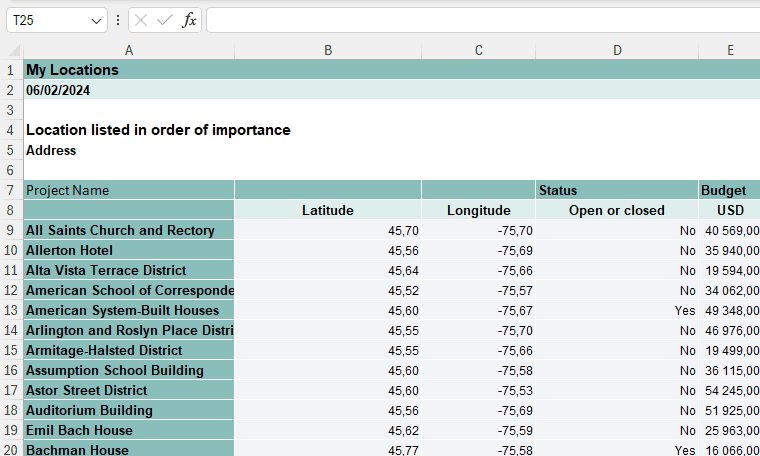
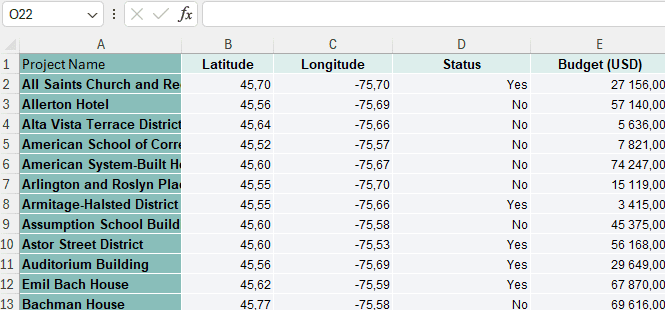
Your file should contain the headers and the values to be imported only. Cell A1 should contain your first header, and A2 your first value. Any other metadata or document titles should be removed.
Your file should contain one of the following:
- coordinate information: a column with latitude value, and a column with longitude values, in decimal degrees.
- address information: one or multiple columns with location information. The more information your file contains, the more precise the geolocation will be. If your location information contains precise street address information, don’t forget to add the country information for instance.
If your file contains address information and no coordinates, please refer to this article.
For instance, the following file is not valid:
This file is valid, and has more accurate address information:
Add data to your Data Gallery
Drag and drop or select your file
Navigate to the Data Gallery, drag and drop your file to the drop zone, or click on “Browse files” to select your file from your File Explorer.
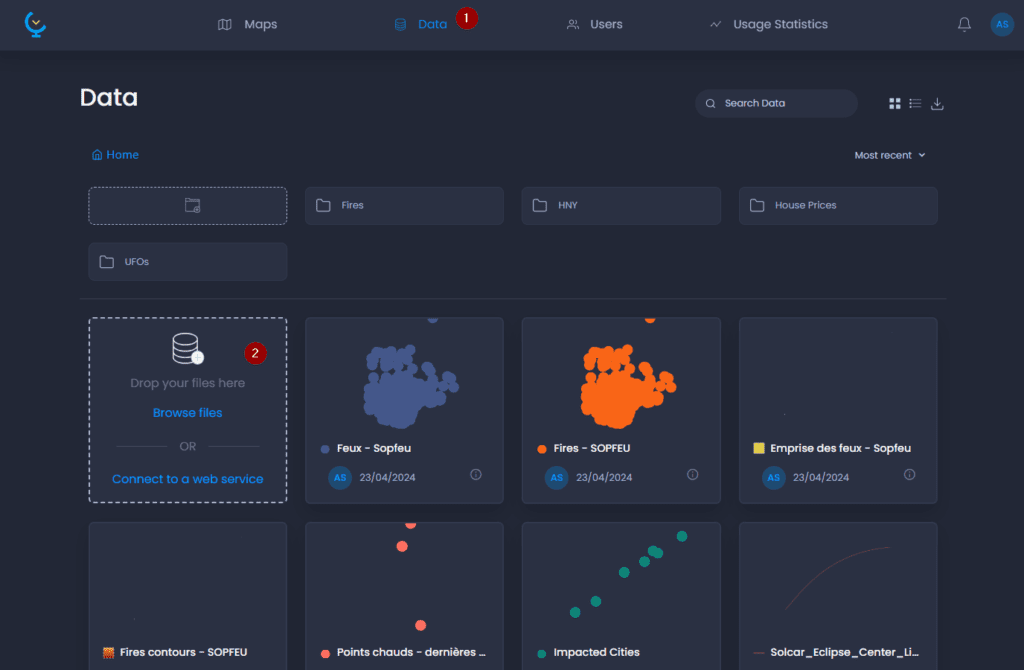
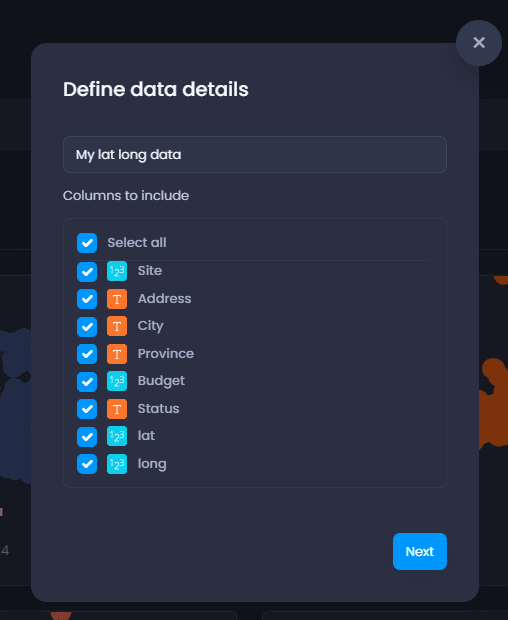
A pop-up window shows you the process of the table upload. Once the upload is completed, you can rename your table and select the attribute columns to be imported, then click Next.
Set layer properties
The next step allows you to edit column properties:
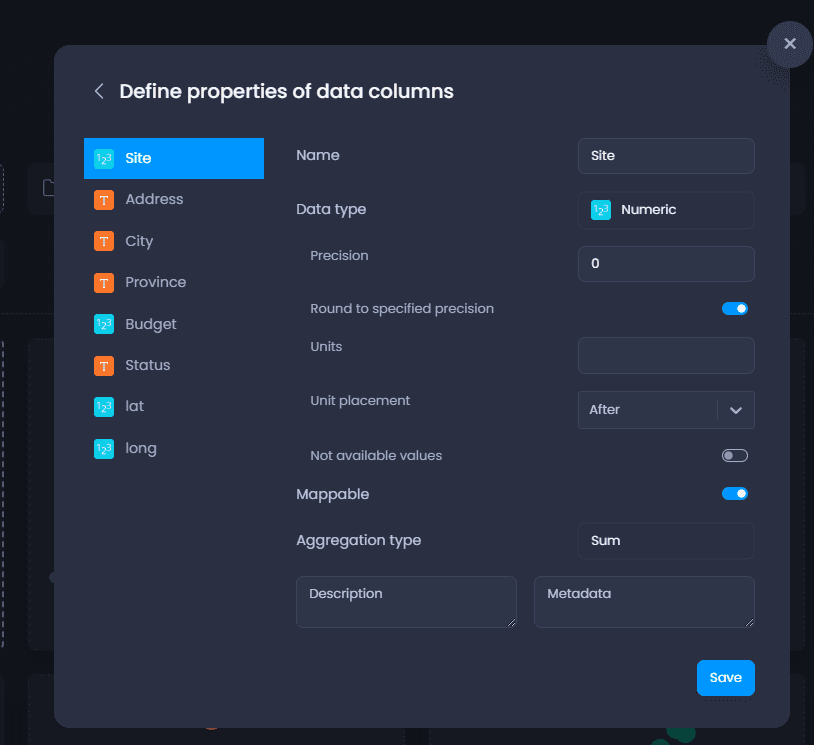
| Property name | Property description | Column type |
|---|---|---|
| Name | This is how the column will be displayed in the map | All types |
| Data type | Numeric, String, Image URL, Date/Time. | All types |
| Mappable | When set to false, this column won’t be visible in the map. | All types |
| Aggregation type | The aggregation method to be used in charts and time-based data. - Supported aggregation types for Strings, Image URL and Date/Time are: Count, None. - Supported aggregation types for Numeric are: Average, Count, Max, Min, Sum, None. When set to None, the column cannot be aggregated and will be set to an N/A value on aggregation. | All types |
| Description | Free text to describe your column. The description is only accessible from the Data Gallery in the Column Properties. | All types |
| Metadata | Free text to add metadata to your column. The metadata are only accessible from the Data Gallery in the Column Properties. | All types |
| Precision | The number of decimals to display. Any additional precision is still stored but not displayed, meaning you can increase the precision after the import. The default is 2. | Numeric |
| Units | Units to be displayed next to the value in the map data tips, info tool, table view, charts, legend, etc. | Numeric |
| Unit placement | Unit placement after or before the value. | Numeric |
| Not available values | Enable N/A values to convert a value of this column to N/A. | Numeric |
| Value to convert | The value to be converted to N/A. This property is only accessible when Not available values are enabled. | Numeric |
Select your location information
Click Save to validate the column properties.
If the next step is “Geocode by Latitude and Longitude”, CartoVista has detected that your file contains Latitude and Longitude and has pre-selected at least one of the columns for Latitude or Longitude. Make sure that the pre-selected columns are correct, and change the selection using the down arrows if needed.
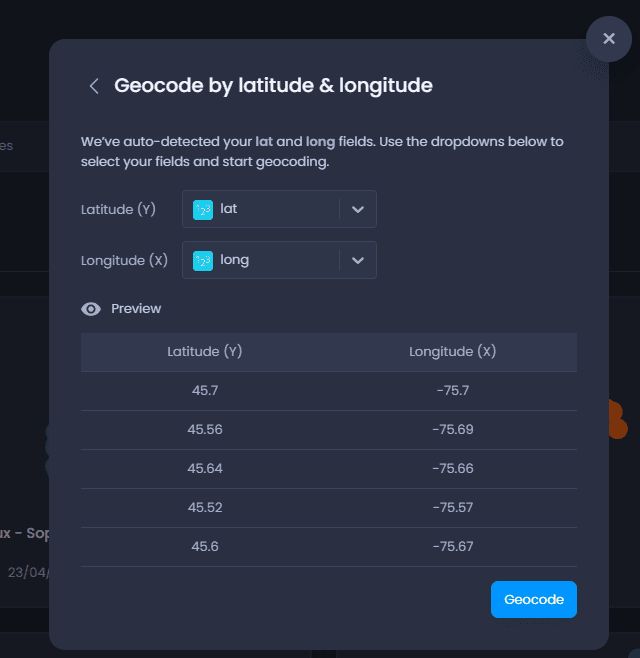
If the next step is “What you would like to do?”, select “Geocode by Latitude and Longitude”. This will allow you to select the Latitude and Longitude columns to be used for the geocoding.

The preview shows the values of the selected columns for the first rows of your table. Make sure the coordinates are correct before clicking Geocode.
Result
When you click Geocode, your layer will be imported and added to the Data Gallery. The notification will inform you of the progress of the layer import. Once the layer has been successfully imported, the notification will allow you to create a map using this layer:
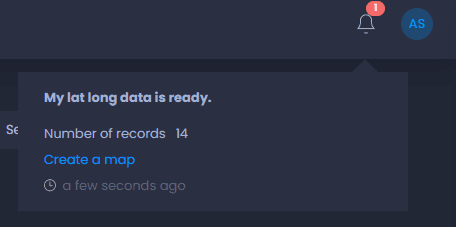
The layer will be added with a default layer style and a preview in the Data Gallery, in the folder you were in.