


Skip to content

Support

How to import data from a web service (WMS, WMTS, ESRI ArcGIS Feature Service)

CartoVista supports not only the uploading of local files, such as data tables, vector layers, and raster layers, but also allows users to add web services layers like ESRI ArcGIS Feature Services,…

CartoVista supports not only the uploading of local files, such as data tables, vector layers, and raster layers, but also allows users to add web services layers like ESRI ArcGIS Feature Services, WMS, WMTS, and GeoJSON data.

The process is simple, and straight forward:

  1. Open the Data tab, and click on Connect to Web Service, this can also be done within a Map
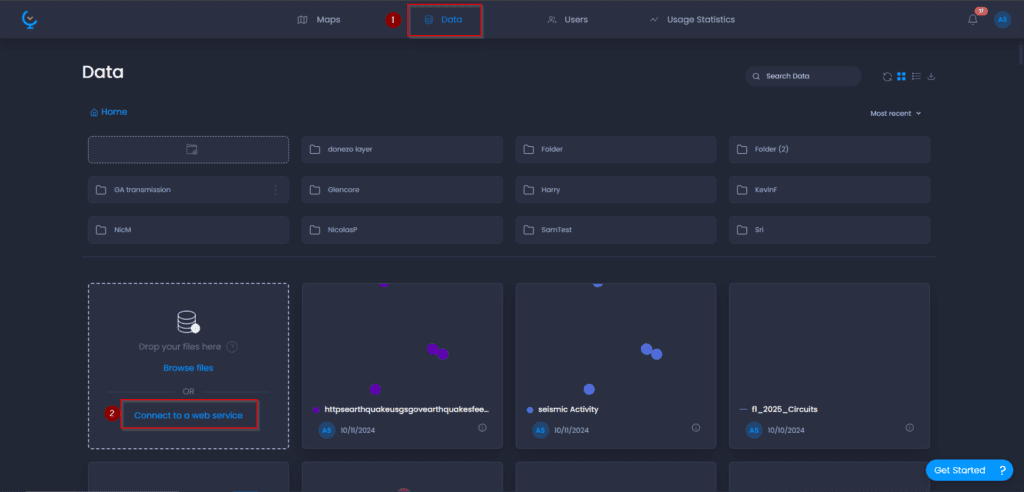
Screenshot showing 1 opening wms dialog in CartoVista when importing data from a web service (wms, wmts, esri arcgis feature service)

2. Select the appropriate Web Service (e.g., ESRI Feature Services) you would like to import, and enter the URL and click Add
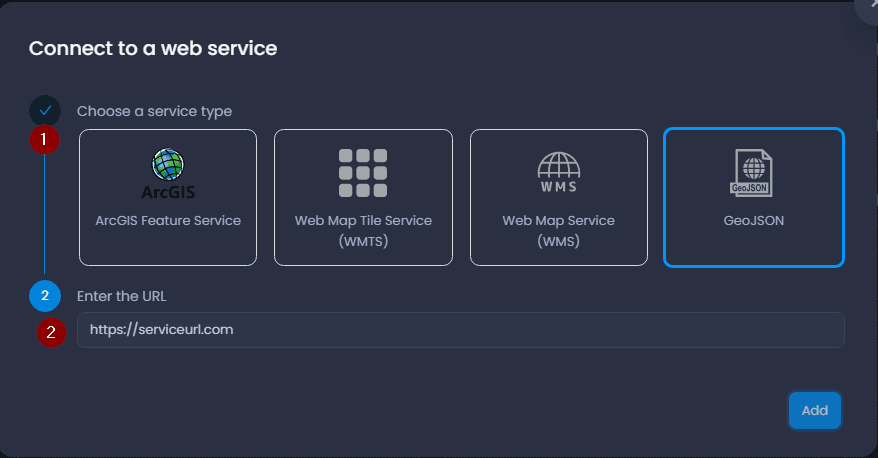
Screenshot showing 2 selecting wms in CartoVista when importing data from a web service (wms, wmts, esri arcgis feature service)

Sample walkthrough of importing an ESRI Feature Service Layer
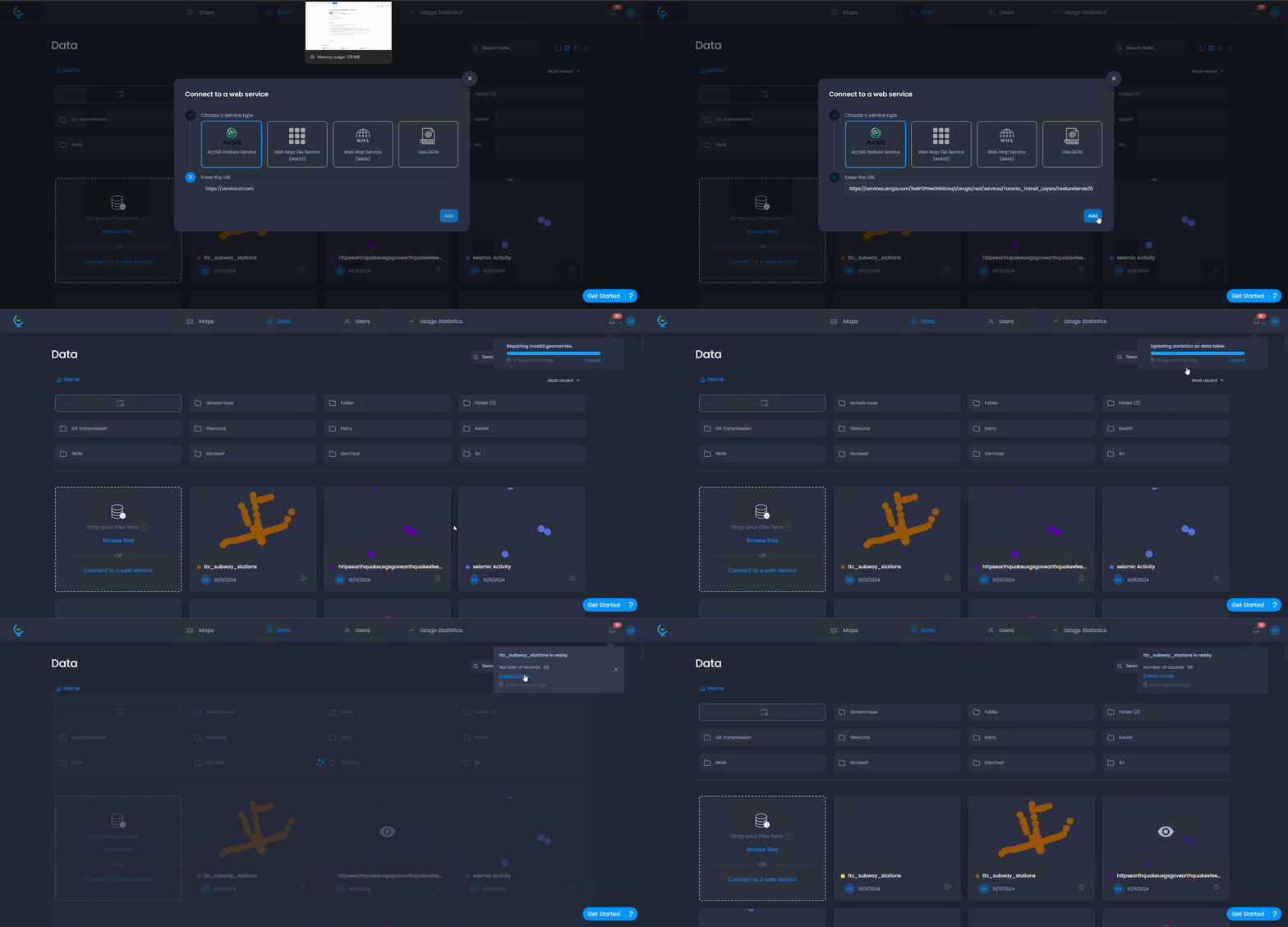
Screenshot showing importing arcgis service layer in CartoVista when importing data from a web service (wms, wmts, esri arcgis feature service)

Search documentation