


Layers contain a table of features typically called an attribute table, they contain important information about all the features and is useful for analysis purposes. Attribute tables can be viewed either from the Data tab or directly within the map.
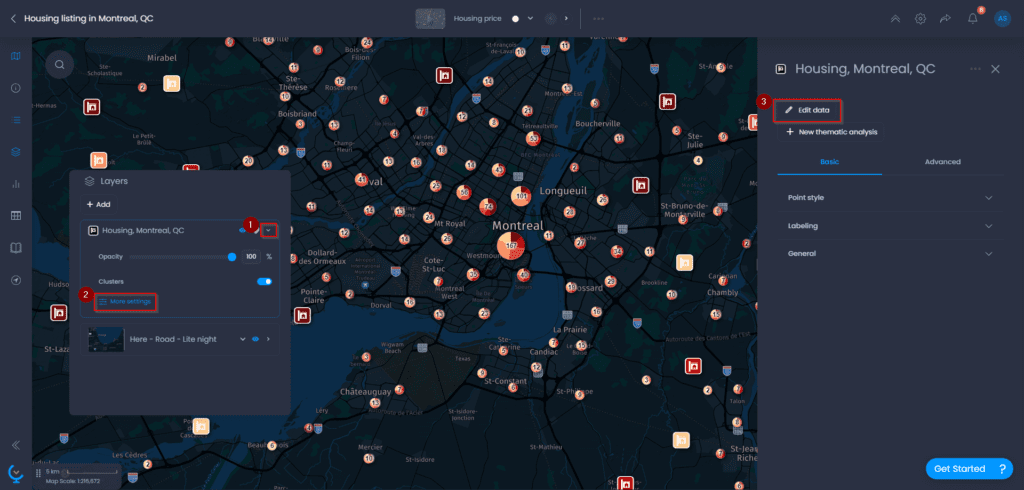
In order to view an attribute table from the map view:
- Expand the layer settings, and go to more settings
- Click on edit data
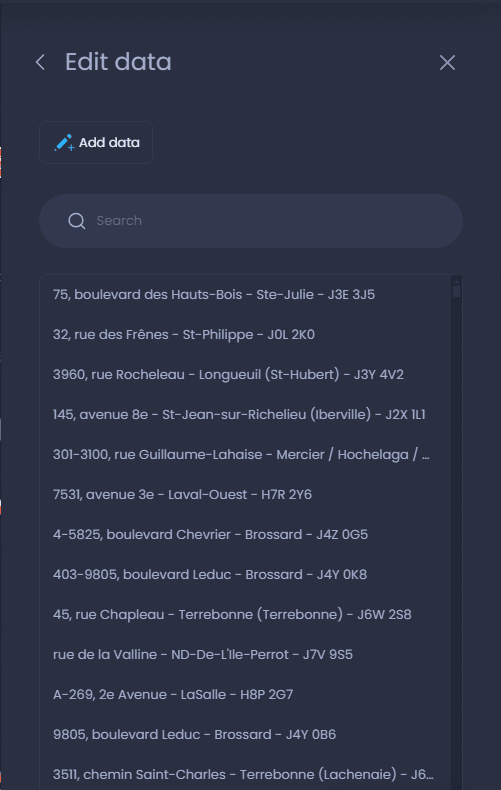
- Under edit data, you can see all features for the desired layer, you are also able to edit and add new features.
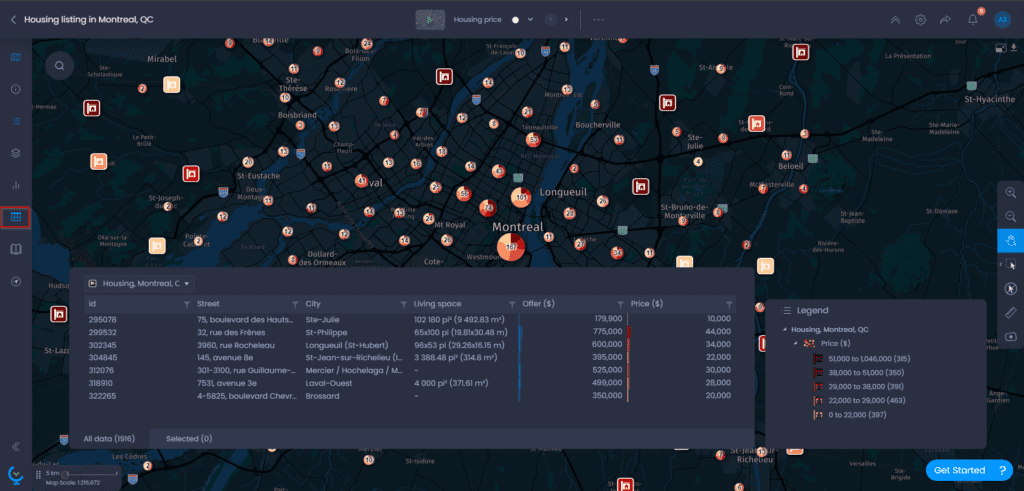
- Alternatively, you can enable the data table on the left hand side to view the attribute table panel.
- Here you can view, filter, and export the attribute table as required.
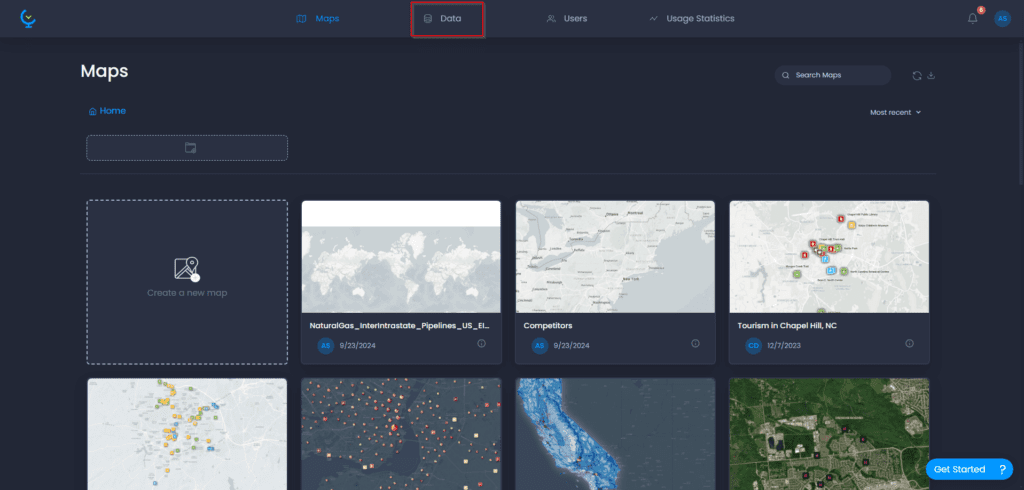
In order to view an attribute table from the data tab:
- From the main page, click on the data tab to access all layers
- Find the data layer, you would like to view the attribute table for.
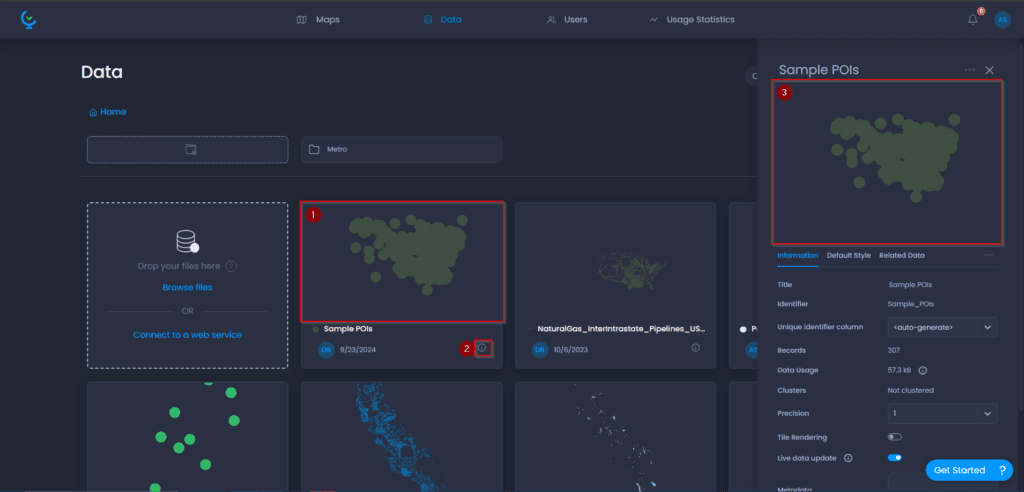
- Click either the image of the desired layer or the information icon and then click the image of the layer on the information panel. This will open up the attribute table
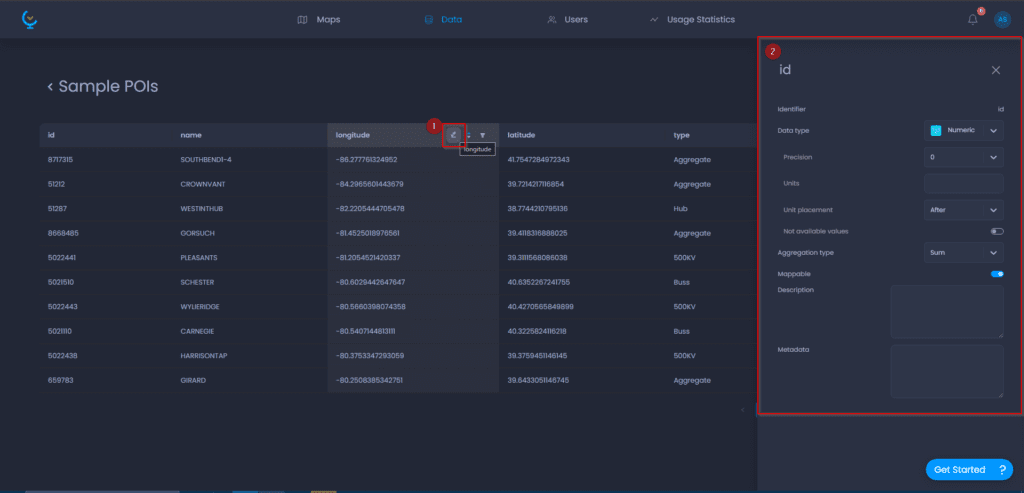
- This table will have a list of the first 100 features only, here you can view a sample of the dataset if the original dataset has >100 features and change column data type, metadata, etc.