



Data layers can be downloaded from CartoVista under the Data tab in various formats.
- Data tables can be downloaded as CSVs
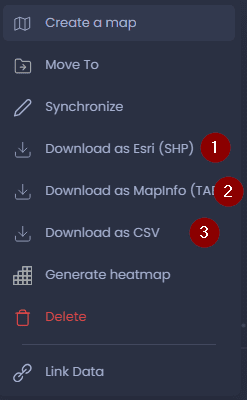
- Vector layers containing points, lines, or polygons can be downloaded as an ESRI SHP file, MITAB, or CSV
- Raster Layers like heatmaps can be downloaded as Geotiff or COG (Cloud Optimized Geotiff) formats
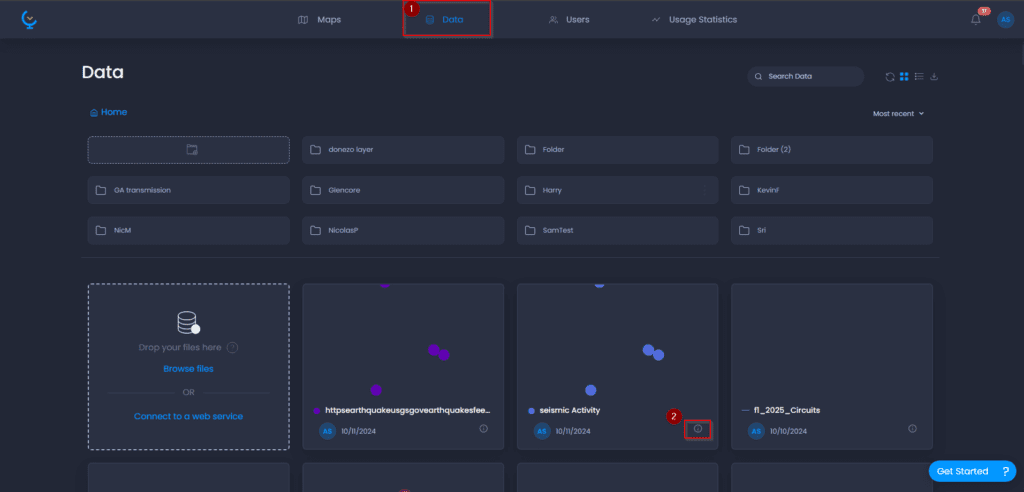
Open the Data tab and click the information icon for the selected layer you would like to download
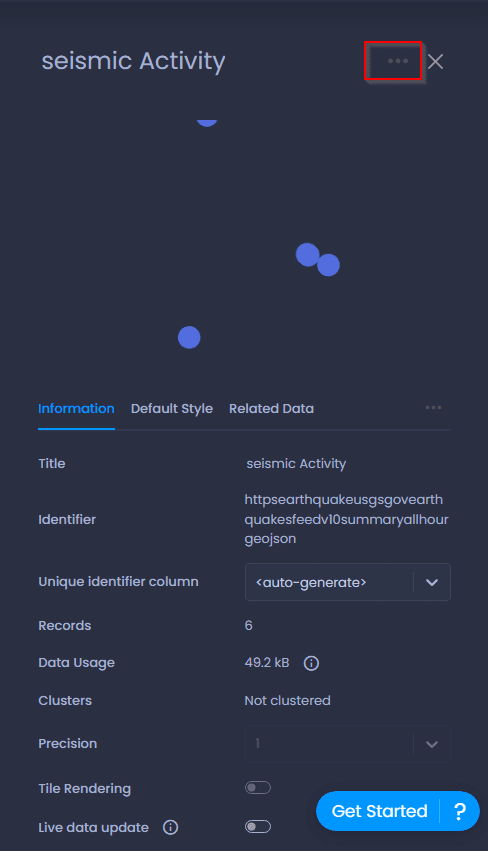
In the Information tab, click on the ellipses (…) in the top right to open up more options
Here, you can select which format to save the data, clicking on it will start the download process to your default download location
*For Raster layers, an extra step is required to download the layer, as rasters can contain multiple layers in one, you’ll need to click to view all layers, and then repeat the steps of opening the information panel, and downloading the specific layer within the raster.
Downloading from Map
Data layers can also be downloaded as CSVs anytime within the Map itself. From the Attribute table, you are able to click the download button to download a CSV; this will download the data using any filters that are enabled.
