



You can integrate multimedia as attributes in your data to display images or hyperlinks in your maps.
Store multimedia in your datasets
Image
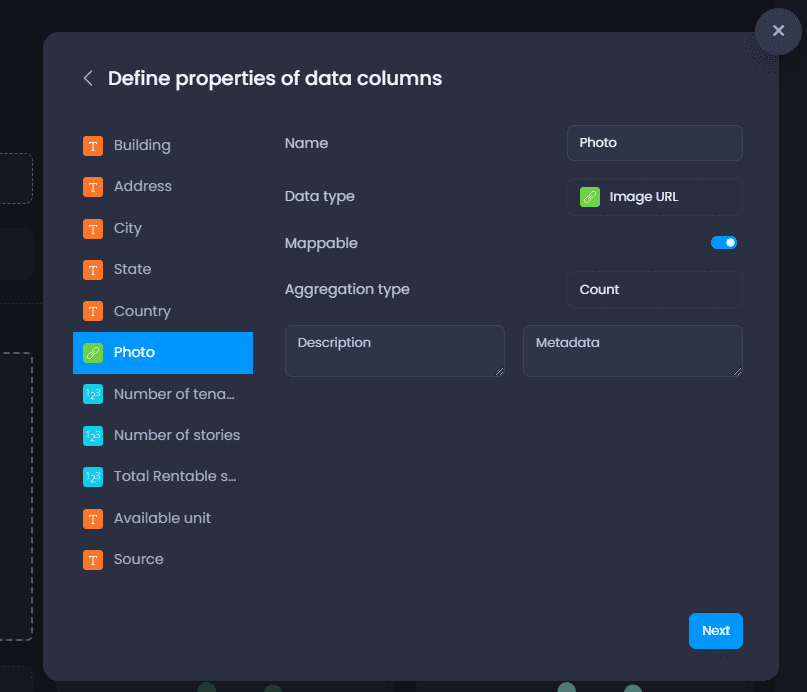
Images must be hosted online and the URL to the .png or jpeg file has to be stored in an attribute (column). When you import your data to your workspace, the column will be detected as an Image URL type:
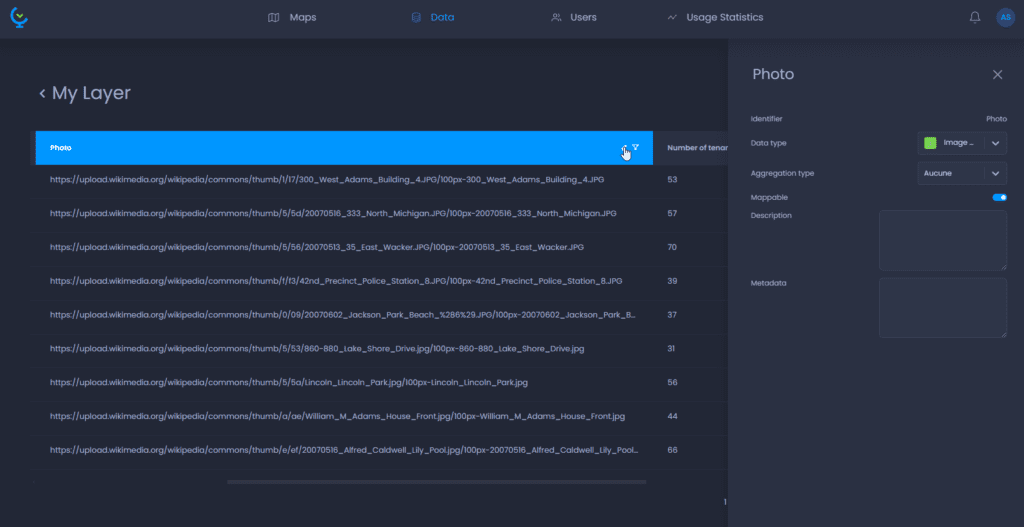
You can change the column type after the import if it has not been detected. See our article on how to change column properties. This is what it will look like in the attribute table preview:
Hyperlink
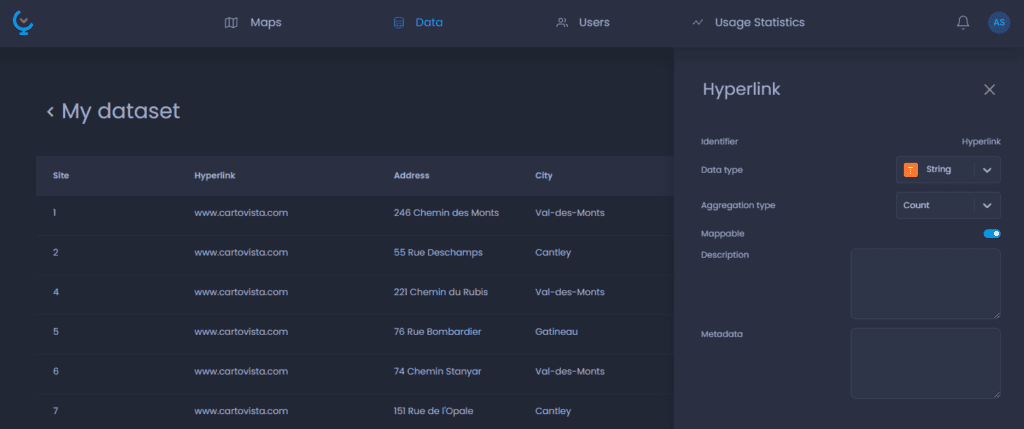
Hyperlinks can be integrated by storing the link URL as an attribute (column) of your dataset. The type of the column should be String:
Display multimedia in your maps
Images and Hyperlinks can be displayed in the data tips and Info panel in your map. Add your hyperlink or image attribute in the data tip and Info panel in the interactivity settings of your layer.
You will see the image and the hyperlink as you place your cursor on the map feature (in the data tip) or as you click on a feature with the Info tool (Info panel):
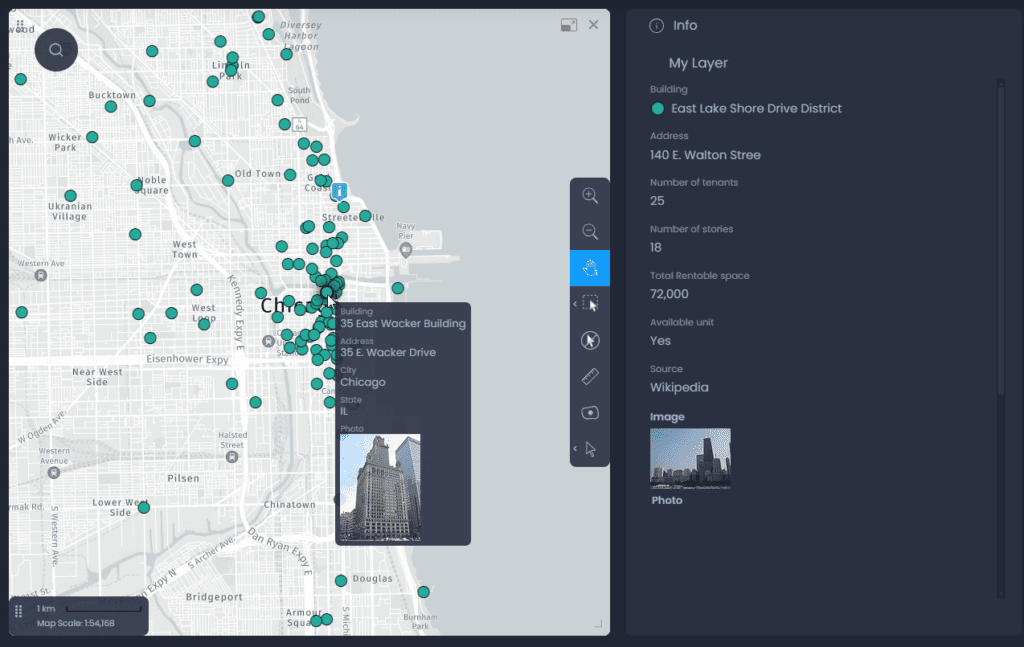
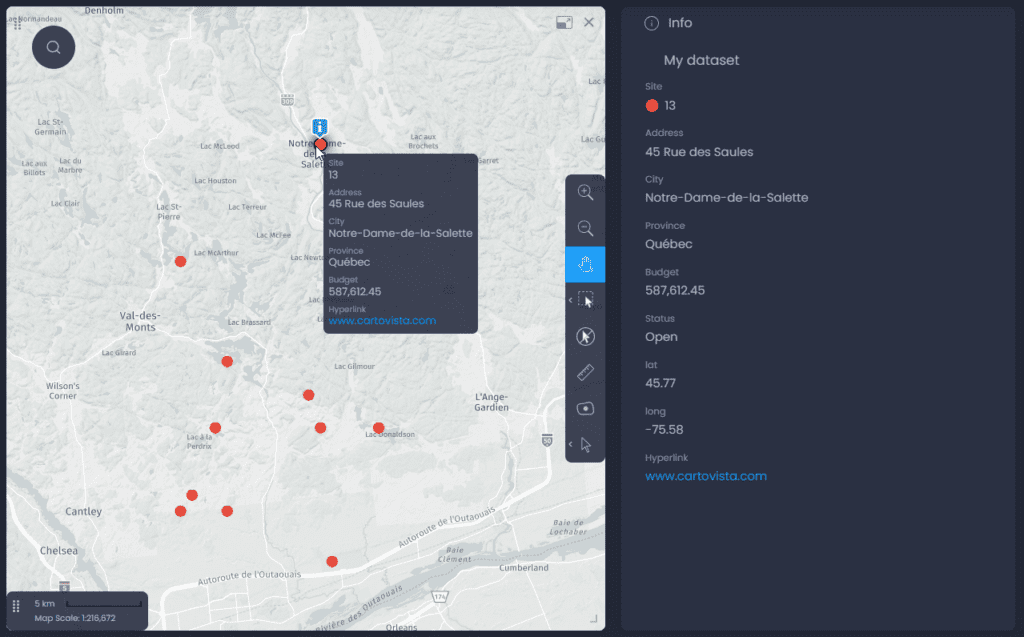
From the Info Panel, you can click on the hyperlink to open the page in a new tab.