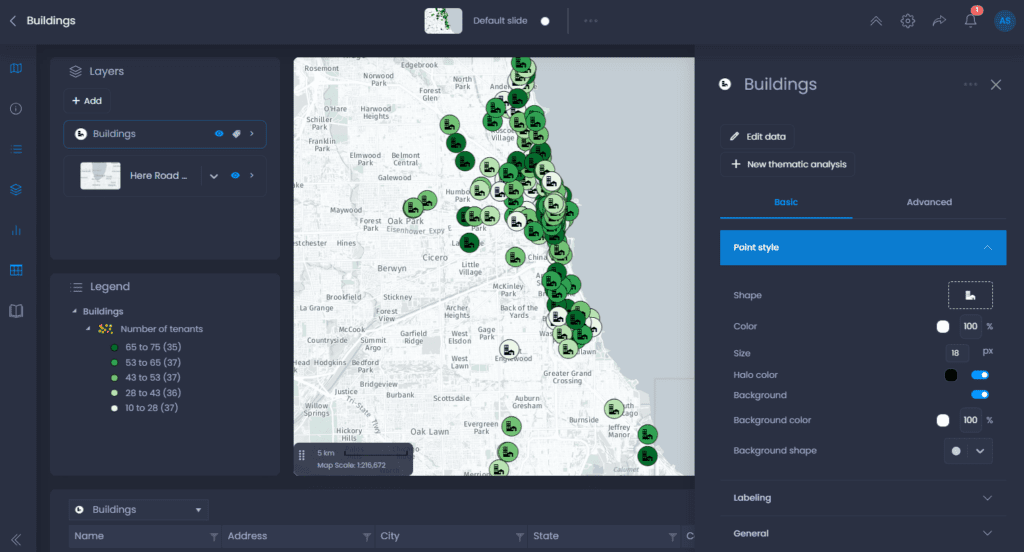
Styles of layers are handled in the layer properties of your layer in your map. The style is applied to all slides of the map.
- Navigate to a map and open the layer control
- Click on the down arrow next to your layer’s name to show the details,
- Click on “More settings“.
- The layer properties panel will open on the right-hand side. Click on “Point style“.
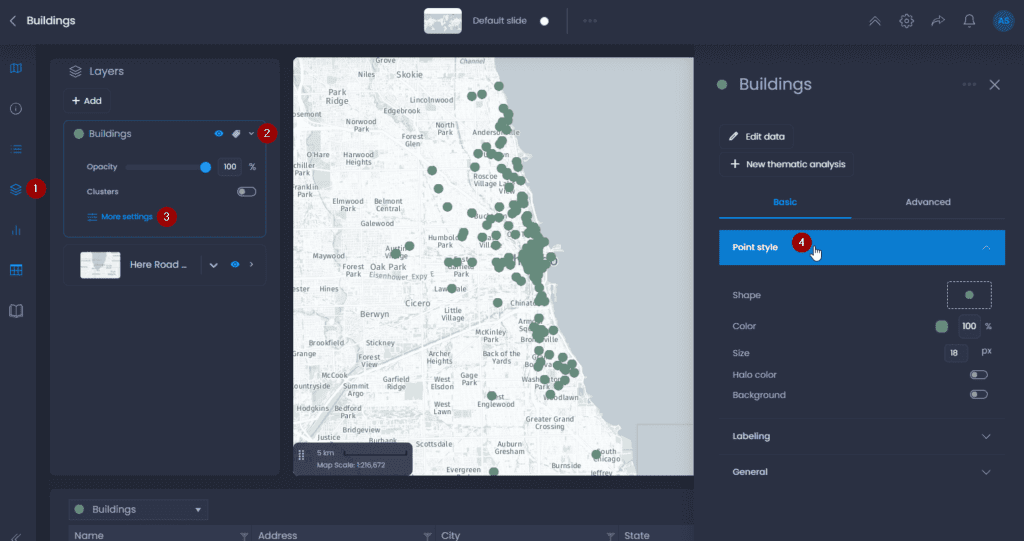
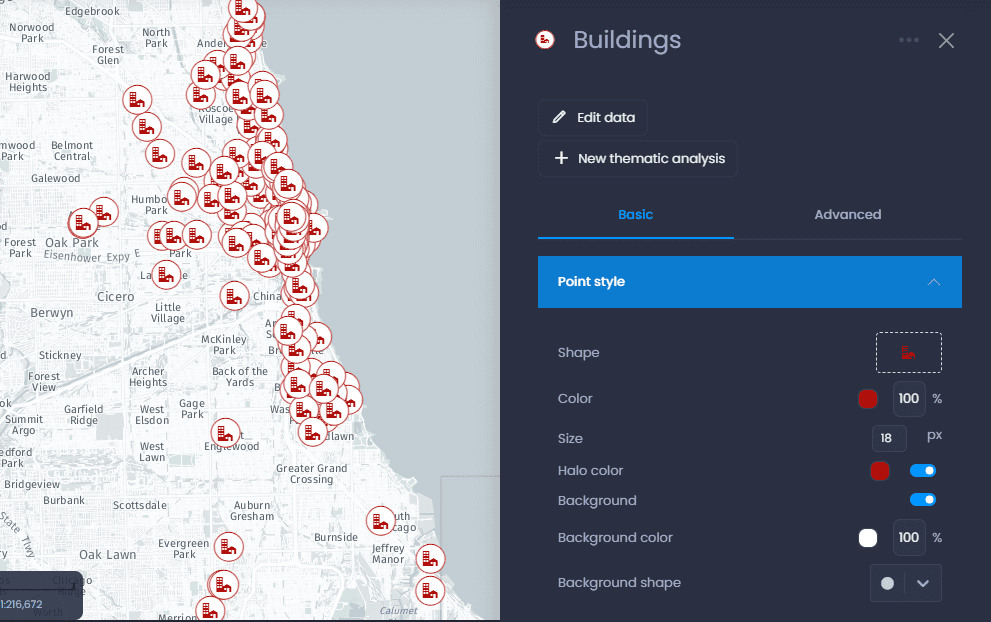
The Point style section allows you to change 5 style elements: Shape, Color, Size, Halo Color and Background.
Shape
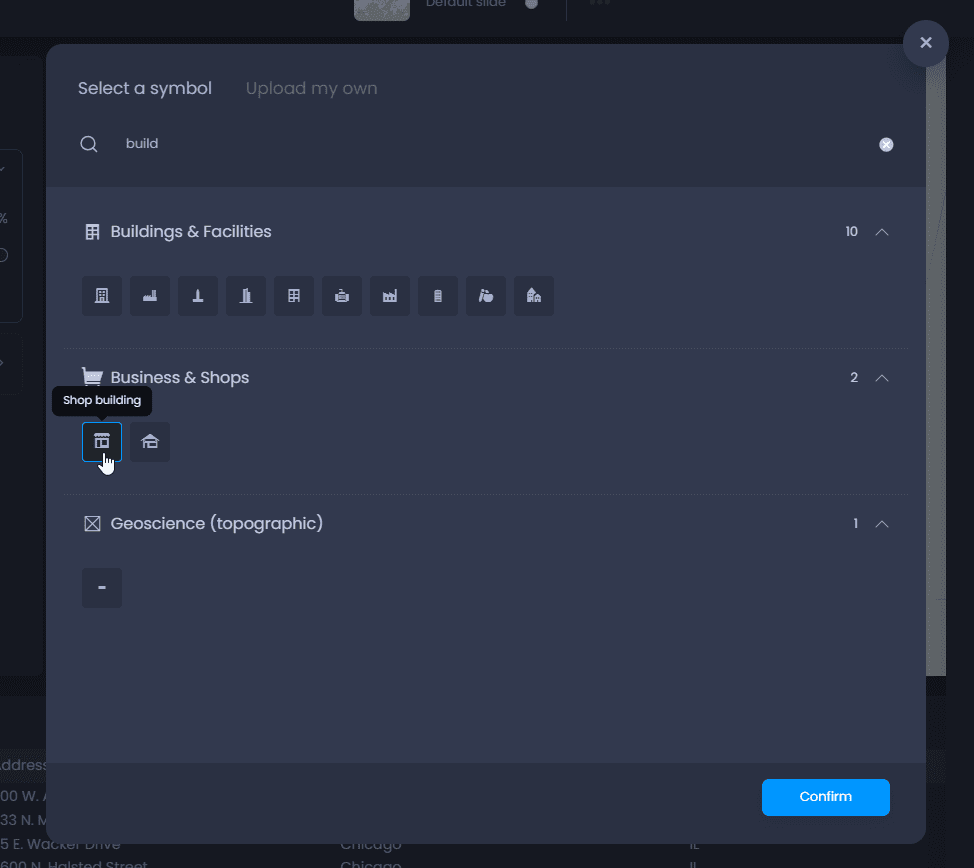
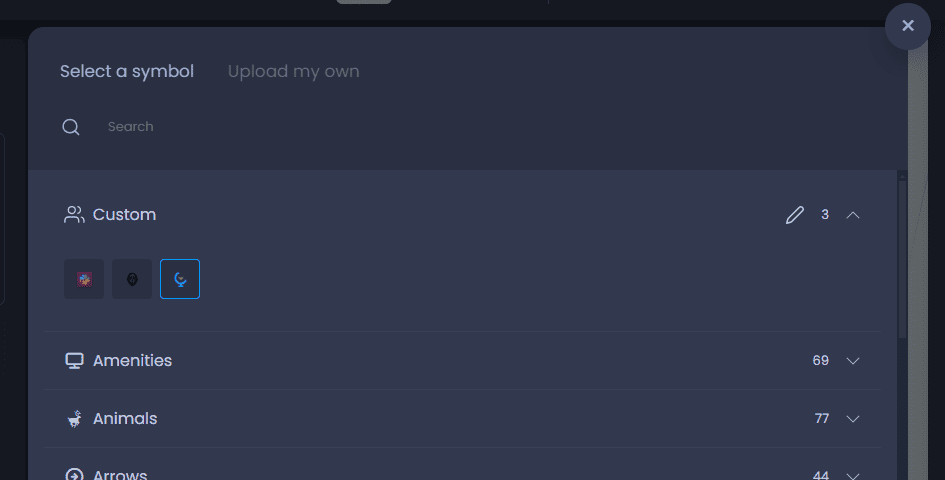
Click on the shape icon to change the shape. This will open the symbol library, from which you can:
- Select a symbol: navigate in the symbol categories or use the search bar to search for an icon. Place your cursor on a symbol to see its description. The search bar searches based on the description. Click on a symbol to select it.
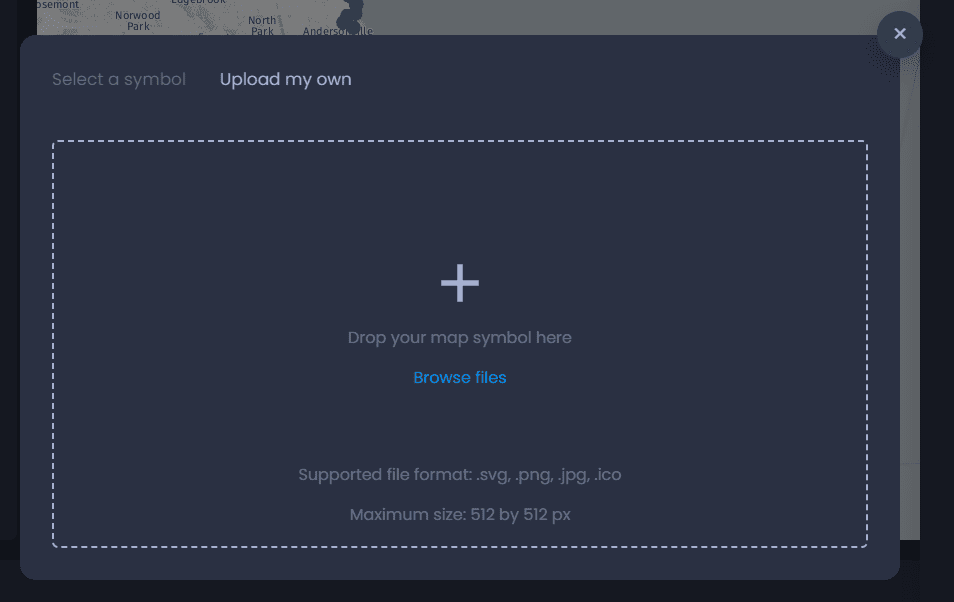
- Upload my own: you can import your custom map symbol by dragging and dropping an image file. The supported formats are .svg, .png, .jpg and .ico. The maximum size is 512×512 px. Once imported, your symbol will be available in the symbol library in the “Custom” section.
Color
Click on the color preview to change the color. Use the color picker to change the color. See the changes directly in your map. You can also change the transparency using the percentage. The default transparency is 100% (no transparency).
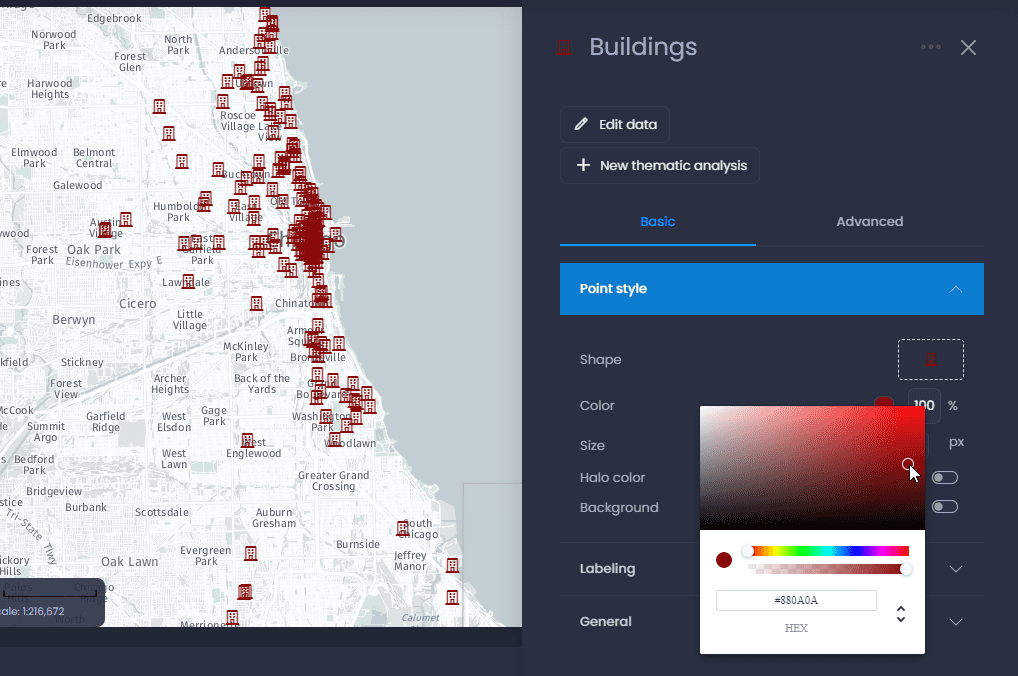
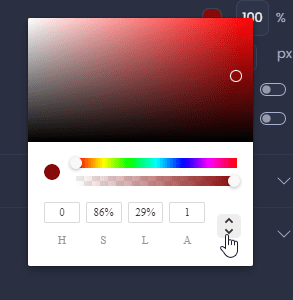
You can also enter a HEX code or RGB values. Use the down and up arrows next to the HEX code to switch to RGBA or HSLA color codes.
Size
Change the pixel value to change the size of your symbol. See the changes on your map directly.
Halo
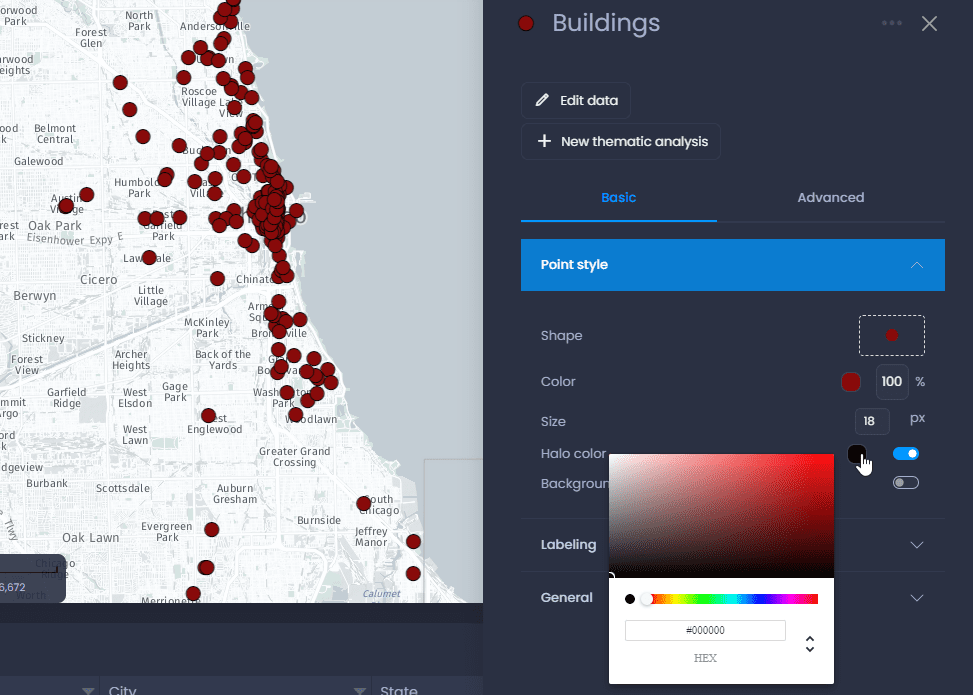
Enable the halo toggle to add an outer line to your symbol. When the halo is enabled, you can use the color picker to change the outer line color.
Background
Enable the background checkbox to add a background to your symbol. You can choose the background color and shape. Available shapes are circle, square or rounded-corner square.
Backgrounds are useful if your map symbol is not very visible as-is. For instance, when working with complex SVG symbols or with your own logo, it can help with the design of your map to add a background. You can play with the colors of the symbol, halo and background to design impeccable point shapes.
For instance, you can set the shape and halo color to be the same, with a different background color:
When the background is enabled, adding a thematic analysis by color change will affect the background color instead of the symbol color. Suppose you will be adding thematic analysis by color to this layer. In that case, we advise to set a neutral color for the symbol itself so that it can always be visible when the background color varies.