



The CartoVista feedback tool is a powerful feature designed to transform your published maps into collaborative platforms. It allows citizens, researchers, or end users to submit feedback, suggest modifications, or report points of interest directly on the map interface without needing a CartoVista account.The CartoVista feedback tool is a powerful feature designed to transform your published maps into collaborative platforms. It allows citizens, researchers, or end users to submit feedback, suggest modifications, or report points of interest directly on the map interface without needing a CartoVista account.
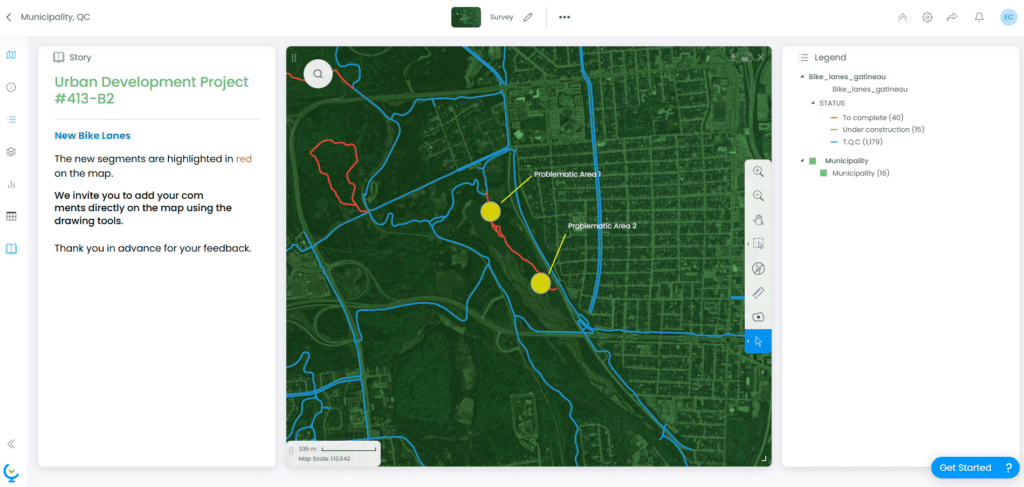
Tool Presentation
Once activated, the feedback tool adds an interactive button to the map interface.
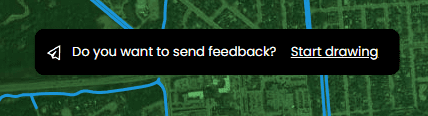
Anonymous users can click this button to open an input panel that allows them to:
- Annotate the map: Draw points, lines, or polygons to pinpoint their comment accurately.commentaire.
- Enter a message: Explain their viewpoint or provide textual details.
- Submit with ease: Instantly send the information to the administrators.
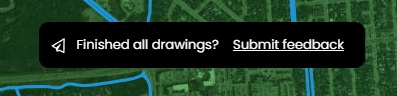
Steps to Activate the Feedback Tool
To set up feedback collection on your map, follow these steps:
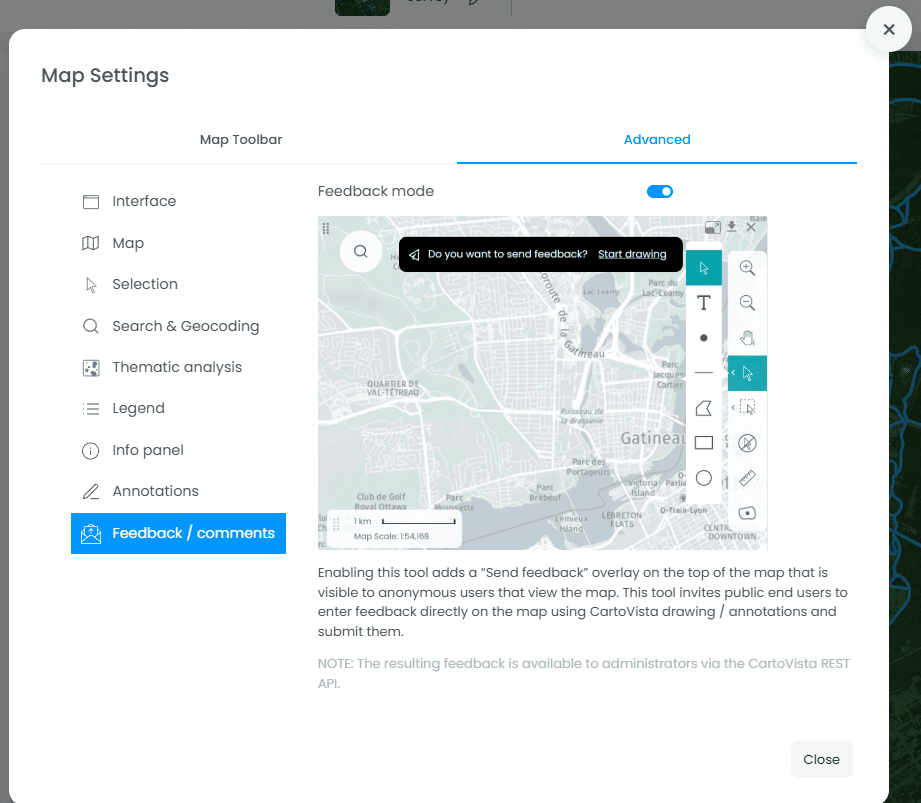
- Open the map settings: In the CartoVista editor, click the gear icon (Settings) located in the sidebar.
- Access advanced options: In the settings menu, click the Advanced tab.
- Locate the Feedback section: Scroll down to the section titled Feedback / Comments.
- Enable the feature: Toggle the Enable Feedback Tool switch to the right.
Default Style Configuration
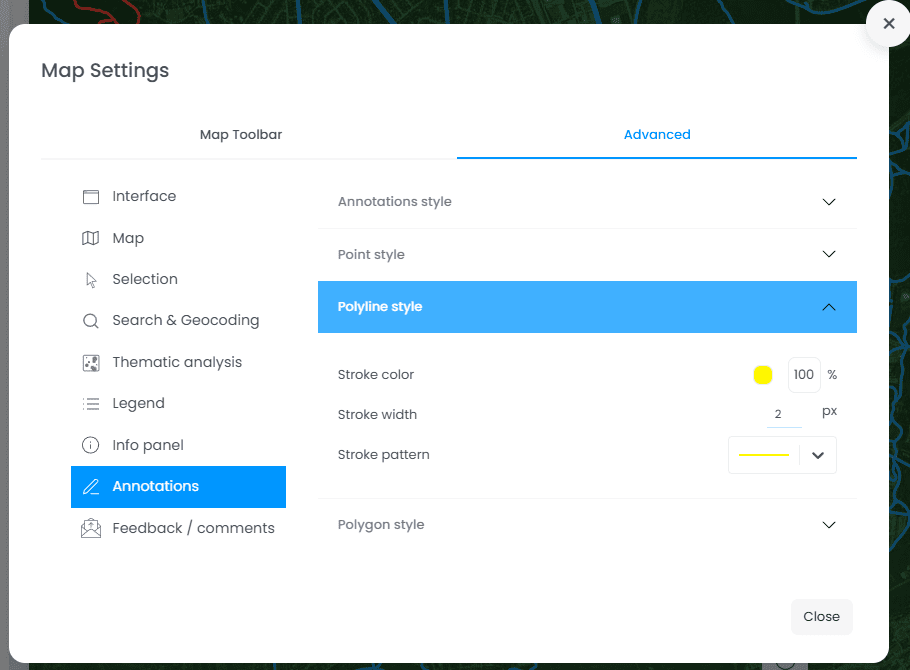
From the map settings, you can also configure the different styles that will be used by default for annotations.
Managing and Using the Results
To ensure security and privacy, public feedback is not displayed automatically on the public map. It is stored in a secure database accessible only to administrators.
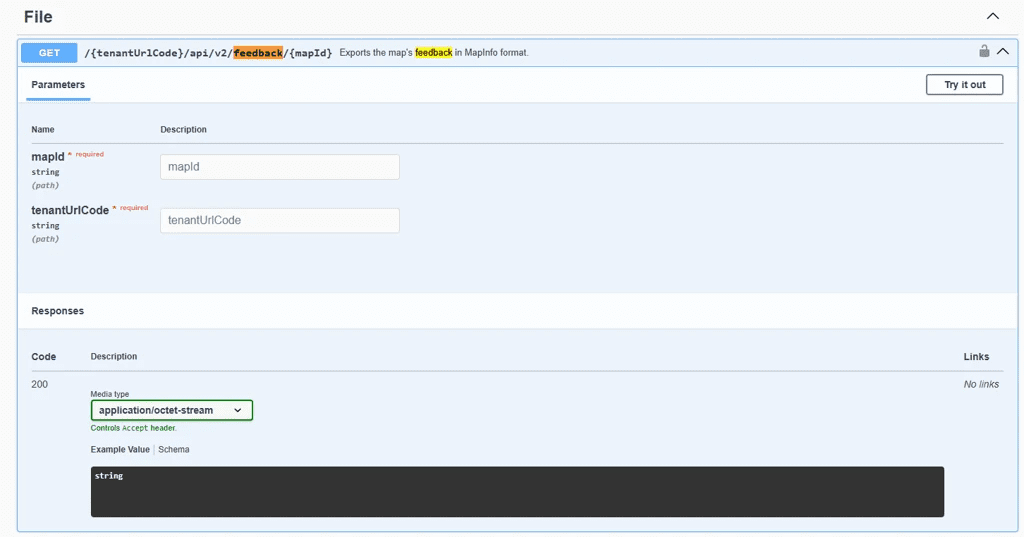
Accessing data via the API: Feedback data (including drawing geometry and comment text) is accessible through the CartoVista REST API (File). This allows you to:
- Export comments to a MapInfo (TAB) file for analysis.
- Integrate citizen feedback into your own project management or tracking system.
- Moderate submissions before incorporating them, if necessary, as new data layers.
Why Use This Tool?
- Public Consultation: Ideal for reviewing electoral boundaries or urban planning projects.
- Data Validation: Allows field experts to report corrections directly on the map.
- Citizen Engagement: Provides a modern and intuitive way for people to voice their opinions on local issues.