



Exporting and printing a map from CartoVista is very simple. Several sharing and export options are available to the user.
Export a map as an image or the associated data to an Excel file
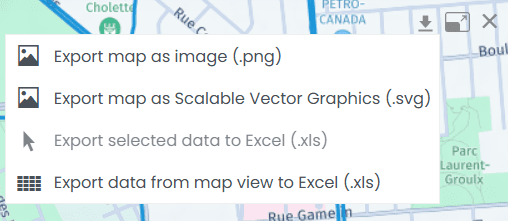
Place your cursor in the upper-right corner of the map; you will then be able to export the map as an image or the associated data to Excel.
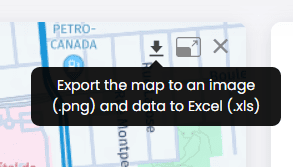
A menu opens when you click on the downward-pointing arrow:
Print your map
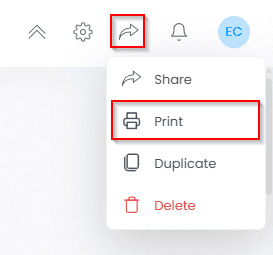
Under the Share menu in the upper-right corner of your window, select the Print option:
When you select Print, you will access the Print Layout menu:
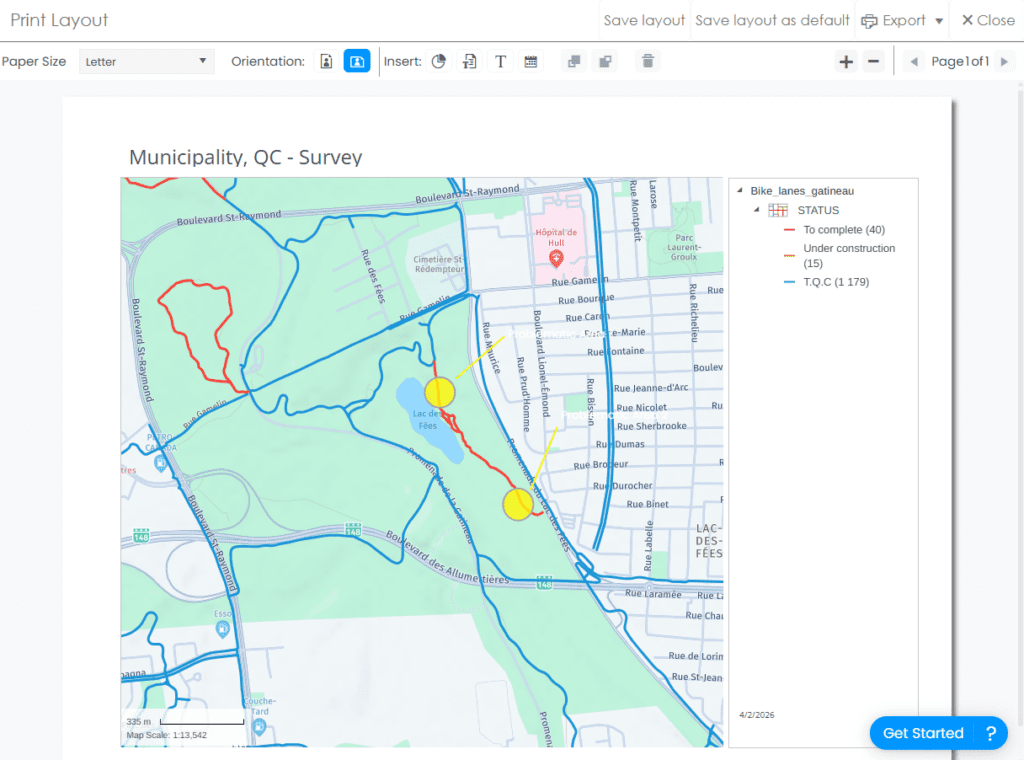
In this menu, you can make various customizations to the print layout:
- Paper size and orientation.

- Insert elements such as a chart, title, text, and date.

- Select and edit map elements simply by clicking on them. You can then adjust their position and size on the layout.
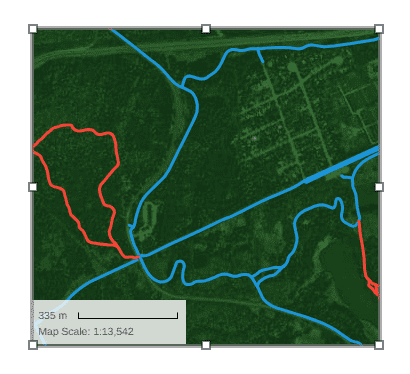
Once selected, you can also modify the background and borders of an element using the following tools:

- Edit a text element by double-clicking on the item you want to modify:

- Modify the map view by double-clicking on it. You can then recenter the map or adjust the zoom level as needed. The various tools available in the CartoVista sidebar are also displayed and accessible.
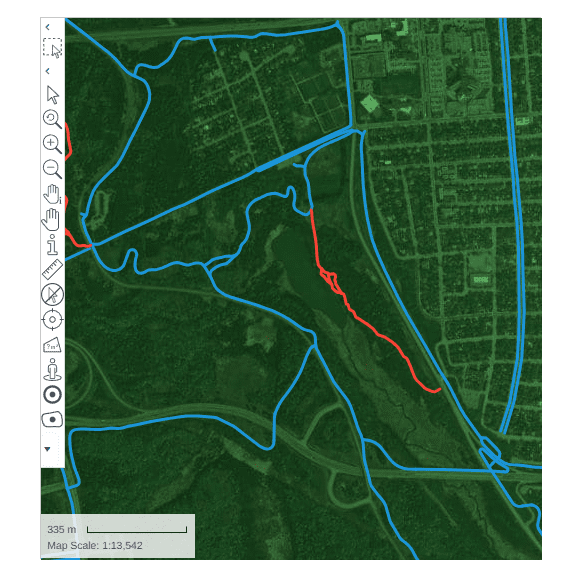
Save the layout, add pages, and export to PDF for printing from the upper-right section of the print menu:

By selecting Save Layout, you save the layout for this map only. By selecting Save as Default Layout, the layout will be saved for all maps in your workspace.
You can also share your map with internal or external users. More information on how to share your maps is available here.