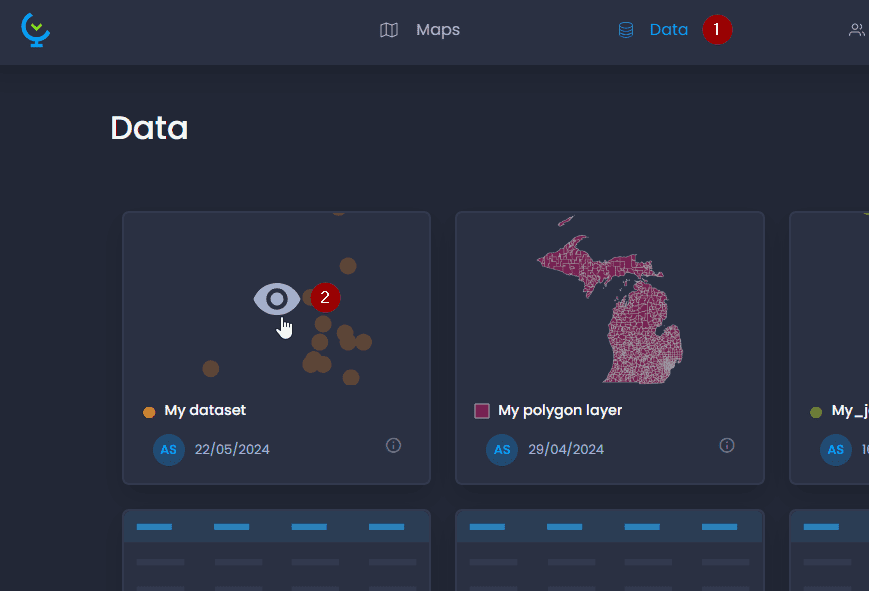
Click on a layer or data table’s preview to view the attribute table and edit column properties:
The attribute table preview allows you to view the first 100 rows of your dataset, and edit column properties. Click on the icon

to open the properties panel:
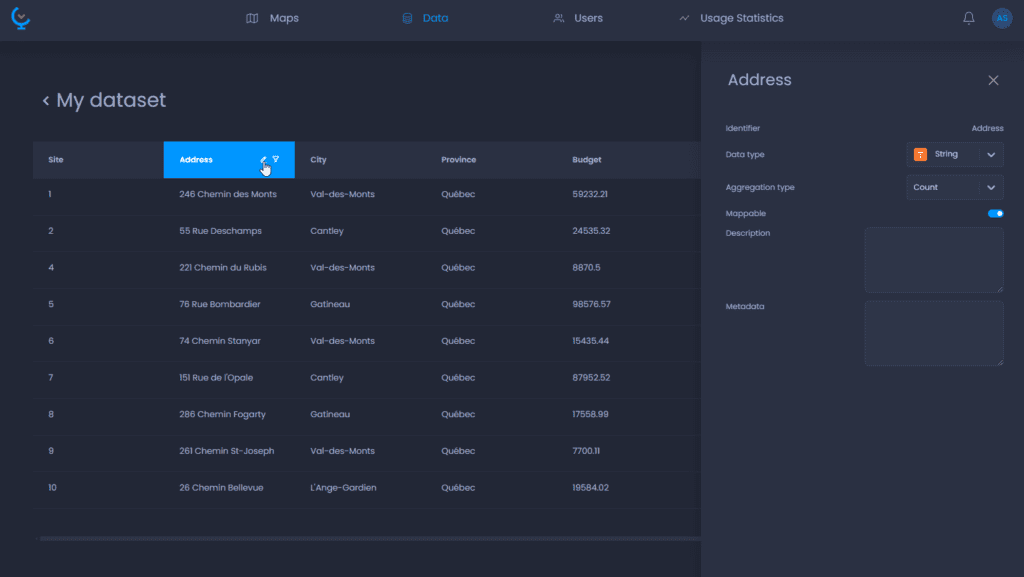
To rename the column, click on the header of the properties column where the name is to enter the new name.
Here is the list of all the properties that can be edited. The list of properties varies depending on the data type (Numeric, String, Image URL, Date/Time).
The changes will automatically be applied to all maps using this layer or data table.
| Property name | Property description | Data type |
|---|---|---|
| Name | This is how the column will be displayed in the map | All types |
| Data type | Numeric, String, Image URL, Date/Time. | All types |
| Mappable | When set to false, this column won’t be visible in the map. | All types |
| Aggregation type | The aggregation method to be used in charts and time-based data. - Supported aggregation types for Strings, Image URL and Date/Time are: Count, None. - Supported aggregation types for Numeric are: Average, Count, Max, Min, Sum, None. When set to None, the column cannot be aggregated and will be set to an N/A value on aggregation. | All types |
| Description | Free text to describe your column. The description is only accessible from the Data Gallery in the Column Properties. | All types |
| Metadata | Free text to add metadata to your column. The metadata are only accessible from the Data Gallery in the Column Properties. | All types |
| Precision | The number of decimals to display. Any additional precision is still stored but not displayed, meaning you can increase the precision after the import. The default is 2. | Numeric |
| Units | Units to be displayed next to the value in the map data tips, info tool, table view, charts, legend, etc. | Numeric |
| Unit placement | Unit placement after or before the value. | Numeric |
| Not available values | Enable N/A values to convert a value of this column to N/A. | Numeric |
| Value to convert | The value to be converted to N/A. This property is only accessible when Not available values are enabled. |
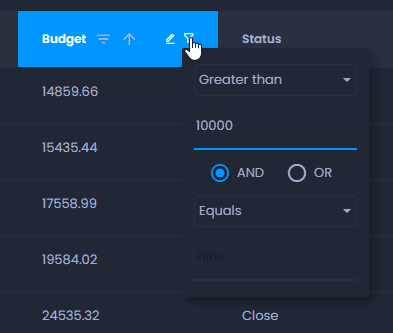
You can also click on

to filter your data. Please note that the filter will only apply to the first 100 rows of your data (if your data has more than 100 features):