



You can export data from the Data panel to an Excel file.
Click on the export button

in the Data panel. There are two options to export data:
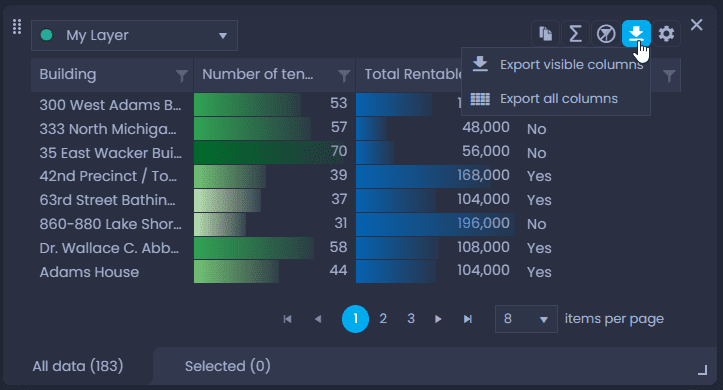
- Export visible columns: this will export the columns currently displayed in the data table. The downloaded file will contain 3 sheets:
- the first sheet will contain the table content
- the second sheet will contain the table statistics. See our dedicated article to find out more.
- the third sheet will contain the metadata associated with the layer.
- Export all columns: this will export all the columns in the layer, including columns in joined tables. The downloaded file will contain several sheets:
- the first sheet will contain the layer content
- the following sheet(s) will contain the content of the joined table(s)
- the next sheet will contain the table statistics. See our dedicated article to find out more.
- the last sheet will contain the metadata associated with the layer
Tiled layers cannot be exported. See our dedicated article for more information.
You can also export a selection. Select your data on the map, then click on
in the Selection tab of the data table to export the result:
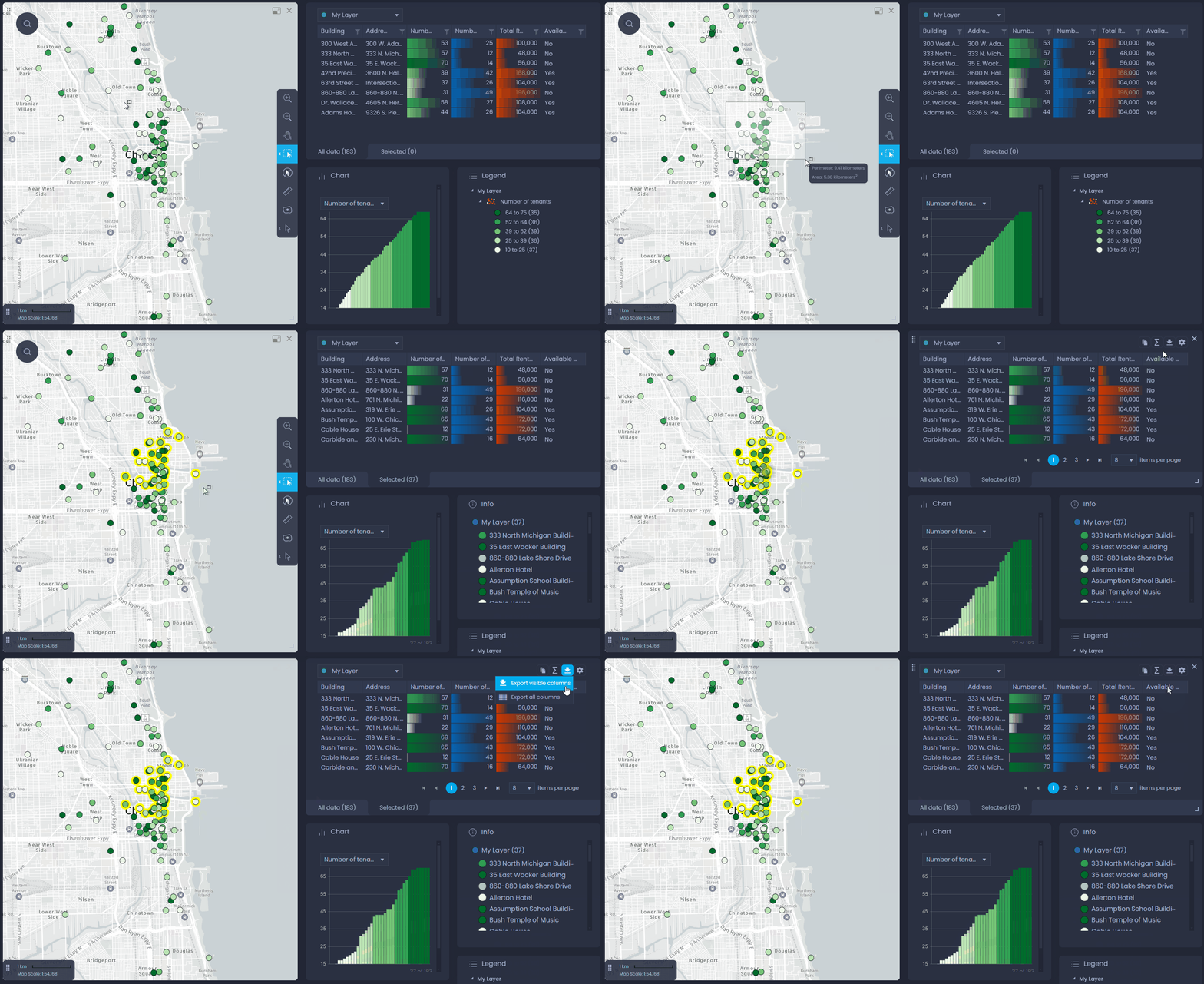
To find out more about the selection, read our dedicated article.