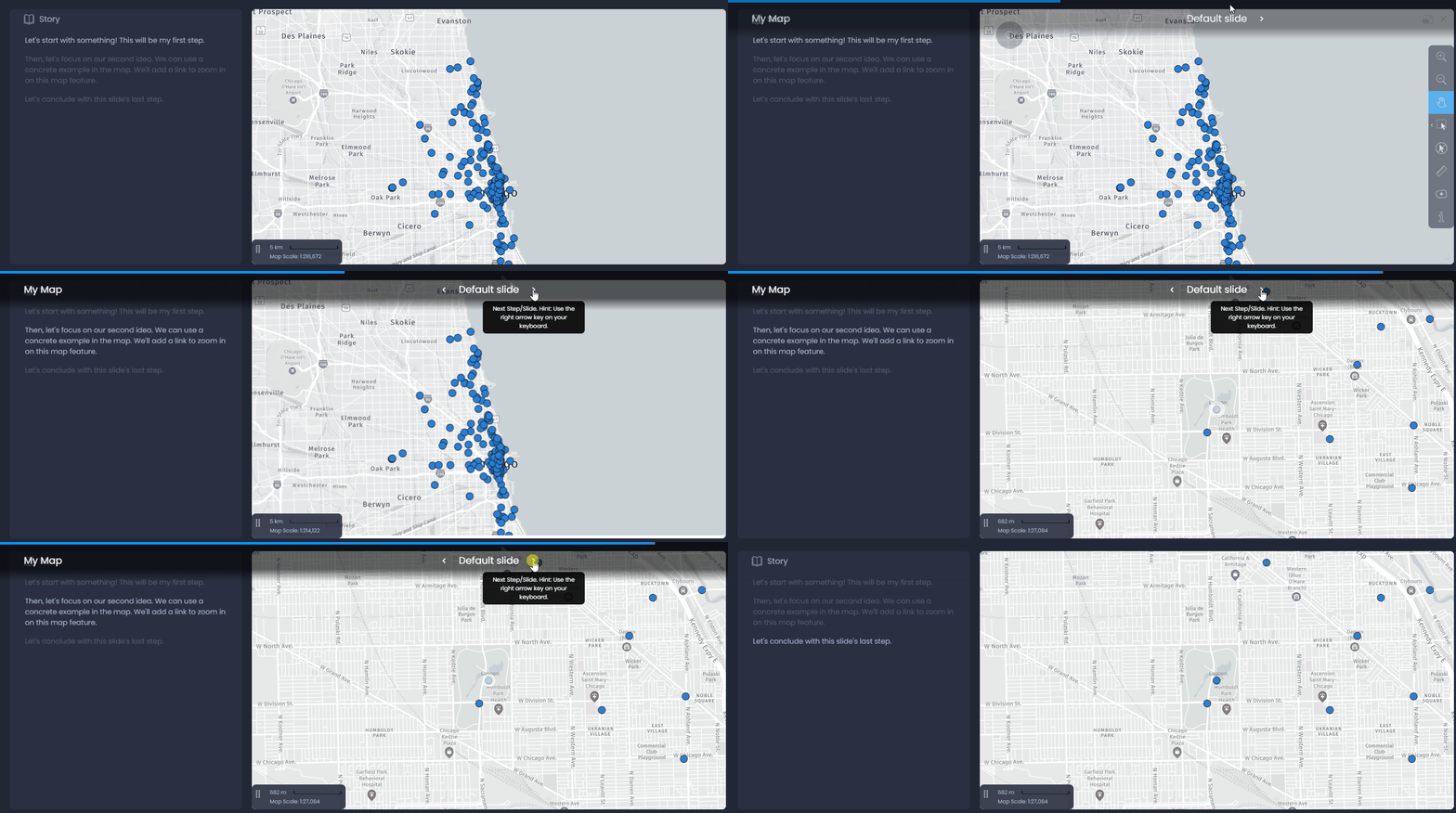
You can add text and images to add stories to your slides.
Edit your story
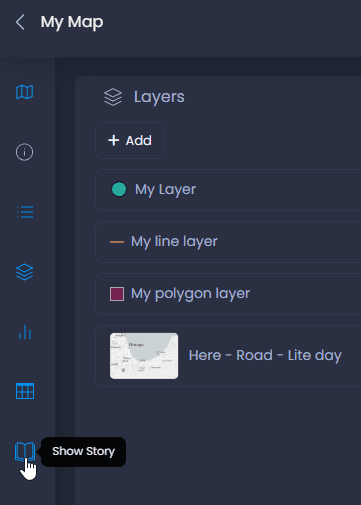
To add and edit a story component to your slide, open the Story panel by clicking on the icon in the left bar:
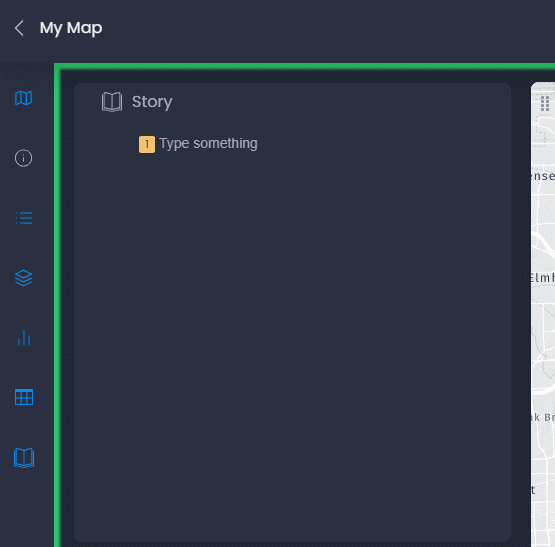
Then, enable the Edit mode of your slide to start adding text to your Story panel:

You can now begin to type content in your Story panel:
Style your text
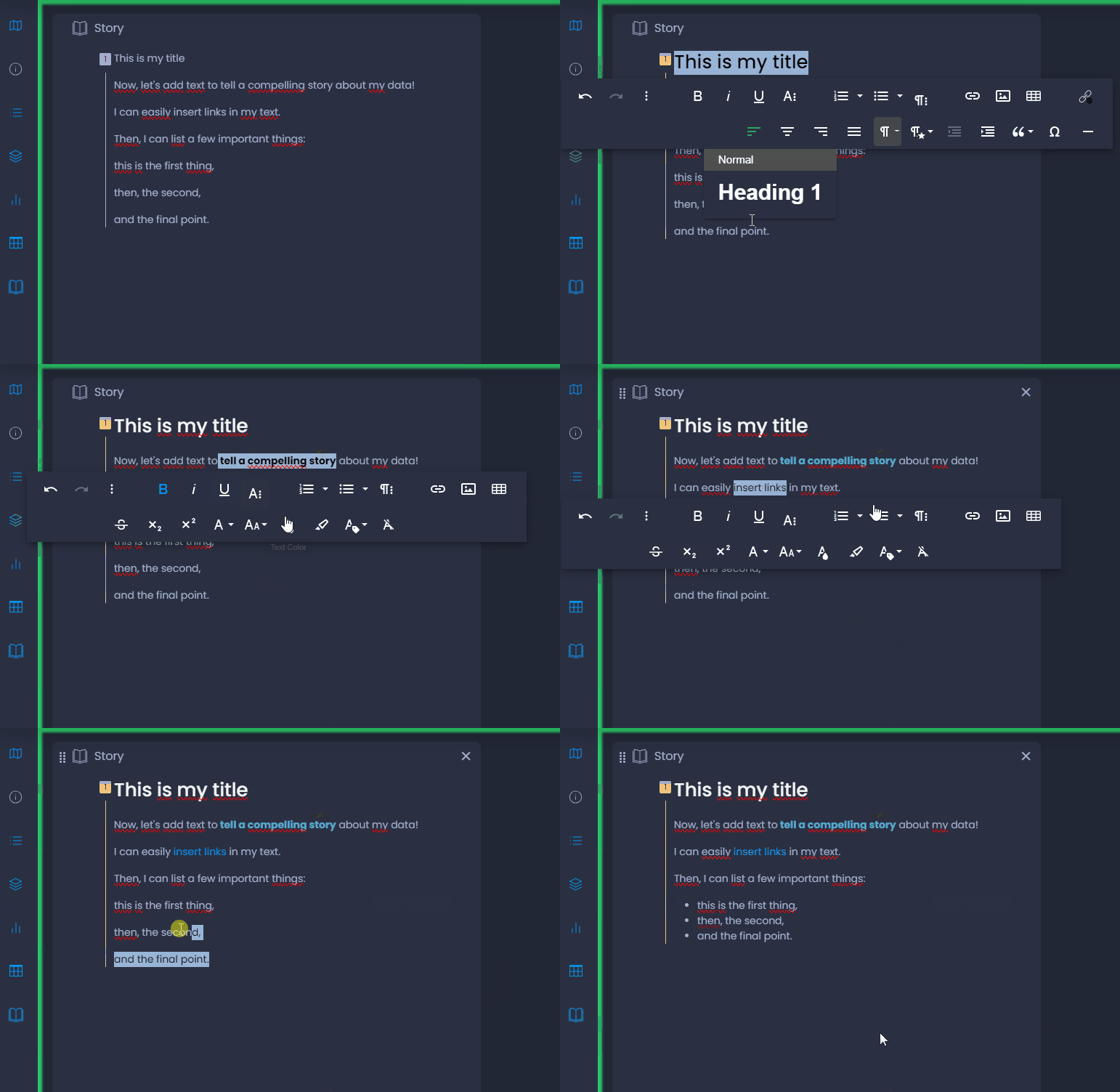
You can easily style your text with the in-line editor. Select the text to be styled and choose a style parameter:
- bold, italic, underlined, and other advanced character style options (font type, size, color, background, etc.)
- insert links, lists, images or tables.
- paragraph style: paragraph alignment, paragraph type (normal, titles, code), indent, quote, etc.
Insert pictures, tables, lists or horizontal lines
You can also use the quick insert to insert elements on a new line. Place your cursor on an empty line to see the Quick Insert button

. Click on the “plus” to open the Quick Insert menu and select an item to add:

- image: select a local file on your computer
- data table: add a 2×2 table, insert and style content in the table, and add new rows or columns
- unordered list: add items in a point-form list
- ordered list: add items in a numbered list
- horizontal line: add a line to divide your text and help structure your story.
Add story steps
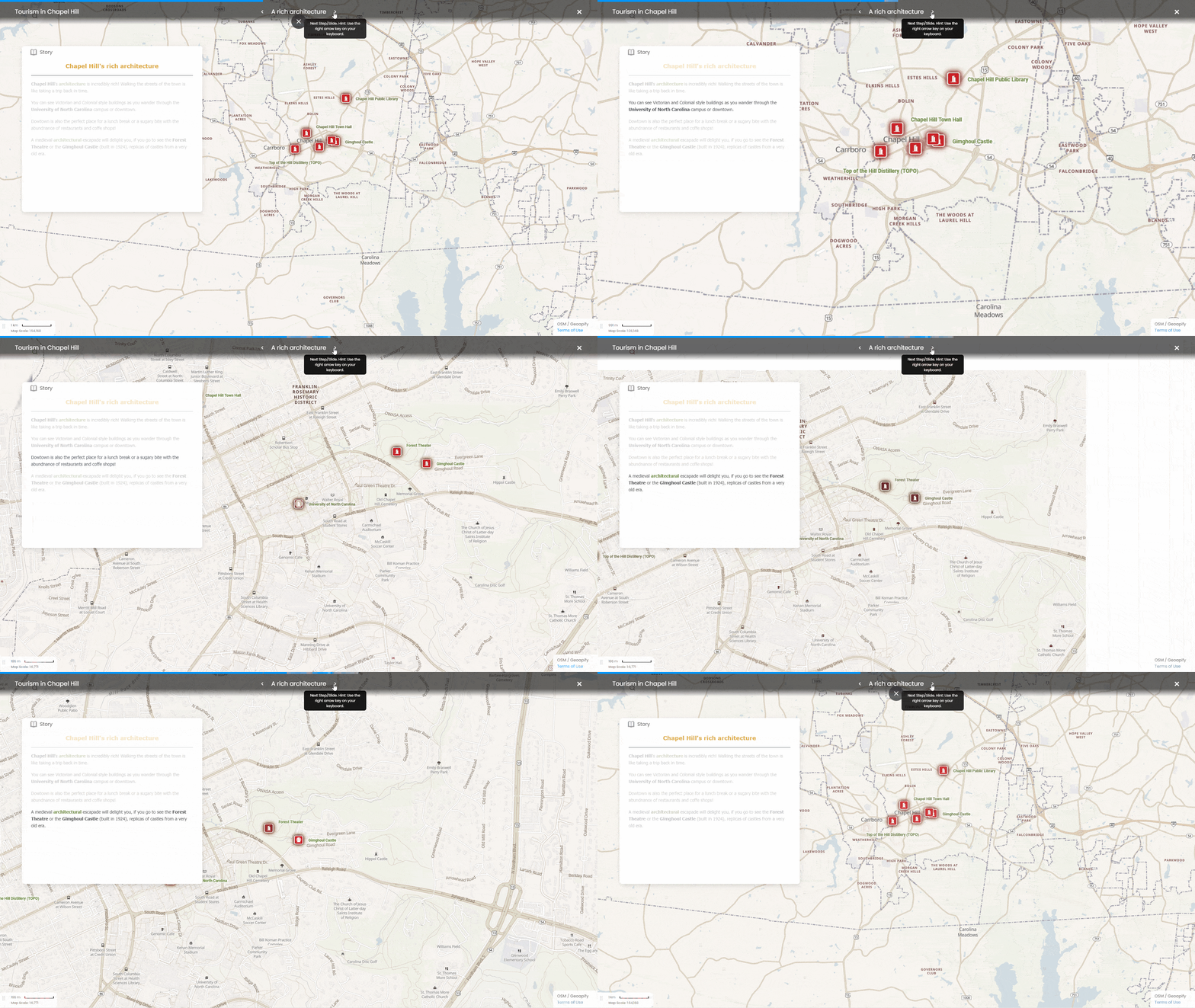
Stories can be divided into steps to present the content of your story gradually. In presentation mode, each step will be highlighted one at a time. You can also link map features to steps to zoom in on your map:
Steps can be created for each paragraph. To add a step, click on the

icon next to an existing paragraph to create a new step. You can see with the dots

the potential steps you can create. You will see the step’s number in yellow

when a new step is added:
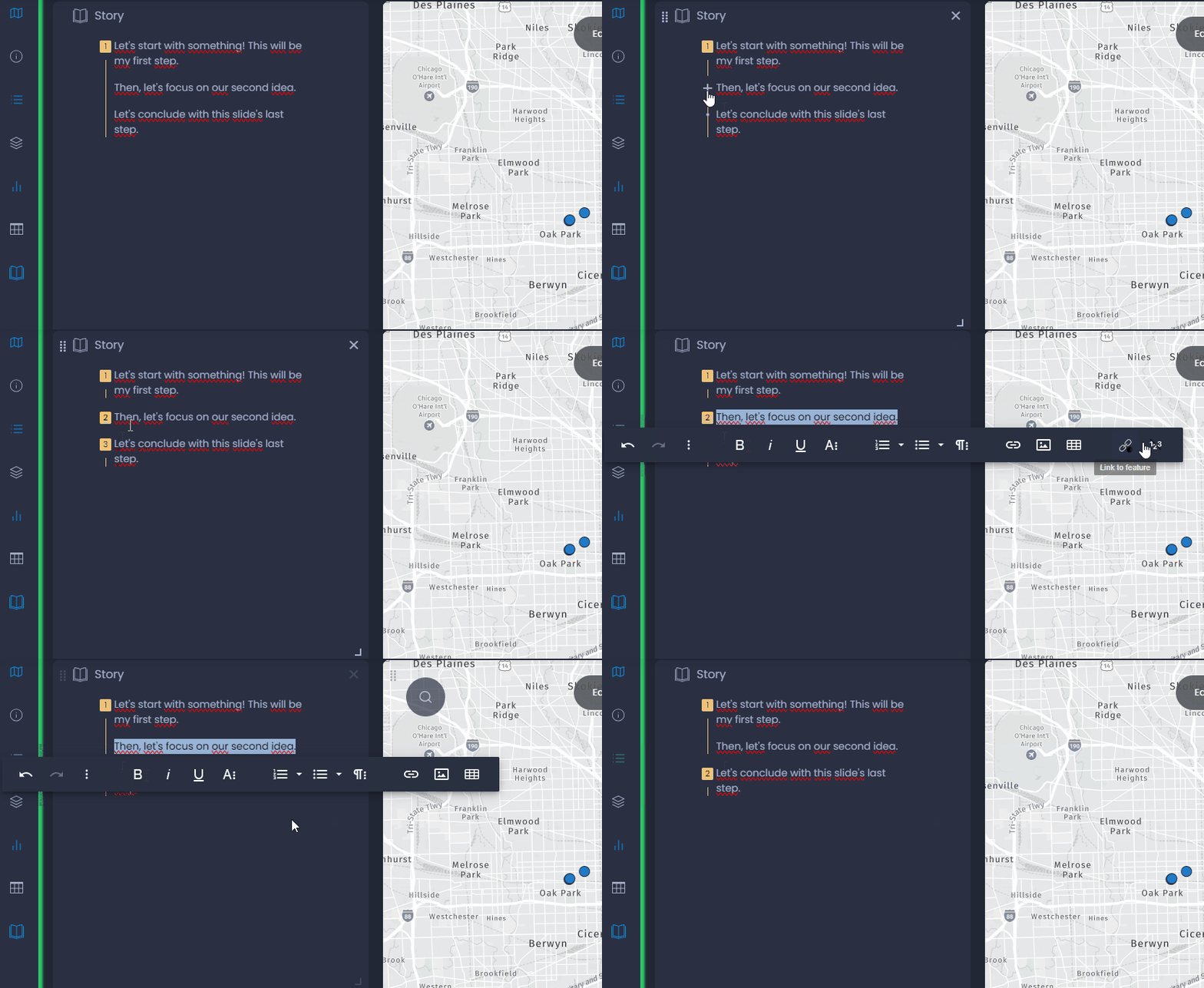
You can also remove an existing step by clicking on the step’s number then clicking on

in the in-line editor.
Connecting story steps to map features
You can also add links to features in your steps to zoom in on the linked feature. Click on an existing step and select “Add feature link” to search for a feature. Select your feature in the search result to add the link.

Save your story
To save your story, save your slide changes by clicking “Save” or the green dot in the top bar

:

By saving your slide, all other slide elements will be saved. See what other elements will be saved here.
You can now present your story by clicking on the slide presentation button or click on

to select “Present slide”:

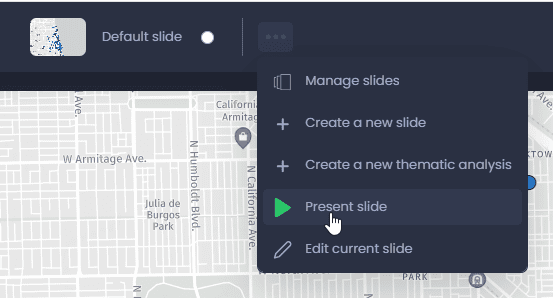
Once you clicked on “Present slide”, hover on top of the window and the presentation panel will show up.