



CartoVista supports the use of interactivity with datasets through the use of 3 interactivity tools in the platform:
- Data Tips
- Info Tool
- Searchable Tool
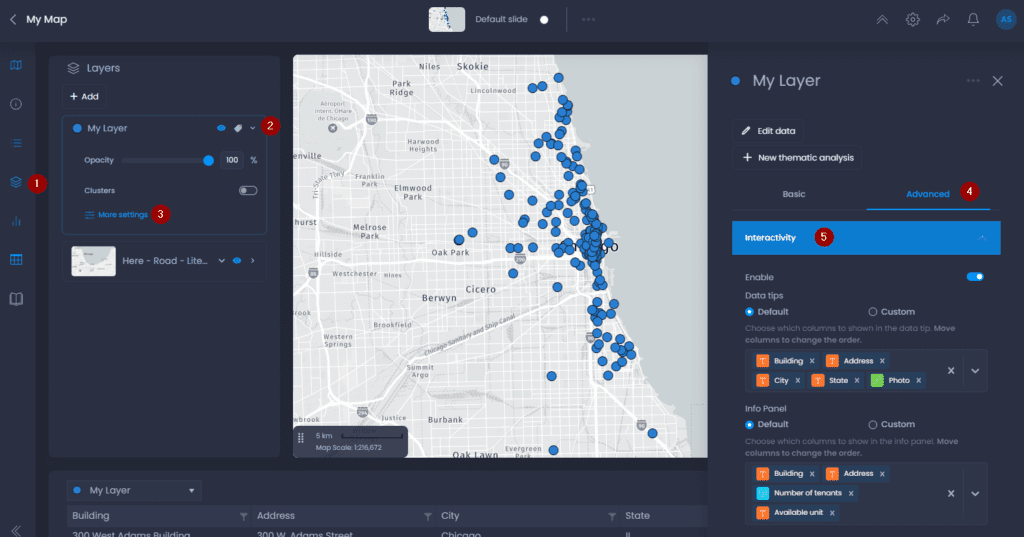
All 3 interactivity tools can be used on any type of mappable dataset in the platform. Interactivity settings are managed in the layer’s properties in the map. To access layer properties, here are the steps:
- Navigate to a map and open the layer control
- Click on the down arrow next to your layer’s name to show the details,
- Click on “More settings“.
- The layer properties panel will open on the right-hand side. Click on “Advanced“.
- Click on “Interactivity“.
Enable or disable interactivity
You can choose to disable the layer interactivity with the first checkbox:

When disabled, this layer will have no data tip or info tool. You also won’t be able to search for a feature of this layer.
Data tips
Data tips are a pop-up box that appears when a user hovers over data in the mapping panel. The pop-up box contains attribute values of user-selected data columns in the data tip settings under the interactivity drop-down.
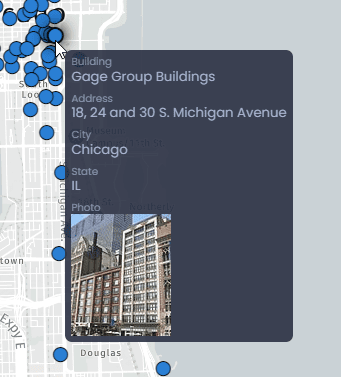
Each polygon, point, or line in the data layer has a unique data tip corresponding to its respective attribute values from the data columns. Data tips can include dynamic images when a layer attribute is of type Image URL.
Navigate to the layer Interactivity settings to edit the Data Tip. You can choose between the Default or Custom mode.
Default
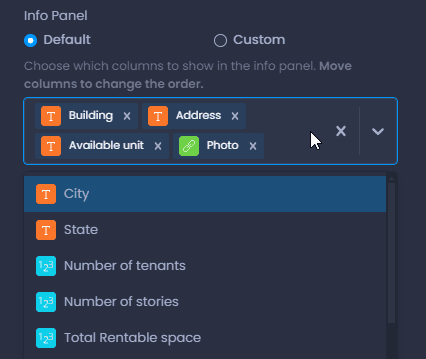
In the Default mode, you can choose the columns visible in the Data tip and their order:
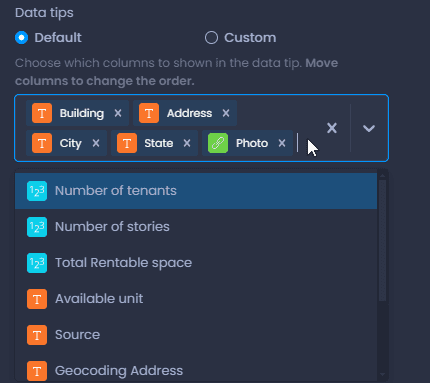
- Click on the x icon next to a column name to remove it from the data tip
- Click on the x icon on the right of the box to remove all the columns
- Drag and drop a column to change the order
- Click on the down arrow on the right of the box to add columns.
When hovering over your data, you can see your changes directly on your map.
Custom
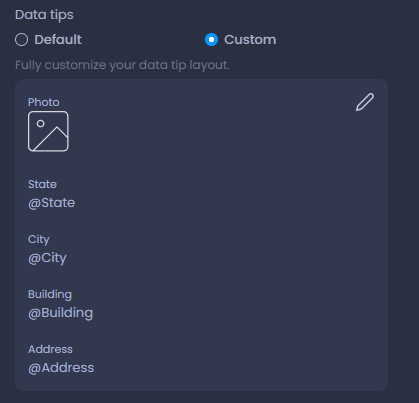
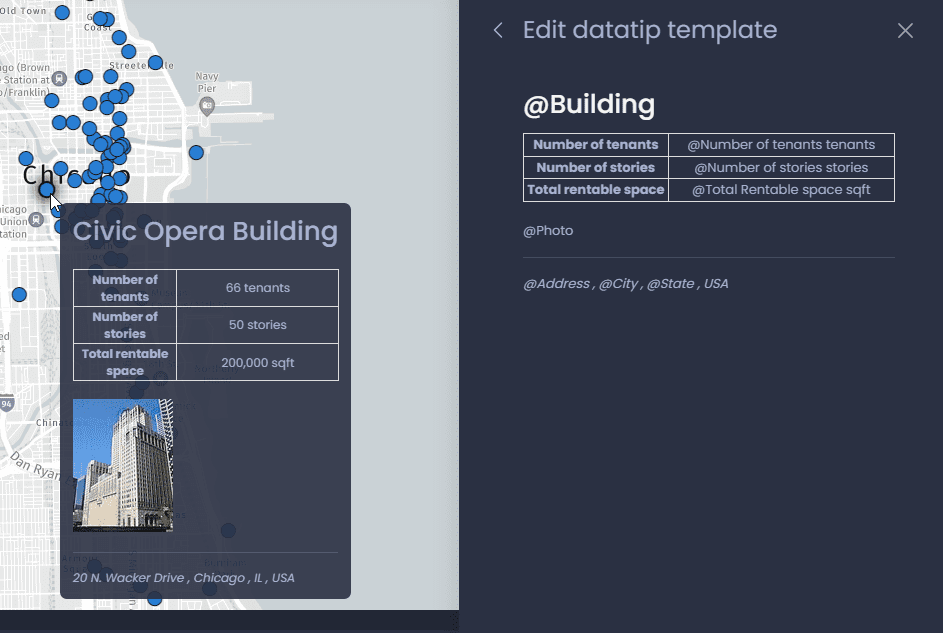
In the Custom mode, you can fully customize the data tip content, and add static and dynamic (column values) content in an HTML template. Enabling the custom mode shows you a preview of the content of the data tip.
Click on the edit icon

to enter the edit mode of the template.
In the edit mode, you can press @ to search for a column and add the dynamic value of a column. You can also type in any other additional static content.
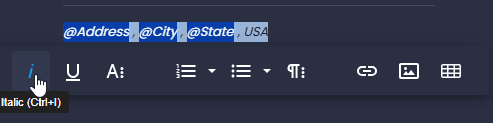
You can format the content by selecting text and using the inline editor:
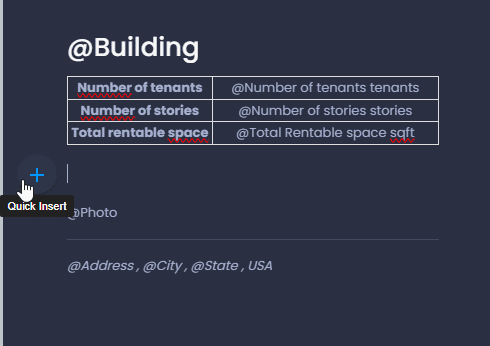
You can also use the Quick Insert menu to add a static image, table line separator or list:
Info tool
The info tool is a panel that appears when you click on a feature using the map and info tool

or the info tool

from the toolbar. The panel can be displayed as a separate panel or as a map pop-up.
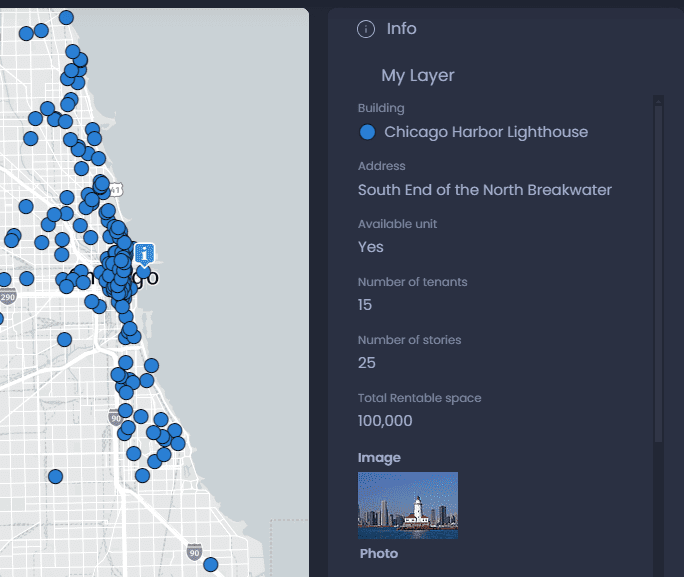
Navigate to the layer Interactivity settings to edit the Info tool content. Similar to the Data tip, you can choose between the Default or Custom mode. See the Data tip section on how to set up the Custom and Default modes.
Info tool and Data tip automatic data
When the default mode is selected for the Info tool or the Data tip, automatic columns can be added depending on the thematic analysis of your slide. This is handled by the “Automatic data” option:
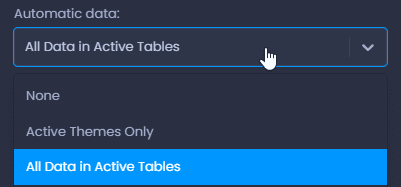
- None: no automatic data will be added
- Active Themes Only: the column(s) used in the thematic analysis will be added
- All Data in Active Tables: all the columns of the data table used in the thematic analysis will be added.
Searchable Columns
CartoVista enables users to search a data feature (point, line, or polygon) within a layer on the map with the help of the search tool on the top left of the mapping panel. Searching for a feature will zoom in to the location of the feature.
Users can specify the columns that can be used to search their layer:

For points layers, users can specify the scale for the zoom.
