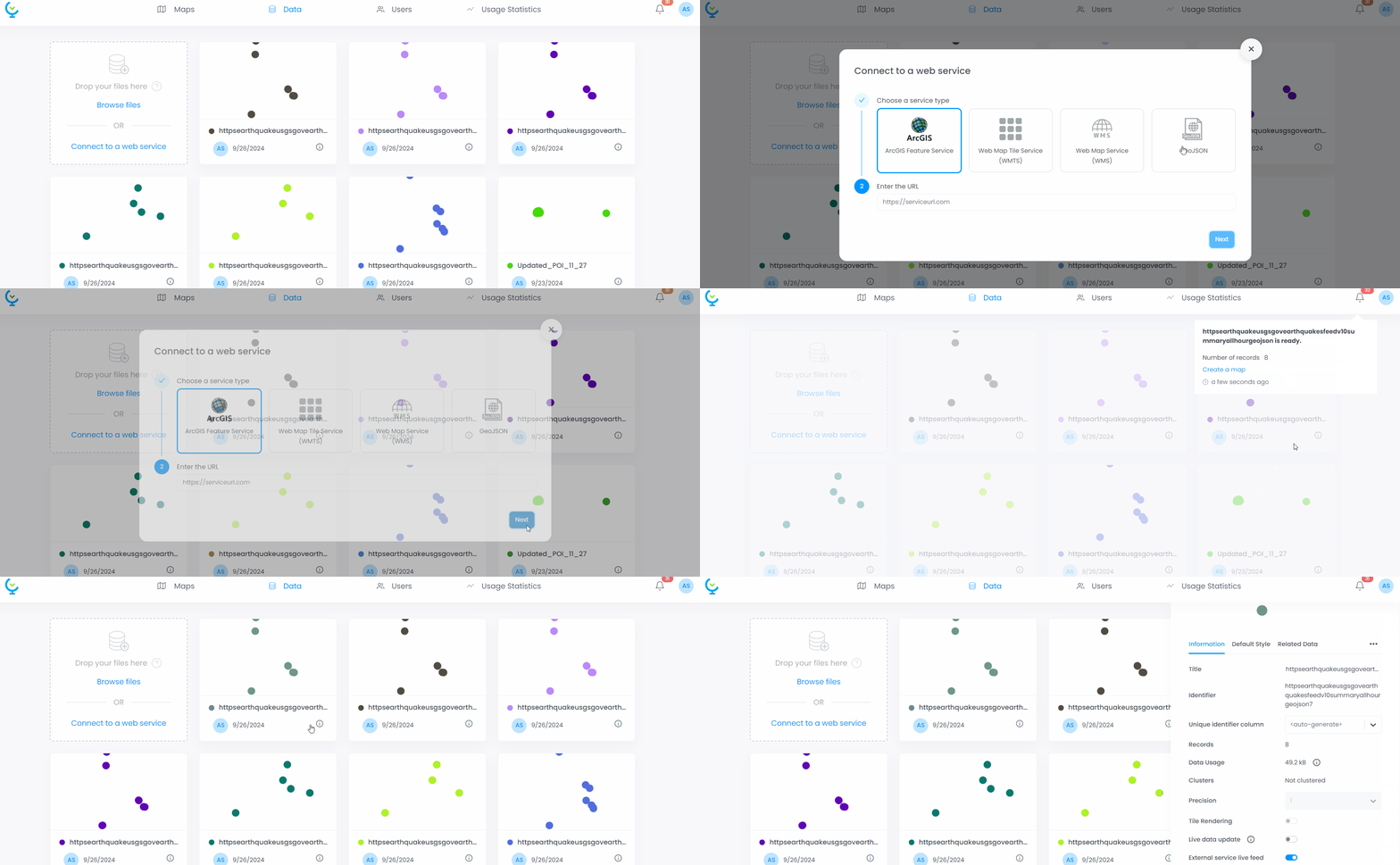
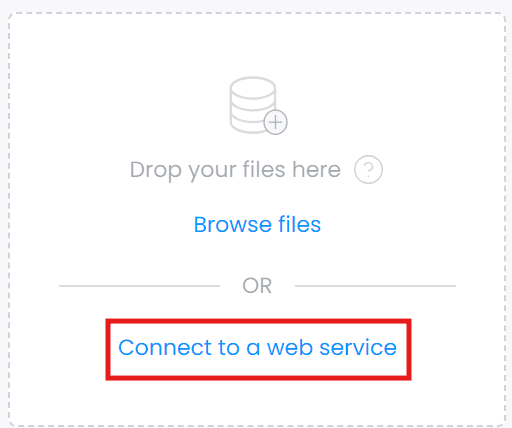
In the tab “Data”, click on “Connect to a web service”
Load your data by adding the url address of your geoJSON
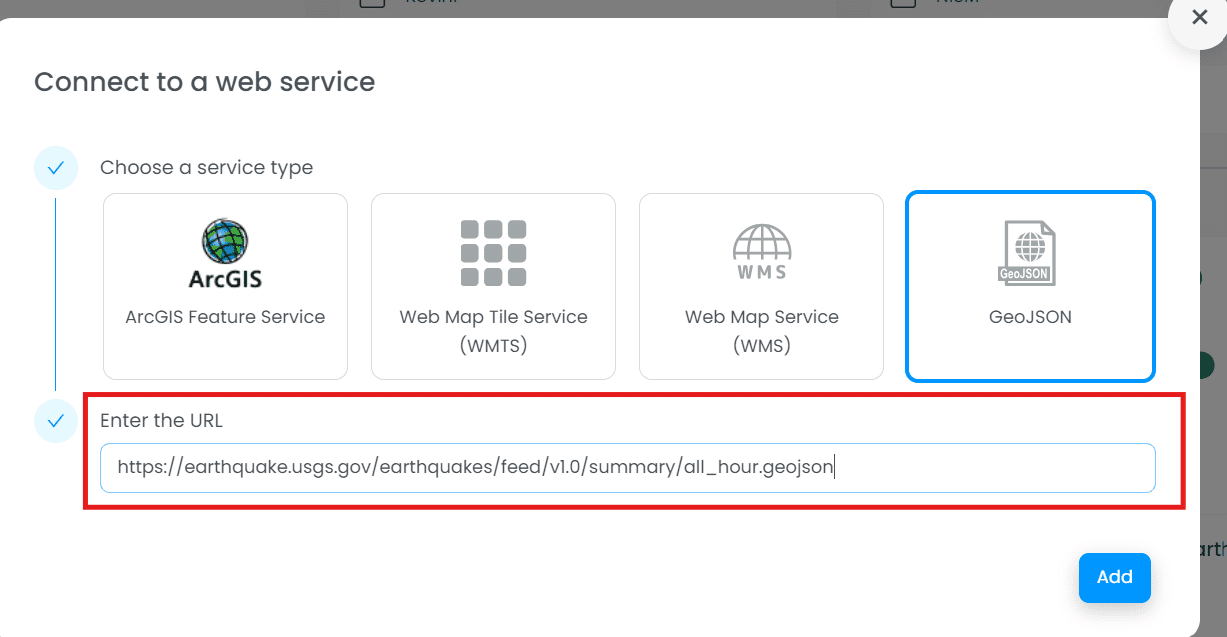
Once connected, the layer appears on the screen and you can add it to your map.
How to synchronize your data
Your geoJSON data, like all external services, is automatically synchronized every morning at 8:00am EST by Cartovista.
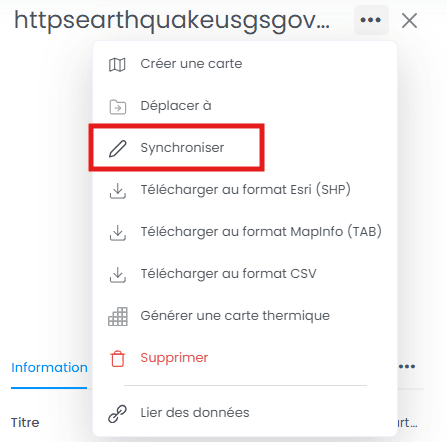
You can also manually refresh the layer by synchronizing it. To do this, simply click on the info icon and then click on the settings (the three dots).
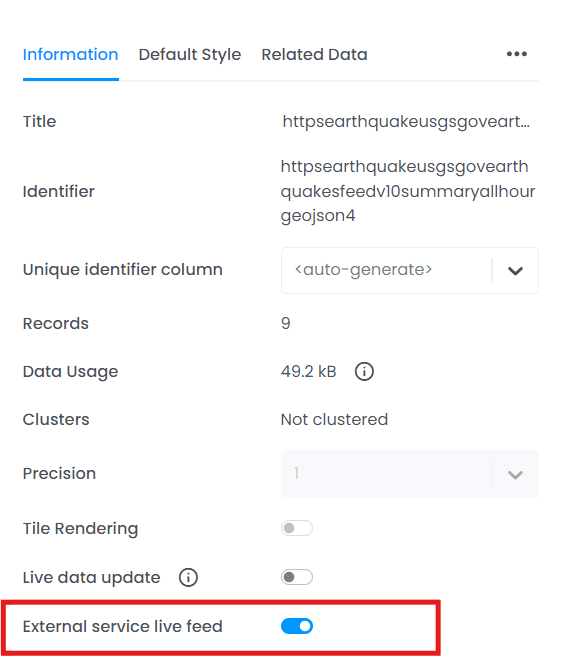
If your data changes more frequently, it is possible to use the “external service live feed” option. By doing so, each time the map using this layer is opened, the data will be fetched directly from your GeoJSON server rather than from the data downloaded into the CartoVista database.