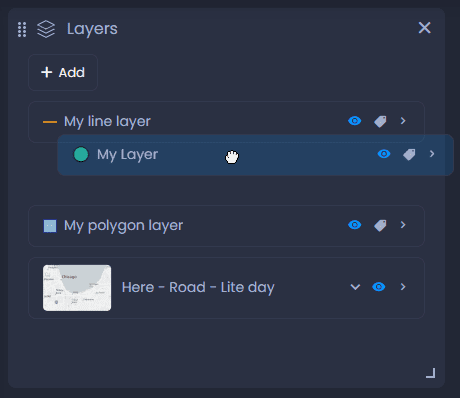
The Layer control is the panel where map viewers can control the visibility of layers and labels and change their opacity. It is also where map creators can edit the list of layers, save visibility settings and access layer properties. Here’s how to use it.
Change the visibility settings of layers
Map viewers can change the following visibility settings when they visit the map. These settings can be saved in the slide by Map Creators with edit permission on the map only.
Here are the visibility settings:
-
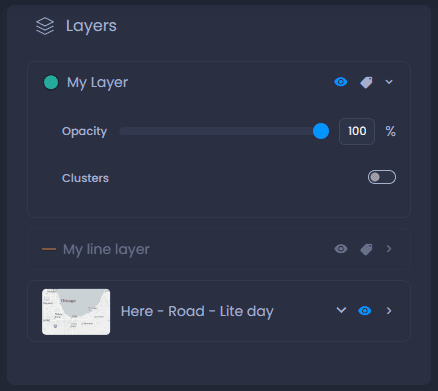
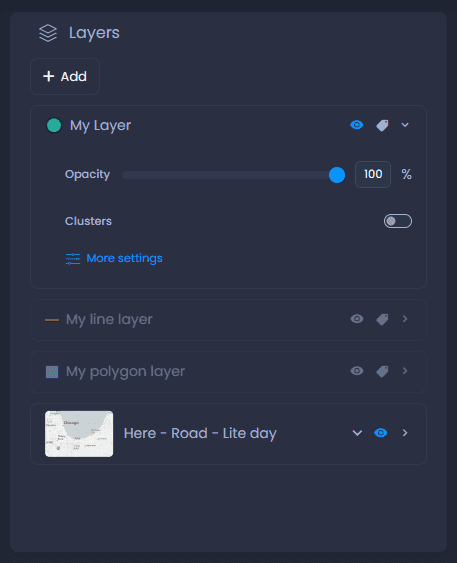
Click the eye icon

or the layer name to hide or show the layer. When hidden, the layer is greyed out.
-
Click the label icon

to hide or show the labels. Labelling settings can be changed by Map Creators with edit permission on the map, see our dedicated article.
-
Click on the arrow next to the label icon to show the details:
- Opacity: from the details, you can change the opacity with the slider or the percentage value.
- If the layer is a point layer with clustering enabled, clusters can be turned on or off, depending on the cluster visibility ranges settings. See our dedicated article on clusters here, and on visibility ranges here.
- Basemap: the basemap can also be changed, see our dedicated article here.
Save the visibility settings
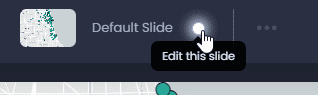
Map Creators with edit permission on the map can save these visibility settings. Switch to the edit mode of your slide if you are not currently editing it:
Then, save your changes by clicking “Save” or the green dot in the top bar

:
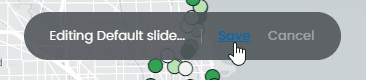
By saving your slide, all other slide elements will be saved. See what other elements will be saved here.
Change layers and map parameters
Other Layer control actions are limited to Map Creators with edit permission on the map only:
-
Open layer properties: under the detail of every layer, map editors can click

to open the layer’s properties panel. Under the layer properties, you can change the styles, labelling settings, interactivity, effects, rendering and visibility ranges (see our dedicated articles).
-
Add new layers: click

to select a new layer on the map. You can import a new layer, select a layer from the Data gallery or connect to a web service. See our dedicated article.
-
Reorder layers: drag layers to change the order on the map: