The search tool lets you easily search for map features or locations. Enter your search text and choose an item from the results list to zoom in on the selected location.
Use the search tool
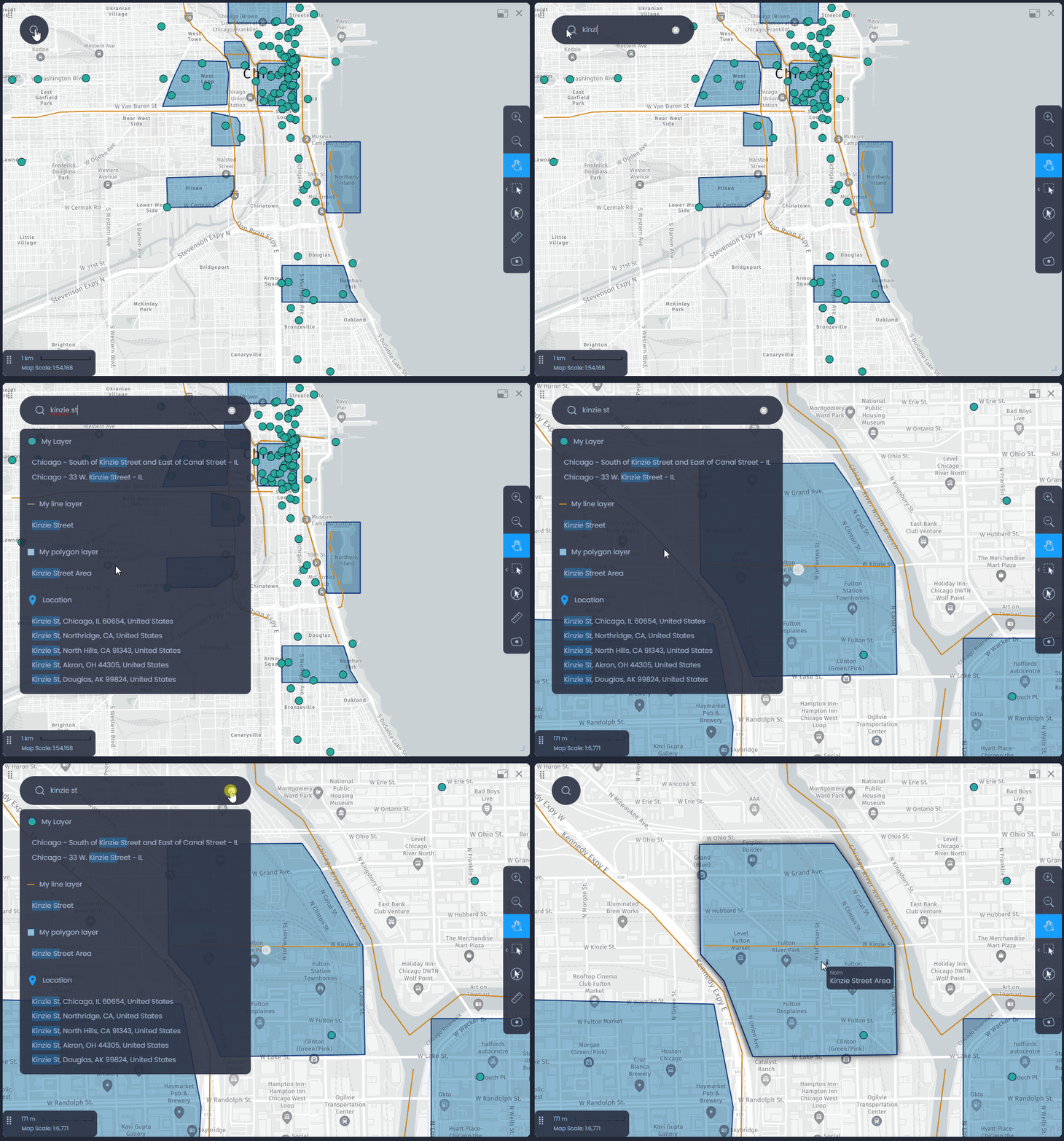
Click on the search tool

in the map to start typing your search text. You will get a list of results from all map layers and any address matching your search text. The list is divided to show the results from each layer:
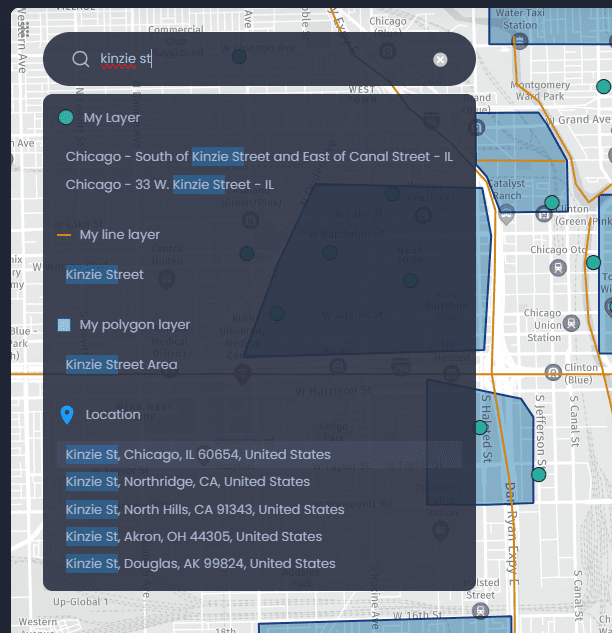
In this example, the search text matches 2 items from the layer “My Layer”, 1 item from the layer “My line layer”, 1 item from the layer “My polygon layer”, and a few address search results under the section “Location”.
Click on any of the results to zoom in on the selected location:
Please note that any search will consume a Geocoding transaction to perform the address search.
The map will zoom in to the extent of any line or polygon feature selected. For point layers, the scale is 1:25,000 by default. This can be changed in the layer settings (see below).
Customize the search
Map Creators with edit permissions on the map can customize search parameters.
Customizing map features search
Map layer features search can be customized in each layer’s properties. The columns to be used for the search can be changed, and the zoom scale for point layers can be changed as well. Please see our dedicated article.
Customizing address search
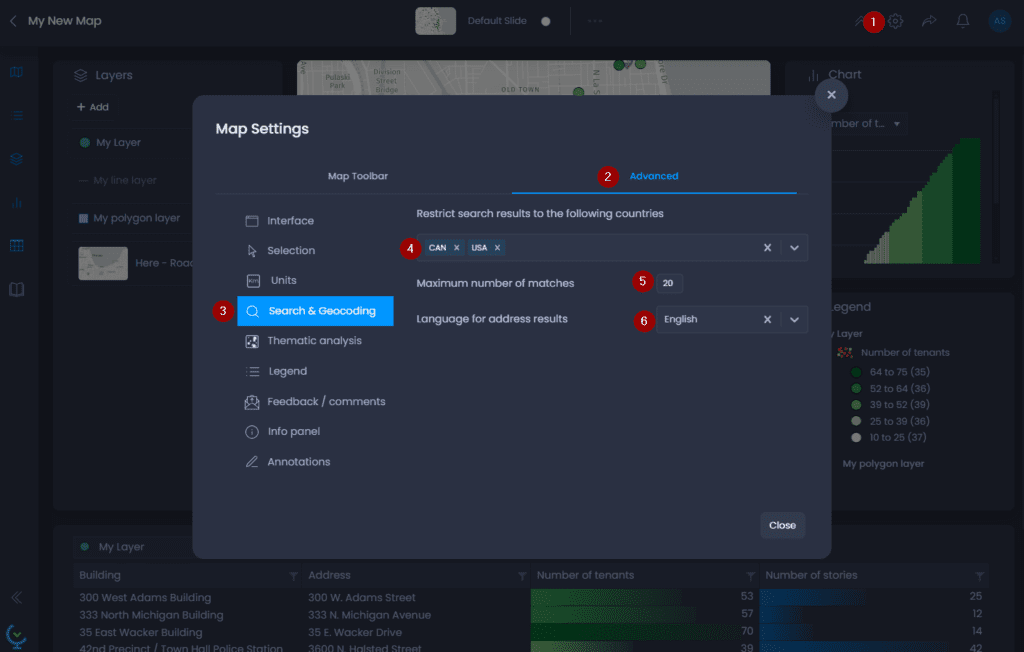
In the map settings, you can filter out the address search results by country, change the number of matches and the result language.
- Open the Map settings
- Go to the “Advanced“ tab
- Go to the “Search and Geocoding” section
- Search for a country to restrict the search. The country is identified by a three-letter code: USA, CAN, etc. The list of codes for all countries is available here.
- Set the maximum number of matches
- Set the language for address results.