



For any map, layer or data table, you can decide which users and groups can view and edit it. By default, all users

can view new maps and datasets, and all Map Creators

can edit maps and datasets.
Change the permissions for a map
The Permissions tab in the map details panel allows you to grant view or modify access to users and groups:
-
Navigate to your map in the Map Gallery, click on its name or

to open the details panel
-
Click on the Permissions tab
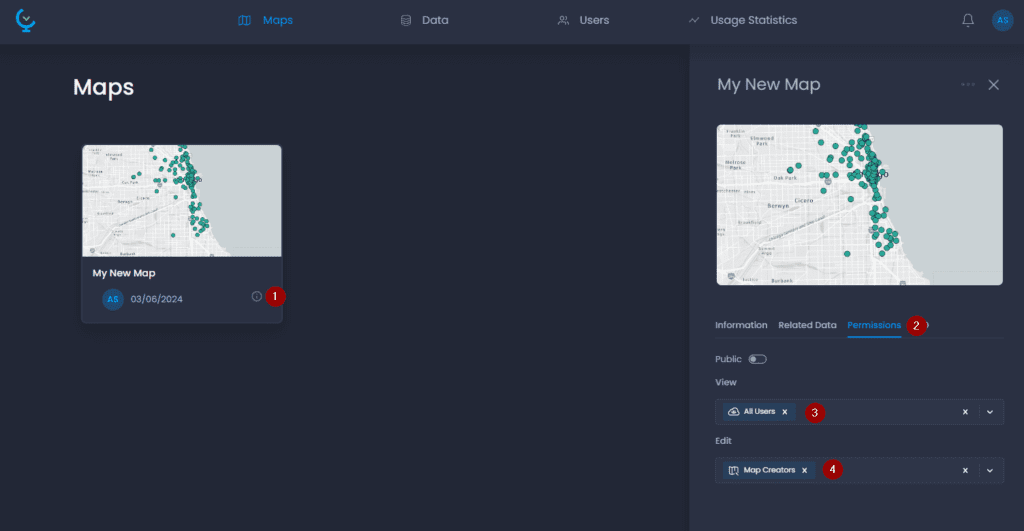
There are two options in the Permissions tab:
-
View Permissions (3): you can add users or groups so they can view and access the map. By default the group All Users
is listed in the View Permissions. Remove it to restrict the access. Map Gallery Users cannot edit maps.
-
Edit Permissions (4): you can add users or groups so they can modify the map. By default, the group Map Creators
is listed in the Edit Permissions. Remove it to restrict the access.
⚠️ Map permissions and Data permissions are independent. Granting access permission to a user for a given map does not grant him access to the layers and data table that are used in this map. You need to manage layers and data table permissions as well if you want to grant your user access to the content of your map.
Change the permissions for a dataset
The Permissions tab in the data details panel allows you to grant view or modify access to users and groups:
-
Navigate to your layer or data table in the Data Gallery
-
Click on its name or
to open the details panel
-
Click on the Permissions tab
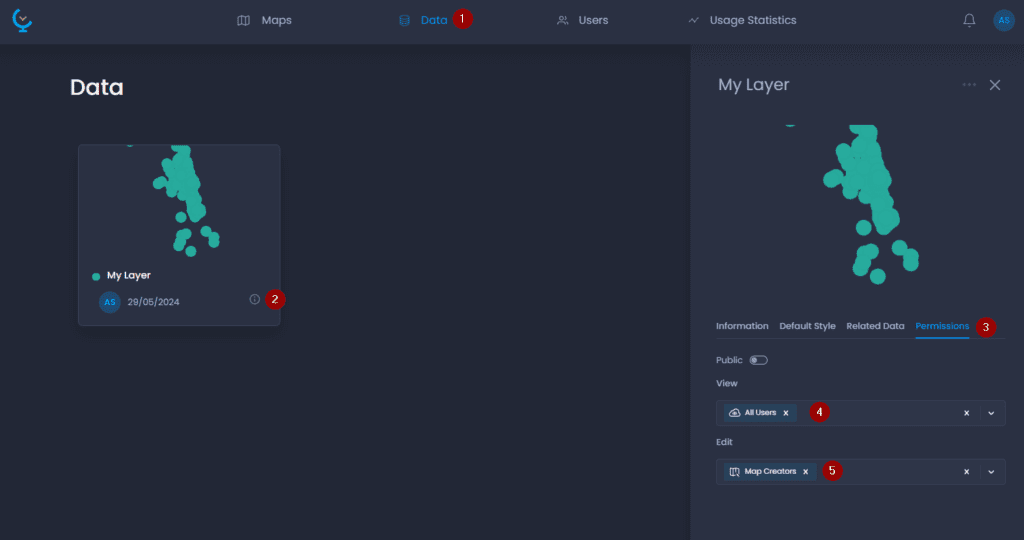
There are two options in the Permissions tab:
-
View Permissions (3): you can add users or groups so that they can view and access the dataset in a map they also have access to. By default the group All Users
is listed in the View Permissions. Remove it to restrict the access. Map Creators and Map Gallery Users will also see this dataset in the Data Gallery.
-
Edit Permissions (4): you can add users or groups so that they can modify the dataset. By default, the group Map Creators
is listed in the Edit Permissions. Remove it to restrict the access. Map Gallery Users who have edit permissions on a layer will be able to edit it in a map they also have access to. See our dedicated article. Map Creators can do the same, and they can also update the dataset and change any of its properties.