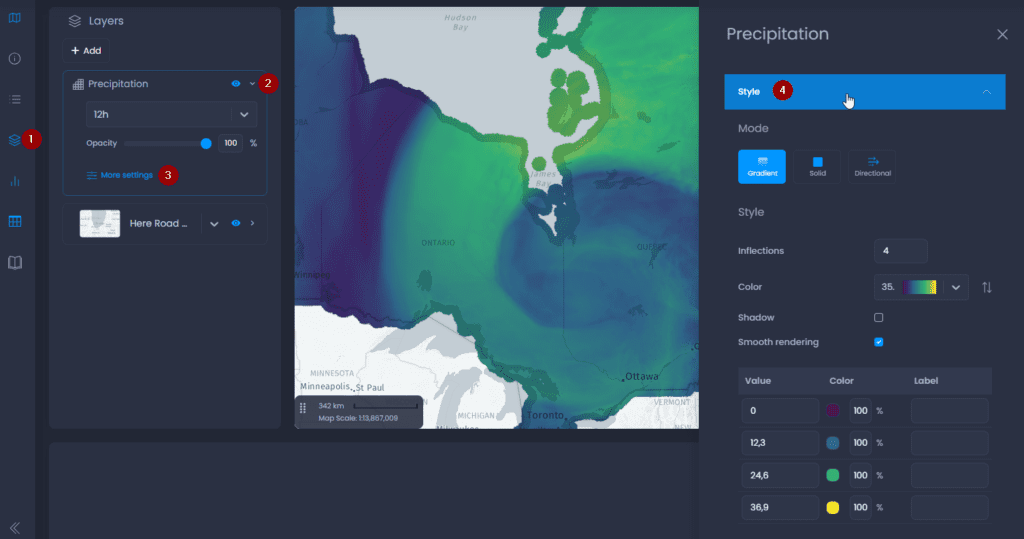
Styles of layers are handled in the layer properties of your layer in your map. The style is applied to all slides of the map.
- Navigate to a map and open the layer control
- Click on the down arrow next to your layer’s name to show the details,
- Click on “More settings“.
- The layer properties panel will open on the right-hand side. Click on “Style“.
Gradient
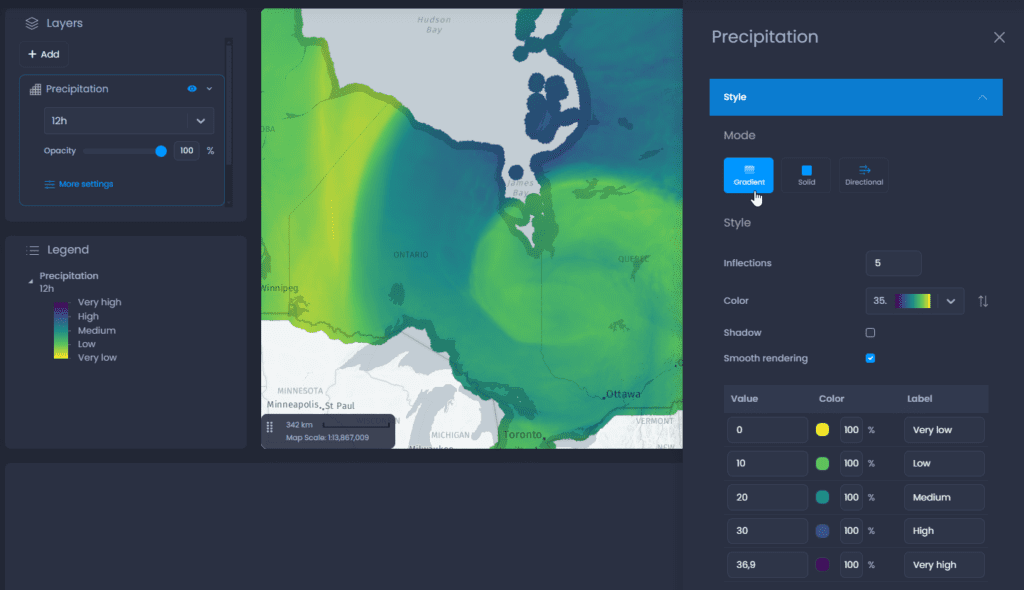
Gradient mode is used to represent variations in values using graduated colours. The options are :
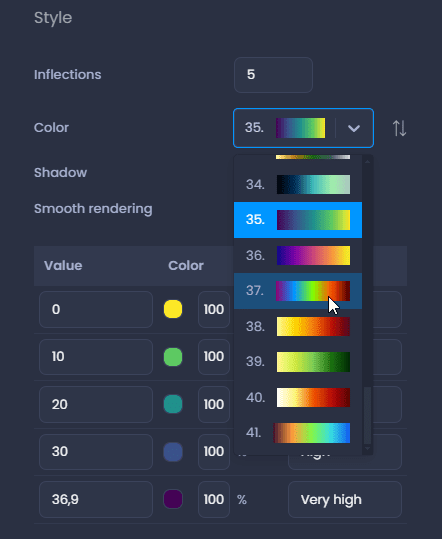
- Inflections: Choose the number of inflection points and assign a value, colour and opacity to each point, using the table below.
- Color: choose a palette from the set available from the drop-down menu. You can then modify the individual colors in the table below.
- Shadow: when working with an elevation raster layer ( DEM, DSM, etc.), you can add a shading effect.
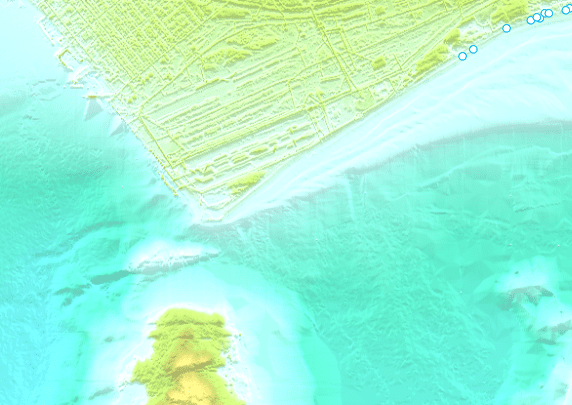
- Smooth rendering: activate smooth rendering to add a gradient effect between your pixels


- Inflexion points table :
- Value: change the value to adjust the value ranges
- Color: use the color picker to change individual colors. Change the transparency using the percentage. The default transparency is 100% (no transparency). You can also enter a HEX code or RGB values. Use the down and up arrows next to the HEX code to switch to RGBA or HSLA color codes.
- Label: add labels to customize the legend. If no labels are entered, the legend will display the values directly.
Solid
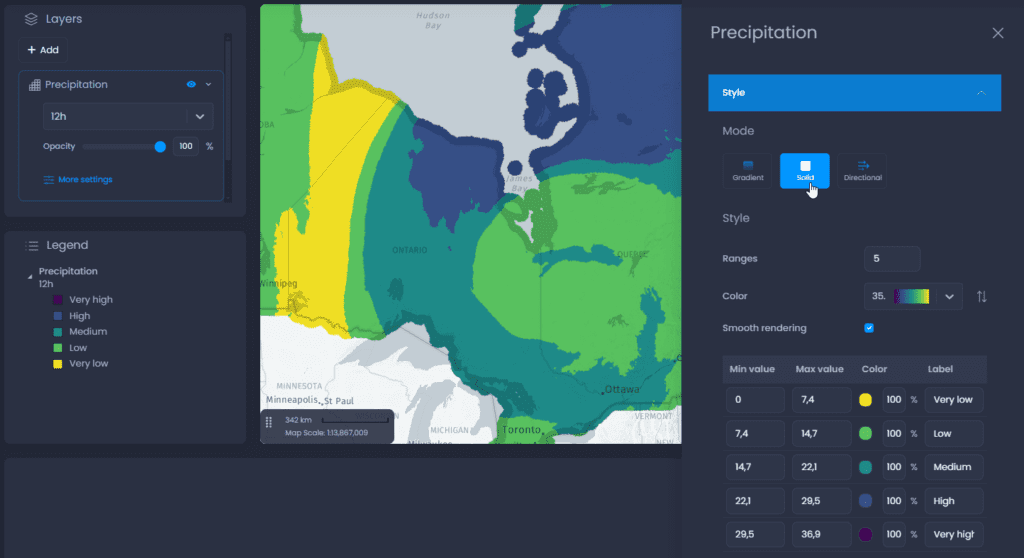
Solid mode allows you to represent variations in values using discrete colours. The options are :
- Ranges: choose the number of ranges and assign a value, colour and opacity to each range from the table below.
- Color: choose a palette from the set available from the drop-down menu. You can then modify the individual colors in the table below.
- Smooth rendering: activate smooth rendering to add a gradient effect between your pixels (see screenshots in the Gradient section above)
- Ranges table:
- Min and max values: change the values to adjust the ranges
- Color: use the color picker to change individual colors. Change the transparency using the percentage. The default transparency is 100% (no transparency). You can also enter a HEX code or RGB values. Use the down and up arrows next to the HEX code to switch to RGBA or HSLA color codes.
- Label: add labels to customize the legend. If no labels are entered, the legend will display the values directly.
Directional
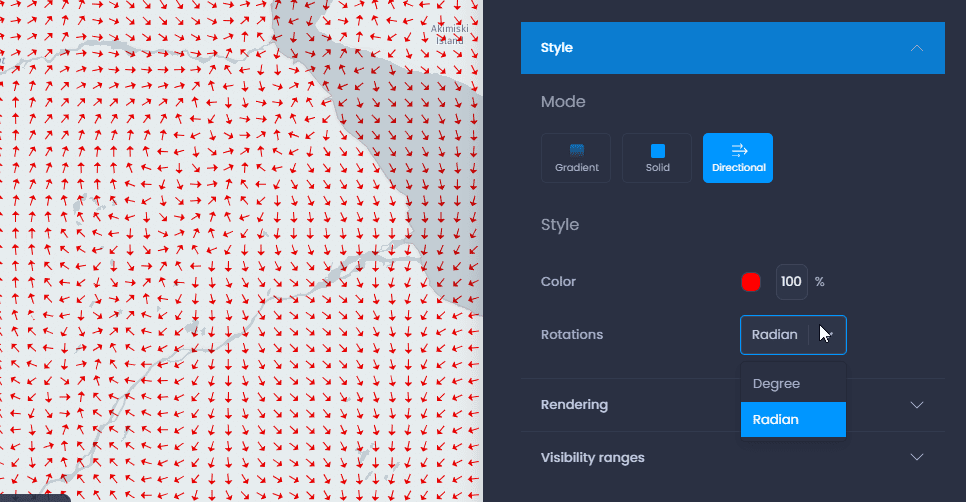
Directionnal mode allows you to represent directional values in degrees or gradients using arrows. The options are:
- Color: use the color picker to change the color of the arrows. Change the transparency using the percentage. The default transparency is 100% (no transparency). You can also enter a HEX code or RGB values. Use the down and up arrows next to the HEX code to switch to RGBA or HSLA color codes.
- Rotations: select the directional unit from degrees and gradients.